

Cryptoway API Documentation
Введение
API интеграции
Endpoint: https://api.cryptoway.com
Cryptoway API подписывается по схеме HMAC-SHA256. Документация состоит из пяти разделов:
Подпись
Подпись
Ключи
Ключи выдаются на проект: у каждого сайта или сервиса свой проект и своя пара ключей.
| Ключ | Где взять | Для чего |
|---|---|---|
| Project ID | Projects → ваш проект → API keys | Передаётся в заголовке X-API-Key-ID |
| Secret key | Там же | Подпись запросов к API |
| Callback key | Там же | Проверка подписи webhook |
Secret key и Callback key — разные ключи: webhook проверяйте только Callback key.
Получение ключей
- Зарегистрируйтесь в личном кабинете.
- Откройте раздел Projects и нажмите New project.
- Заполните заявку: название проекта, адрес сайта и контакт для связи.
- Дождитесь статуса Active — заявку проверяет менеджер, обычно в течение рабочего дня. До проверки проект показан как In review.
- На странице проекта нажмите API keys и скопируйте Project ID, Secret key и Callback key.
Отдельного раздела «API ключи» с кнопкой создания ключа и разрешениями больше нет: ключи выдаются вместе с проектом. Callback key также возвращает запрос профиля через API.
Старые названия. В некоторых готовых модулях (например, iEXExchanger) поля называются по-прежнему: API Key ID — это Project ID, API Key Secret — Secret key.
Разрешённые IP. Ключи привязываются к адресу, с которого пришёл первый запрос. Если сервер меняет адрес, очистите список Разрешённые IP в настройках проекта или заведите отдельный проект.
Заголовки запроса к API
| Заголовок | Описание |
|---|---|
X-API-Key-ID | Project ID (UUID) |
X-Timestamp | Unix timestamp, секунды |
X-Signature | HMAC-SHA256 hex |
Подпись обязательна для всех публичных эндпоинтов (метод GET, POST и др.).
Алгоритм подписи API
- Соберите объект:
{
  "params": "url_encoded_query_string",
  "body": {},
  "path": "/user/balance/"
}params— query string как в URL (search_query=foo, без?)body— JSON тела запроса;{}если тела нетpath— путь запроса, например/user/balance/
- Сериализуйте объект:
json.dumps(data, separators=(",", ":"), sort_keys=True) - Подпись:
signature = HMAC-SHA256(key=API_KEY_SECRET, message=timestamp + json_string)- Timestamp должен быть в пределах ±15 секунд от серверного времени.
Если allowlist ключа пуст, при первом успешном запросе текущий IP записывается в allowlist. Дальнейшие запросы принимаются только с IP из списка.
Пример: GET баланс
# params пустые, body {}
# path = /user/balance/
# data = {"body":{},"params":"","path":"/user/balance/"}

curl "https://api.cryptoway.com/user/balance/" \
  -H "X-API-Key-ID: <PROJECT_ID>" \
  -H "X-Timestamp: 1718659200" \
  -H "X-Signature: <hex>"
Пример: POST адрес
curl "https://api.cryptoway.com/user/address/" \
  -X POST \
  -H "Content-Type: application/json" \
  -H "X-API-Key-ID: <PROJECT_ID>" \
  -H "X-Timestamp: 1718659200" \
  -H "X-Signature: <hex>" \
  -d '{"symbol_id":"USDTBEP20","callback_url":"https://example.com/cb","description":"shop"}'
Генерация подписи
:::tabs
import hashlib, hmac, json, time

def sign(key: str, timestamp: int, data: dict) -> str:
    s = json.dumps(data, separators=(",", ":"), sort_keys=True)
    return hmac.new(key.encode(), f"{timestamp}{s}".encode(), hashlib.sha256).hexdigest()

data = {"params": "", "body": {"symbol_id": "USDTBEP20"}, "path": "/user/address/"}
ts = int(time.time())
signature = sign(API_KEY_SECRET, ts, data)
$data = ["params" => "", "body" => ["symbol_id" => "USDTBEP20"], "path" => "/user/address/"];
ksort($data);
$json = json_encode($data, JSON_UNESCAPED_SLASHES);
$signature = hash_hmac("sha256", time() . $json, $API_KEY_SECRET);:::
Webhook: проверка подписи
На ваш callback_url приходит POST.
Заголовки:
| Заголовок | Описание |
|---|---|
X-Signature | HMAC-SHA256 hex |
X-Timestamp | Unix timestamp |
Данные для подписи:
{
  "params": "",
  "body": { }
}params— query string вашего endpointbody— распарсенное JSON тело POST- поле
pathне используется - для подписи используется
callback_key
Допустимое отклонение timestamp: ±15 секунд.
Webhook депозита / вывода
В теле POST передаётся JSON-объект транзакции (поля описаны ниже). Для проверки подписи этот объект помещается в поле body, поле params оставляют пустым.
Webhook счёта (invoice)
{
  "params": "",
  "body": {
    "type": "invoice",
    "id": "5ca38db1-00c5-4aba-91e5-6a57bed60aee",
    "status": "executed"
  }
}
Тело POST совпадает с объектом подписи: на верхнем уровне поля params и body. Для проверки подписи используйте распарсенное тело запроса целиком, без дополнительной обёртки.
Python: проверка webhook
Webhook депозита и вывода:
body = await request.json()
data = {"params": request.url.query, "body": body}
verify(request.headers["X-Signature"], CALLBACK_KEY, int(request.headers["X-Timestamp"]), data)
Webhook счёта:
data = await request.json()
verify(request.headers["X-Signature"], CALLBACK_KEY, int(request.headers["X-Timestamp"]), data)
Общая функция verify:
def verify(signature: str, key: str, timestamp: int, data: dict) -> bool:
    if abs(int(time.time()) - timestamp) > 15:
        return False
    expected = sign(key, timestamp, data)
    return hmac.compare_digest(expected, signature)
SDK
PHP SDK Cryptoway
Библиотека для приёма криптовалюты на своём сайте на PHP.
SDK нужен, если сайт самописный. Для готовых платформ есть модули — WooCommerce, Easy Digital Downloads, OpenCart, PrestaShop и BILLmanager: там всё уже подключено, и трогать API вручную не нужно. Модули OpenCart, PrestaShop и BILLmanager собраны на этом же коде.
Что умеет
Три способа принять деньги:
- Через страницу Cryptoway. Сайт создаёт счёт, покупатель платит на странице Cryptoway: выбирает монету, видит адрес и QR-код. Меньше всего кода с вашей стороны.
- Прямо на сайте. Покупатель выбирает монету у вас и сразу получает адрес и точную сумму. Никуда не переходит, экран — ваш.
- Постоянный адрес на клиента. Для сервисов с балансом: один адрес навсегда, без суммы и срока, каждый перевод приходит уведомлением с номером клиента.
И общее для всех трёх:
- подпись запросов, таймауты, повторы там, где они безопасны, ошибки значением, а не исключением;
- проверка уведомлений одним вызовом: свежесть, подпись, повтор;
- правила по деньгам: недоплата — не оплата, переплата отмечается, просроченный счёт с деньгами уходит человеку, один перевод не зачисляется дважды;
- понятные сообщения об ошибках, готовые к переводу.
Что понадобится
- PHP 8.1 или новее;
- расширения
curl,json,mbstring; - Composer;
- аккаунт Cryptoway с активным проектом;
- адрес сайта, открытый из интернета, — иначе не придут уведомления об оплате.
Получите доступ
- Зарегистрируйтесь в личном кабинете.
- Откройте Projects и нажмите New project.
- Заполните заявку: название, адрес сайта, контакт.
- Дождитесь статуса Active — заявку проверяет менеджер, обычно в течение рабочего дня.
- На странице проекта нажмите API keys и скопируйте Project ID и Secret key.
Ключи привязываются к IP-адресу, с которого пришёл первый запрос. Если сервер меняет адрес, очистите список Allowed IPs в настройках проекта или заведите отдельный проект.
Установка
composer require cryptoway/php-sdkПодключение
use Cryptoway\Core\ApiClient;

$api = new ApiClient(
    api_key_id: getenv('CRYPTOWAY_PROJECT_ID'),
    api_key_secret: getenv('CRYPTOWAY_SECRET_KEY'),
    user_agent: 'MyShop/2.4 (cryptoway-php-sdk)',
);
Ключи держите в переменных окружения или в защищённом файле настроек, не в коде.
Необязательные параметры: debug и logger — журнал запросов, в котором ключи и личные данные скрыты; translator — перевод сообщений об ошибках на язык сайта; user_agent — как ваш сайт представляется сервису.
Создание счёта
$invoice = $api->createInvoice([
    'name'                 => 'Заказ 1042',
    'description'          => 'Кофе, 1 кг',
    'target_value_fiat'    => 30.26,
    'target_currency_fiat' => 'USD',
    'external_id'          => '1042-' . bin2hex(random_bytes(8)),
    'callback_url'         => 'https://shop.example.com/cryptoway/webhook',
    'deadline_at'          => gmdate('Y-m-d\TH:i:s\Z', time() + 3600),
]);| Поле | Что это |
|---|---|
name | Название, которое увидит покупатель на странице оплаты |
target_value_fiat | Сумма заказа в обычной валюте |
target_currency_fiat | Валюта суммы: USD, EUR, AED, RUB, CNY, GBP, CAD, AUD |
external_id | Ваша ссылка на заказ. Должна быть уникальной не только у вас — добавляйте случайный хвост, как в примере |
callback_url | Адрес, куда Cryptoway пришлёт уведомление |
deadline_at | До какого момента счёт можно оплатить. Модули Cryptoway дают на оплату от 15 минут до суток |
Ответ:
[
    'id'                   => '5c2b1a77-0a3e-4f3a-9a1d-2c6f0b7d4e11',
    'status'               => 'active',
    'target_value_fiat'    => '33.290000000000000000',
    'target_currency_fiat' => 'USD',
    'target_value_symbol'  => '',
    'symbol_id'            => '',
    'current_value'        => '0',
    'pay_url'              => 'https://pay.cryptoway.com/5c2b1a77-0a3e-4f3a-9a1d-2c6f0b7d4e11',
    'deadline_at'          => '2026-09-29T09:34:36+00:00',
]
Два места, где часто ошибаются:
- Счёт может быть больше заказа. В примере заказ 30.26, а счёт 33.29: в проекте включены наценка и комиссия на покупателе. Это нормально. Ненормально обратное — счёт меньше заказа.
- Монеты в свежем счёте ещё нет.
symbol_idиtarget_value_symbolпустые, пока покупатель не выберет монету и сеть на странице оплаты.
Сохраните id и external_id в своём заказе — по ним придёт уведомление.
Отправка покупателя на оплату
if (!ApiClient::payUrlIsTrusted($invoice['pay_url'])) {
    // Ссылка не на домене Cryptoway: не отправляйте туда покупателя.
}

header('Location: ' . $invoice['pay_url']);
Дальше всё делает Cryptoway: покупатель выбирает монету и сеть, видит сумму, адрес и QR-код.
Оплата без перехода на страницу Cryptoway
Можно не отправлять покупателя никуда: он выбирает монету прямо у вас на сайте, а адрес и сумму показывает ваша страница.
$symbols = $api->getSymbols();   // монеты и сети, которыми можно платить прямо сейчас

// ...покупатель выбрал одну; её id (USDTBEP20, BTC, ...) приходит из вашей формы:
$invoice = $api->createInvoice([
    'name'                 => 'Заказ 1042',
    'target_value_fiat'    => 30.26,
    'target_currency_fiat' => 'USD',
    'symbol_id'            => $_POST['coin'],
    'external_id'          => '1042-' . bin2hex(random_bytes(8)),
    'callback_url'         => 'https://shop.example.com/cryptoway/webhook',
]);

$invoice['target_wallet']['value'];   // адрес — его в QR-код
$invoice['target_value_symbol'];      // сколько именно отправить, наценка и комиссия уже внутри
$invoice['deadline_at'];              // до какого момента
getSymbols() возвращает только то, чем реально можно заплатить: без «виртуальных» записей (монета без сети, например просто USDT) и без выключенных. Для подписи в списке есть Coins::label(): из USDTBEP20 получается «USDT BEP-20».
Дальше всё как с обычным счётом: приходит уведомление, вы перечитываете счёт и проверяете, что сумма покрыта.
Готовый сценарий целиком — examples/pay_on_site.php.
Чтение счёта
$fresh = $api->getInvoice($invoice_id);Ответ тот же, что при создании, плюс заполненные поля оплаты: current_value — сколько монет пришло, target_value_symbol — сколько нужно, status — состояние счёта.
| Статус счёта | Что значит |
|---|---|
active | Открыт, ждёт денег |
executed | Закрыт. Это ещё не значит «оплачен полностью» — сверьте суммы |
expired | Вышло время |
cancelled | Отменён |
Уведомления
Cryptoway отправляет POST на ваш callback_url с заголовками X-TIMESTAMP и X-SIGNATURE. Уведомления бывают двух видов: о счёте (type: invoice) и о поступлении денег (type: deposit).
use Cryptoway\Core\Webhook;

$webhook = new Webhook($callback_key, fn (string $id): bool => $db->eventWasApplied($id));

$event = $webhook->check(
    file_get_contents('php://input'),
    $_SERVER['HTTP_X_TIMESTAMP'] ?? '',
    $_SERVER['HTTP_X_SIGNATURE'] ?? ''
);

http_response_code($event->getHttpStatus());
Один вызов делает три проверки, и каждая из них важна:
- Свежесть. Доставка старше пяти минут не принимается — иначе перехваченный запрос годился бы вечно.
- Подпись.
HMAC-SHA256от метки времени и тела, сравнение без утечки времени. Уведомления двух видов подписаны по-разному, SDK понимает обе формы. - Повтор.
getFingerprint()даёт отпечаток доставки. Записывайте отпечаток только после того, как работа по событию прошла успешно — иначе наполовину обработанное событие потеряется.
Чем отвечать:
| Код | Когда |
|---|---|
| 200 | Приняли; а также повтор и событие, которое вас не касается |
| 400 | Метка времени испорчена или устарела, тело пустое или не разобралось |
| 401 | Подписи нет или она не сошлась |
| 404 | Счёт вам неизвестен |
| 413 | Тело больше 64 КБ |
| 503 | Ещё не сохранён callback key, или временно не смогли обработать — присылайте снова |
Первые три строки и 413 SDK определяет сам и возвращает в getHttpStatus(); 404 и 503 по ходу работы ставите вы.
Всё, что не 2xx, Cryptoway доставит повторно, и повторяет он настойчиво: на неверный ответ приходят десятки доставок подряд. Это ваша страховка, а не помеха.
Callback key — отдельный ключ, не Secret key. Он есть в кабинете, а можно получить его из профиля:
$callback_key = ApiClient::readCallbackKey($api->getProfile());Решение по деньгам
В теле уведомления нет суммы, поэтому перед выдачей товара счёт нужно перечитать. Решение принимается только по свежему ответу API.
use Cryptoway\Core\Amounts;

$invoice = $api->getInvoice($invoice_id);
$status = $invoice['status'] ?? '';

if ('executed' === $status && Amounts::invoiceIsCovered($invoice)) {
    // Единственный случай, когда заказ оплачен.
}| Случай | Как узнать | Что делать |
|---|---|---|
| Оплачен полностью | executed и invoiceIsCovered() | Выдать товар |
| Денег меньше | executed, но shortfall() вернул суммы | Не выдавать. Попросить остаток или вернуть пришедшее |
| Деньги идут, счёт открыт | active и hasPartialPayment() | Ждать остаток до конца срока, товар не выдавать |
| Срок вышел, деньги есть | expired и hasPartialPayment() | Отдать заказ человеку: деньги настоящие, покупатель их спросит |
| Переплата | overpayment() вернул суммы | Выдать товар и вернуть разницу покупателю |
| Срок вышел, денег нет | expired, current_value нулевой | Отменить заказ |
Суммы сравниваются как строки, цифра за цифрой: никакого округления, которое могло бы спрятать недостачу.
Отдельно — сверка счёта с суммой заказа:
$check = Amounts::check($invoice, 30.26, 'USD');
// result: ok | unknown | amount_mismatch | currency_mismatch
// over: счёт больше заказа — это наценка проекта или комиссия покупателя, так и должно быть
Постоянный адрес для клиента
Для пополнения баланса, а не для оплаты заказа: один адрес на клиента, любая сумма, без срока. Каждый перевод приходит отдельным уведомлением.
$address = $api->createAddress([
    'symbol_id'    => 'USDTBEP20',
    'external_id'  => 'customer-42',    // ваш номер клиента, вернётся в каждом уведомлении
    'callback_url' => 'https://shop.example.com/cryptoway/topup',
]);

$address['value'];   // адрес — сохраните его у клиента вместе с $address['id']
Адрес храните у себя: listAddresses() нужен для сверки, а не для поиска при каждом заходе. Когда приходит уведомление о поступлении, зачисляйте клиенту из external_id сумму amount — только при статусе executed и никогда при dirty_lock. Чтобы один и тот же перевод не зачислить дважды, запоминайте blockchain_data.hash.
Монета без сети (просто USDT) для адреса не годится — SDK откажет ещё до запроса.
Ошибки
Запрос никогда не бросает исключение — обработчик уведомления обязан дописать свою работу до конца. Ошибка приходит значением:
use Cryptoway\Core\ApiError;

if ($invoice instanceof ApiError) {
    $log->error($invoice->getMessage());
    $invoice->getCode();    // http_error | api_error | bad_invoice_id
    $invoice->getStatus();  // код HTTP, 0 — ответа не было
}| Что произошло | Обычная причина |
|---|---|
| 401 «Invalid IP for this API key» | Сервер обратился с адреса, которого нет в Allowed IPs |
| Другие 401 и 403 | Ключи не приняты, проект ещё не активен или сбиты часы сервера |
| 404 | Проект не принимает платежи или счёт чужой |
| 422 | Не приняты валюта или сумма |
| 429 | Слишком часто |
| 500 и выше | Сбой на стороне Cryptoway |
Часы сервера должны идти верно: подпись действительна ±15 секунд.
Монета и сеть
use Cryptoway\Core\Coins;

Coins::label('USDTBEP20');   // "USDT BEP-20" — для показа покупателю
Coins::split('USDTBEP20');   // ['coin' => 'USDT', 'network' => 'BEP20'] — для своей логики
Чего в пакете нет
В SDK нет работы с заказами магазина: статусов, писем, выдачи товара. Это ваша часть — как и в примерах выше. Два правила, которые придётся соблюсти самостоятельно: недоплаченный счёт не считать оплатой и истёкший счёт с деньгами показывать человеку, а не закрывать автоматически.
Проверка после подключения
Тестового режима у Cryptoway нет: любой счёт настоящий. Проверяйте на маленькой сумме — минимальный платёж около 1 USDT.
Что должно получиться:
- Счёт создаётся, покупатель попадает на страницу оплаты.
- После оплаты приходит уведомление, и ваш обработчик отвечает 200.
- Заказ переходит в «оплачен» только когда сумма покрыта.
- Повторное уведомление по тому же счёту не начисляет оплату второй раз.
Диагностика
| Проблема | Что проверить |
|---|---|
| Счёт не создаётся | Проект в статусе Active, ключи скопированы без пробелов, адрес сервера есть в Allowed IPs, в PHP включено расширение curl |
| «Invalid IP for this API key» | Ключи привязаны к первому адресу, с которого их использовали. Очистите Allowed IPs или заведите отдельный проект под этот сервер |
| Уведомления не приходят | Адрес callback_url открыт из интернета, отвечает на POST и не закрыт паролем или защитой от ботов. Проверьте, что он не менялся после создания счёта: в счёте сохранён тот адрес, который вы прислали |
| Уведомление приходит, но не принимается | Сверьте, что используете именно callback key, а не Secret key, и что часы сервера идут точно |
| Оплата засчитана дважды | Отпечаток события не сохраняется или сохраняется до выполнения работы |
Тарифы и список монет — на сайте Cryptoway. Поддержка: @cryptoway_support_bot.
Депозиты
Депозиты
Депозит регистрируется после on-chain перевода на адрес, полученный через API. Сканер блокчейна создаёт транзакцию с типом deposit.
Начало работы
Перед интеграцией получите ключи проекта (раздел «Подпись»). Без них запросы к API не проходят.
Выбор типа интеграции
Доступны два способа приёма депозитов.
Счёт на оплату (Invoice)
Подходит для оплаты товара или услуги на фиксированную сумму.
Создание: POST /invoice/. Укажите сумму в фиате (target_value_fiat) или в крипте (target_value_symbol).
Символ и адрес
- Если при создании указан
symbol_id, сразу генерируется адрес и ссылкаpay_url. - Если
symbol_idне указан, плательщик выбирает символ и сеть на странице оплаты. Адрес появится после выбора.
Уведомления
| Событие | Webhook |
|---|---|
| Поступил on-chain перевод | Webhook депозита: сумма, hash, статус транзакции |
| Сумма по счёту набрана | Webhook счёта: status: executed |
| Истёк срок счёта без полной оплаты | Webhook счёта: status: expired |
Статусы счёта: active, executed, expired, cancelled. Промежуточных статусов частичной оплаты (paid_over, wrong_amount и т.п.) нет. Частичные переводы приходят как отдельные webhook депозита; счёт переходит в executed, когда сумма депозитов достигает цели, или в expired по deadline_at.
Постоянный адрес
Подходит для пополнения баланса без фиксированной суммы.
Создание: POST /user/address/. Укажите symbol_id и при необходимости external_id (ваш идентификатор адреса).
На адрес можно отправлять переводы любой суммы выше min_deposit_amount. Каждый перевод создаёт депозит и отдельный webhook.
Общий порядок
- Создайте счёт или постоянный адрес.
- Плательщик отправляет перевод on-chain.
- Сканер фиксирует депозит. Если указан
callback_url, отправляется webhook.
Эндпоинты
| Метод | Путь | Описание |
|---|---|---|
| POST | /user/address/ | Постоянный адрес |
| GET | /user/address/ | Список адресов |
| GET | /user/address/balance/{symbol_id}/ | Последний адрес пополнения баланса по символу |
| POST | /invoice/ | Счёт с адресом |
| GET | /invoice/ | Список счетов |
| GET | /invoice/my/{invoice_id}/ | Один счёт |
| GET | /invoice/{invoice_id}/transactions/ | Депозиты по счёту |
| GET | /user/transaction/ | История (type=deposit) |
| GET | /user/transaction/{encoded_id}/ | Одна транзакция |
POST /user/address/
Запрос
| Поле | Тип | Описание |
|---|---|---|
| symbol_id* | string | Идентификатор символа: валюта в конкретной сети, например USDTBEP20, BNBBEP20. Список значений: GET /symbol/ (раздел 4) |
| callback_url | string | URL для webhook депозита |
| description | string | Метка адреса |
| external_id | string | Ваш ID |
Виртуальные символы (USDT) не принимаются. Указывайте символ с привязкой к сети.
Ответ
| Поле | Описание |
|---|---|
| id | ID адреса |
| value | Адрес кошелька |
| symbol_id | Идентификатор символа |
| callback_url | URL webhook |
| external_id | Ваш ID |
| created_at | Дата создания |
POST /invoice/
Запрос
| Поле | Тип | Описание |
|---|---|---|
| name* | string | Название |
| symbol_id | string | Идентификатор символа для оплаты |
| target_value_fiat | decimal | Сумма в фиате |
| target_currency_fiat | string | Фиат, по умолчанию USD |
| target_value_symbol | decimal | Сумма в крипте |
| deadline_at | datetime | Срок счёта |
| callback_url | string | URL webhook статуса счёта |
| external_id | string | Ваш ID |
| is_payer_fee | bool | Комиссию платит плательщик |
| description | string | Описание |
Нужно указать target_value_fiat или target_value_symbol.
Ответ
Адрес оплаты в target_wallet.value, текущий status, ссылка на оплату в pay_url.
GET /user/transaction/
Фильтры для депозитов:
| Параметр | Описание |
|---|---|
| type | deposit |
| symbol_id | Идентификатор символа |
| external_id | Ваш ID |
| status | pending, executed, dirty_lock, cancelled |
| in_processing | true — только транзакции в обработке; false — завершённые |
| begin_at, end_at | Период |
Webhook депозита
POST на callback_url, указанный при создании адреса. Для депозита по счёту используется callback_url счёта.
Тело (основные поля):
| Поле | Описание |
|---|---|
| type | deposit |
| status | Статус транзакции |
| symbol_id | Идентификатор символа |
| amount | Сумма зачисления на баланс |
| service_fee | Комиссия сервиса |
| net_amount | Сумма on-chain перевода (amount + service_fee) |
| blockchain_data.hash | Tx hash |
| blockchain_data.from_address | Отправитель |
| blockchain_data.to_address | Получатель (ваш адрес) |
| external_id | Ваш ID из адреса |
| invoice | Данные счёта, если депозит по invoice |
| aml_order | Статус AML, если проверка включена |
| callback_order | Статус последней доставки webhook (last_status_code, last_response_data) |
Пример
{
  "user_id": 1,
  "type": "deposit",
  "created_at": "2025-11-20T16:08:10.180830+00:00",
  "symbol_id": "USDTBEP20",
  "status": "executed",
  "amount": "4.696700000000000000",
  "service_fee": "0.803300000000000000",
  "net_amount": "5.500000000000000000",
  "blockchain_data": {
    "hash": "0xabc...",
    "from_address": "0x123",
    "to_address": "0x456"
  },
  "external_id": null,
  "callback_url": "https://example.com/cb"
}
Webhook счёта
Отдельный callback при смене статуса счёта (executed, expired). Формат тела и проверка подписи описаны в разделе «Webhook счёта (invoice)».
Статусы депозита
| status | Описание |
|---|---|
| pending | Ожидание AML или подтверждений сети |
| executed | Зачислено на баланс |
| dirty_lock | Адрес помечен dirty, депозит заблокирован |
| cancelled | Отменён |
Статусы счёта
| status | Описание |
|---|---|
| active | Ожидает оплаты |
| executed | Оплачен |
| expired | Истёк срок |
| cancelled | Отменён |
Доставка webhook
При неуспешном ответе вашего сервера webhook повторяется автоматически.
Если сервер уже ответил 2xx на первый webhook, повтор при смене статуса на executed не отправляется. При AML или ожидании подтверждений первый webhook может прийти со статусом pending.
Актуальный статус транзакции запрашивайте через GET /user/transaction/ или GET /user/transaction/{encoded_id}/.
Минимальная сумма
Депозиты ниже min_deposit_amount игнорируются. Актуальное значение: GET /setting/fees/ (раздел 4).
Выводы
Выводы
Эндпоинты
| Метод | Путь | Описание |
|---|---|---|
| POST | /user/balance/withdrawal/ | Создать вывод |
| GET | /user/transaction/?type=withdrawal | История и статус |
| GET | /user/transaction/{encoded_id}/ | Одна транзакция |
Отдельного GET /withdrawal/{id} нет. Используйте transaction API.
POST /user/balance/withdrawal/
Query
| Параметр | Описание |
|---|---|
| totp_code | OTP из email. Не нужен при авторизации API key |
Запрос
| Поле | Тип | Описание |
|---|---|---|
| symbol_id* | string | Идентификатор символа, например USDTTRC20. Список значений: GET /symbol/ (раздел 4) |
| to_address* | string | Адрес получателя |
| amount* | decimal | Сумма получателю (net) |
| external_id | string | Ваш ID |
| callback_url | string | URL webhook |
| extra.memo | string | Memo/tag (если сеть поддерживает) |
Виртуальные символы не принимаются.
Комиссия списывается сверх amount. С баланса уходит amount + service_fee.
Ответ
JSON-объект транзакции: "type": "withdrawal", текущий статус вывода в status, идентификатор в encoded_id.
Ошибки
| detail | Причина |
|---|---|
| Insufficient balance | Недостаточно средств |
| Invalid address | Неверный адрес |
| Minimum withdrawal amount is ... | Ниже минимума |
| TOTP code is required | Нужен totp_code без API key |
| MEMO doesn't supported on this chain! | Memo не поддерживается |
Rate limit: 15 запросов за 15 секунд.
GET /user/transaction/
| Параметр | Описание |
|---|---|
| type | withdrawal |
| status | Статус вывода |
| in_processing | true — только выводы в обработке |
| external_id | Ваш ID |
Webhook вывода
Отправляется один раз при переходе вывода в статус executed.
Тело
JSON-объект транзакции с "type": "withdrawal". Поля совпадают с объектом в webhook депозита.
| Поле | Описание |
|---|---|
| amount | Сумма транзакции (получатель + комиссия) |
| service_fee | Комиссия |
| net_amount | Сумма получателю (amount - service_fee) |
| status | executed |
| blockchain_data.hash | Tx hash |
| to_address | Адрес получателя |
| memo | Memo, если был |
| external_id | Ваш ID |
Подпись проверяется ключом callback_key по заголовкам X-Signature, X-Timestamp и структуре данных с полями params и body.
Статусы вывода
| status | Описание |
|---|---|
| compliance_approve_required | Ожидает ручного одобрения |
| created | В очереди |
| aml_order_pending | AML проверка |
| prepare_pending | Подготовка транзакции |
| ready_to_transfer | Готов к отправке |
| transfer_lock | Отправка в сеть |
| pending | Ожидание подтверждений |
| swap_lock | Ожидание autoswap |
| executed | Выполнен |
| cancelled | Отменён админом |
| cancelled_by_risk | Отменён по AML |
| failed | Ошибка |
Фильтр in_processing=true возвращает все статусы, кроме executed, cancelled, cancelled_by_risk, failed.
Ограничения
| Параметр | Описание |
|---|---|
| min_withdrawal_amount | Минимум по символу и тарифу. Значение: GET /setting/fees/ |
| withdrawal_fee_amount | Фиксированная комиссия |
| withdrawal_fee_percentage | Процент комиссии |
| totp_code | Обязателен без API key (email OTP, 10 мин) |
Повтор запроса с тем же external_id не является идемпотентным.
Справочные эндпоинты
Справочные эндпоинты
Вспомогательные методы, на которые ссылаются операции из других разделов.
Эндпоинты
| Метод | Путь | Описание |
|---|---|---|
| GET | /symbol/ | Список символов |
| GET | /symbol/fiat/ | Список поддерживаемых фиатных валют |
| GET | /user/balance/ | Баланс по символам |
| GET | /setting/fees/ | Комиссии и лимиты |
| GET | /currency/rate/ | Курсы валютных пар |
| GET | /currency/rate/hedge/ | Курсы к USDT (источник aster_dex) |
GET /symbol/
Используйте для получения допустимых значений symbol_id при создании адреса, счёта или вывода.
Query
| Параметр | Описание |
|---|---|
| page | Номер страницы, по умолчанию 1 |
| per_page | Размер страницы, по умолчанию 100 |
| search_query | Поиск по id, name, short_name |
| order_type | symbol, short_name, name |
| order_asc | Сортировка по возрастанию, по умолчанию true |
Ответ
Пагинированный список. Каждый элемент:
| Поле | Описание |
|---|---|
| id | Идентификатор символа для API (symbol_id) |
| name | Полное название |
| short_name | Краткое название валюты |
| blockchain | Сеть: id, name, ссылки на explorer |
| is_active | Доступен ли символ |
| is_virtual | Виртуальный символ (для API не используйте) |
| group_symbol_id | Группа баланса, если символ сгруппирован |
| balance_symbol_id | Символ, по которому ведётся баланс |
| contract_address | Адрес контракта токена, если есть |
| precision | Точность |
Для запросов с symbol_id выбирайте записи с is_virtual: false и is_active: true.
GET /symbol/fiat/
Список кодов фиатных валют для поля target_currency_fiat при создании счёта.
Ответ
Массив строк, например ["USD", "EUR", ...].
GET /user/balance/
Текущий баланс аккаунта. Удобно перед созданием вывода.
Query
| Параметр | Описание |
|---|---|
| search_query | Фильтр по symbol_id |
Ответ
Массив объектов:
| Поле | Описание |
|---|---|
| symbol_id | Идентификатор символа |
| value | Доступный баланс |
Rate limit: 30 запросов в минуту.
GET /setting/fees/
Комиссии и минимальные суммы по символам.
Query
| Параметр | Описание |
|---|---|
| user_id | ID пользователя для персональных настроек |
| tariff_id | ID тарифа |
Без параметров возвращаются глобальные значения. Передайте свой user_id, чтобы получить актуальные лимиты и комиссии.
Ответ
Массив объектов по символам:
| Поле | Описание |
|---|---|
| symbol_id | Идентификатор символа |
| min_deposit_amount | Минимальный депозит |
| min_withdrawal_amount | Минимальный вывод |
| deposit_fee_amount | Фиксированная комиссия депозита |
| deposit_fee_percentage | Процент комиссии депозита |
| withdrawal_fee_amount | Фиксированная комиссия вывода |
| withdrawal_fee_percentage | Процент комиссии вывода |
GET /currency/rate/
Курсы валютных пар.
Query
| Параметр | Описание |
|---|---|
| source | Источник: coingecko или aster_dex. Без параметра — все источники |
Ответ
Массив объектов:
| Поле | Описание |
|---|---|
| from_symbol_id | symbol_id криптовалюты или код фиата (для пар фиат→фиат) |
| to_symbol_name | Код валюты котировки: фиат (USD, EUR, ...) или USDT |
| value | Курс: сколько единиц to_symbol_name за 1 единицу from_symbol_id |
| source | coingecko или aster_dex |
| created_at | Время обновления |
Примеры пар
| source | from_symbol_id | to_symbol_name | Смысл |
|---|---|---|---|
| coingecko | USDTBEP20 | USD | Криптосимвол к фиату |
| coingecko | USD | EUR | Фиат к фиату |
| aster_dex | BTC | USDT | Криптосимвол к USDT |
GET /currency/rate/hedge/
Только курсы from_symbol_id → USDT из источника aster_dex. Формат ответа совпадает с GET /currency/rate/.
Интеграция с ИИ
Интеграция с помощью ИИ
Документация Cryptoway собрана так, чтобы её можно было целиком отдать ИИ-ассистенту — ChatGPT, Claude, Gemini, Cursor, Copilot или любому другому. Он прочитает спецификацию и напишет рабочую интеграцию на PHP, Node.js, Python, Go или Rust за минуты, а не за часы.
Одна ссылка для ассистента
Вся документация, полная спецификация API и бренд-гайд собраны в один файл на английском — ИИ-модели работают с ним точнее всего.
:::copy https://docs.cryptoway.com/llms-full.txt | Скопировать ссылку | Ссылка скопирована
Скопируйте ссылку, отдайте её ассистенту и опишите задачу: на каком языке и что именно нужно интегрировать. Если ассистент не умеет ходить в интернет, откройте файл по этой ссылке и вставьте его содержимое в чат целиком.
Файл пересобирается вместе с документацией, поэтому разойтись с ней не может. Отдельно доступна спецификация openapi.json.
Готовый промпт
Полная документация платёжного API Cryptoway: https://docs.cryptoway.com/llms-full.txt
Прочитай её целиком, прежде чем писать код.

Задача: напиши интеграцию на <язык или фреймворк>, которая
1) создаёт счёт на оплату,
2) проверяет подпись входящего webhook,
3) обрабатывает статусы платежа.

Требования:
- строго следуй схеме подписи HMAC-SHA256 из раздела «Подпись»;
- используй только те эндпоинты и поля, что есть в документации, ничего не придумывай;
- ключи читай из переменных окружения, не зашивай в код;
- добавь обработку ошибок и повторные попытки на приёме webhook.
Что проверить за ассистентом
Подпись. Самое частое место, где ИИ ошибается, — порядок полей и кодирование при формировании строки для HMAC-SHA256. Сверьте результат с разделом Подпись.
Ключи. В сгенерированном коде не должно быть зашитых API-ключей и секретов — только чтение из переменных окружения.
Webhook. Проверьте, что подпись входящего уведомления действительно проверяется, а повторная доставка одного и того же события не создаёт дубль заказа.
Суммы. Криптовалютные суммы нужно считать в строках или decimal, не в числах с плавающей точкой.
Боевые ключи. Проверяйте сгенерированный код на тестовом проекте, прежде чем подключать боевые ключи.
Premium Exchanger
Как подключить к 
Подключение Cryptoway к обменному пункту на скрипте Premium Exchanger (v 2.7) — двумя модулями:
- Мерчант (приём средств) — принимает средства от клиента на ваши счета и автоматически переводит заявку в статус «Оплаченная заявка».
- Автовыплата — выплачивает средства клиенту с ваших счетов.
Вместе они дают полную автоматизацию работы обменника. Можно подключить только один модуль — тогда автоматизируется только приём или только выплата.
Полная документация Premium Exchanger: Модули мерчантов и автовыплат
Что понадобится
- Обменник на Premium Exchanger 2.7.x. Модули несовместимы между версиями: на скрипте 2.7 нужны модули 2.7.*, иначе сайт не откроется.
- Доступ к серверу через ISP Manager из-под пользователя сайта (не root).
- Ключи проекта Cryptoway — Project ID и Secret key (как получить — в разделе Подпись).
Шаг 1. Файлы модулей
| Модуль | Архив | Назначение |
|---|---|---|
| Мерчант (приём средств) | m_cryptoway_271.zip | Приём криптоплатежей |
| Автовыплаты | pay_cryptoway_271.zip | Автоматические выплаты |
Версия модуля должна совпадать с версией вашего скрипта Premium Exchanger (например, 271 — под 2.7.\*).
Шаг 2. Загрузка на сервер
Перед изменением файлов сделайте бэкап корневой папки сайта. Работайте через ISP Manager из-под пользователя сайта (не root).
- Папку
cryptowayиз m_cryptoway_271.zip загрузите в/wp-content/plugins/premiumbox/merchants. - Папку
cryptowayиз pay_cryptoway_271.zip загрузите в/wp-content/plugins/premiumbox/paymerchants. - При окне о совпадении файлов — нажмите «Заменить».
Шаг 3. Добавление и настройка мерчанта
В разделе «Мерчанты» → «Мерчанты» нажмите «Добавить» (часть мерчантов создана по умолчанию). Заполните форму:
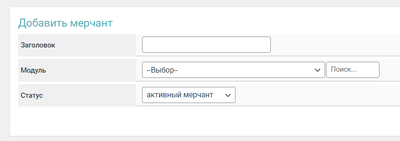
- Заголовок — название мерчанта в панели управления.
- Модуль — выберите Cryptoway из выпадающего списка.
- Статус — «активный мерчант».
В настройках модуля укажите ключи из личного кабинета Cryptoway:
- API ключ — сюда вставьте Project ID из кабинета Cryptoway.
- Секретный ключ — Secret key проекта.
Шаг 4. Автовыплаты
Модуль автовыплат подключается так же: раздел «Автовыплаты» → «Добавить», статус «активный», те же ключи Cryptoway (Project ID + Secret key). Привязывается на вкладке «Мерчанты и выплаты» направления — для валюты «Получаю». Перед включением ознакомьтесь с разделом «Предупреждение о рисках» в документации Premium Exchanger.
Шаг 5. Режимы работы
Изначально обменник работает в ручном режиме. С модулями:
- Только мерчант на приём — автоматизируется приём: при поступлении средств заявка переходит в «Оплаченная заявка», выплату вы делаете вручную и меняете статус на «Выполненная заявка».
- Мерчант + автовыплата — полная автоматизация: «Оплаченная заявка» → «Ожидание подтверждения от модуля автовыплат» → «Выполненная заявка».
- Можно включить кнопку «Перевести» в заявке даже для автоматизированного направления — оператор сможет выплатить вручную, если автовыплата не прошла.
Шаг 6. Проверка
Проверьте подключение встроенной «Диагностикой мерчанта» (Мерчанты → Мерчанты → диагностика):
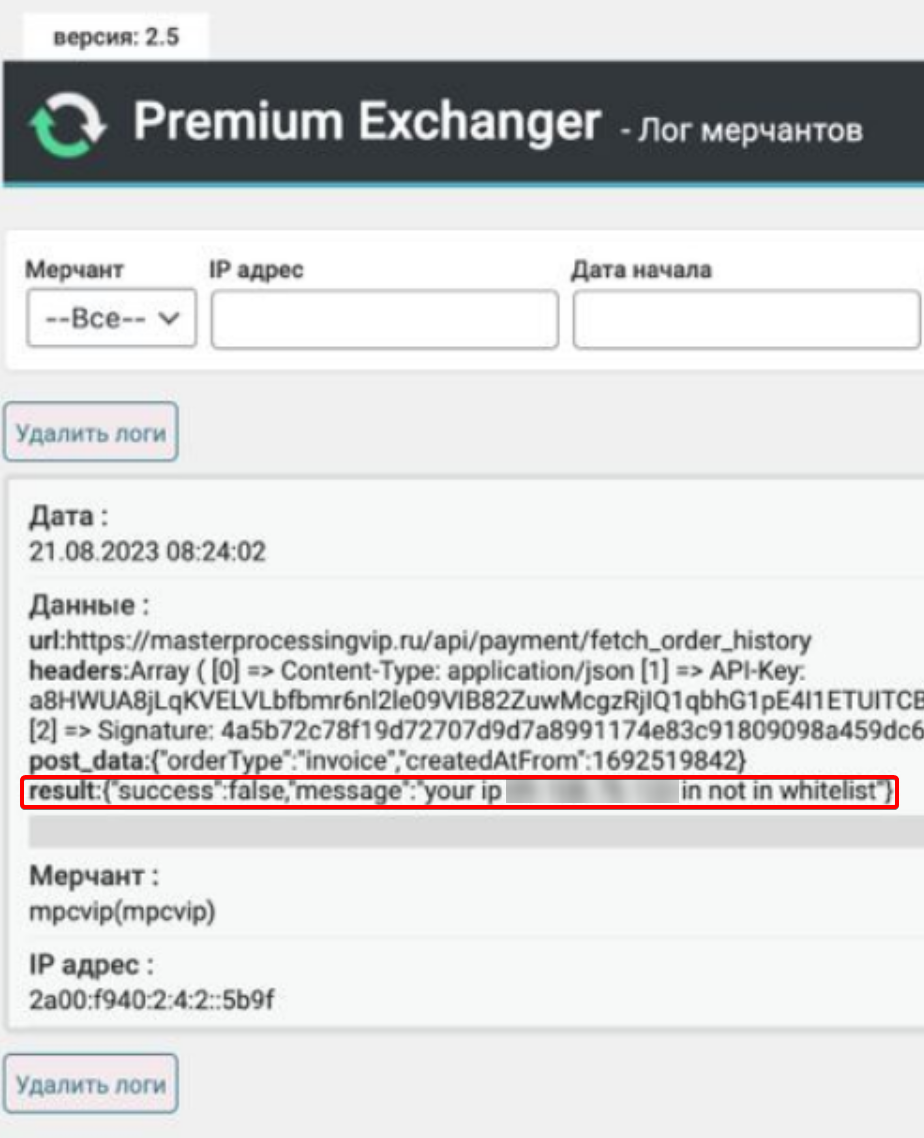
- Убедитесь, что на сервере настроен планировщик задач (cron) — без него статусы заявок не меняются автоматически.
- Если в логе ошибка вида «your IP … not in whitelist» — добавьте IP вашего сервера в список Разрешённые IP в настройках проекта Cryptoway.
iEXExchanger
Как подключить к iEXExchanger
Подключение Cryptoway к обменному пункту на скрипте iEXExchanger — через встроенный мерчант Cryptoway. После подключения iEXExchanger самостоятельно создаёт адрес для оплаты, отслеживает поступление средств и автоматически переводит заявку в следующий статус после подтверждения платежа.
Модуль поддерживает:
- создание адресов для оплаты;
- автоматическую проверку поступлений;
- webhook-уведомления;
- ручную и автоматическую проверку платежей;
- работу с несколькими блокчейн-сетями.
Важно. Перед включением мерчанта в рабочем направлении обязательно выполните тестовую оплату на небольшую сумму. Если неправильно указать API-ключ, Callback Key или сеть, адрес для оплаты может не создаться, а автоматическая обработка платежей работать не будет.
Полная документация iEXExchanger: Мерчант Cryptoway.
Что понадобится
Перед настройкой подготовьте данные из личного кабинета Cryptoway:
- Project ID
- Secret key
В модуле iEXExchanger эти поля называются по-старому — API Key ID и API Key Secret.
Ключи выдаются на проект — как их получить, описано в шаге 1 и в разделе Подпись. Отдельных разрешений на приём и выплаты включать не нужно.
Шаг 1. Проект и ключи в Cryptoway
- Зарегистрируйтесь в личном кабинете Cryptoway.
- Откройте раздел Projects и нажмите New project.
- Заполните заявку: название проекта, адрес сайта обменника и контакт для связи.
- Дождитесь статуса Active — заявку проверяет менеджер, обычно в течение рабочего дня.
- На странице проекта нажмите API keys и скопируйте Project ID и Secret key.
Раздела «API ключи» с кнопкой «Создать API ключ» в кабинете больше нет — ключи выдаются вместе с проектом. Храните их в безопасном месте и не передавайте третьим лицам.
Ключи привязываются к IP-адресу первого запроса: дальше запросы принимаются только с него. Если сервер обменника меняет адрес, очистите список Разрешённые IP в настройках проекта.
Шаг 2. Добавление мерчанта
В админке iEXExchanger откройте «Мерчанты и API» → «Список мерчантов» и нажмите «Добавить». В списке модулей выберите Cryptoway.
Шаг 3. Настройка мерчанта
Заполните поля мерчанта:
- API Key ID — сюда вставьте Project ID из кабинета Cryptoway (формат
xxxxxxxx-xxxx-xxxx-xxxx-xxxxxxxxxxxx). Поле в модуле называется по-старому. Обязательное поле. - API Key Secret — секретная часть API-ключа. Используется для подписи запросов создания адресов оплаты, проверки поступления средств и получения списка доступных валют и сетей. Обязательное поле, без пробелов в начале и конце значения.
- API Base URL — оставьте стандартное значение
https://api.cryptoway.com. Изменяйте только по рекомендации техподдержки Cryptoway; не указывайте здесь адрес личного кабинета или домен вашего обменного пункта. - Callback Key — оставьте поле пустым.
Код валюты. Выберите код валюты и блокчейн-сети, который используется в Cryptoway, например USDTTRC20, USDTBEP20 или BNBBEP20. Использовать общий код без сети (например USDT) нельзя — Cryptoway принимает код, привязанный к конкретной блокчейн-сети. Если выбрано значение «Автоматически», система берёт код сети из настроек валюты; заранее убедитесь, что он совпадает с идентификатором валюты в Cryptoway.
Макс. время регистрации в блокчейне — задаётся в минутах, рекомендуемое значение 30. В течение этого времени система ожидает регистрацию транзакции в блокчейне.
Макс. время получения первого подтверждения — задаётся в часах, рекомендуемое значение 2. В течение этого времени система ожидает первое подтверждение транзакции.
Шаг 4. Привязка мерчанта к валюте
После сохранения мерчанта назначьте его нужной валюте. Откройте «Основное» → «Валюты» → «Список валют», выберите валюту, перейдите в раздел автоматизации и в качестве мерчанта выберите Cryptoway.
Убедитесь, что выбранная сеть соответствует сети, указанной в настройках мерчанта. Например:
Валюта: USDTСеть: TRC20Код Cryptoway: USDTTRC20Мерчант: Cryptoway
Если одна валюта используется в нескольких сетях, создайте отдельную копию мерчанта для каждой сети.
Как работает приём платежей
После создания заявки iEXExchanger автоматически отправляет запрос в API Cryptoway. Cryptoway создаёт постоянный адрес и возвращает его системе, клиент переводит средства на этот адрес. Когда платёж получает статус executed, iEXExchanger автоматически переводит заявку в следующий статус. Для связи платежа с заявкой iEXExchanger передаёт в Cryptoway идентификатор заявки.
Фактически поступившая сумма считается по значению amount — это сумма, зачисленная на баланс Cryptoway после учёта комиссии сервиса. Учитывайте комиссию Cryptoway при настройке направления в обменнике: сумма перевода в блокчейне может отличаться от суммы, фактически зачисленной на баланс.
Что проверить перед запуском
- поля
API Key IDиAPI Key Secretзаполнены правильно — в них Project ID и Secret key из кабинета; - проект в статусе Active;
API Base URLимеет значениеhttps://api.cryptoway.com;- код валюты и сеть указаны без ошибок, не используется код без сети (например
USDT); - backend обменника доступен по HTTPS;
- публичный IP сервера совпадает с адресом в Разрешённых IP проекта;
- мерчант привязан к нужной валюте или направлению;
- учтены минимальная сумма и комиссия Cryptoway;
- на время тестирования включено логирование запросов.
Проверка работы
- Создайте тестовую заявку.
- Убедитесь, что появился адрес оплаты.
- Проверьте, что адрес соответствует выбранной сети.
- Отправьте небольшую сумму.
- Дождитесь обработки платежа.
- Проверьте изменение статуса заявки.
- Убедитесь, что платёж получил статус
executed. - Проверьте сохранение хеша транзакции.
- Сверьте сумму заявки с суммой, зачисленной на баланс Cryptoway.
- Проверьте журнал запросов: «Журнал событий» → «Мерчанты и API» → «Лог запросов мерчантов».
Рекомендации
- Заведите отдельный проект Cryptoway для каждого обменного пункта.
- Не публикуйте
API Key IDиAPI Key Secretв переписках и на скриншотах. - Перед включением мерчанта в рабочих направлениях всегда выполняйте тестовую оплату.
- Проверяйте актуальную минимальную сумму депозита и комиссию для выбранной валюты.
- После успешной проверки можно отключить расширенное логирование запросов.
WooCommerce
Плагин Cryptoway для WooCommerce
Плагин добавляет приём криптовалюты в WooCommerce. Покупатель оформляет заказ в обычной кассе магазина, оплачивает счёт на странице Cryptoway и возвращается на страницу подтверждения, а статус заказа обновляется сам.
Что понадобится
- WordPress 6.5 или новее;
- PHP 8.1 или новее;
- WooCommerce 9.0 или новее;
- аккаунт Cryptoway с активным проектом.
Плагин поддерживает блочную кассу WooCommerce и новое хранилище заказов (HPOS).
Получите доступ
- Зарегистрируйтесь в личном кабинете Cryptoway.
- Откройте раздел Projects и нажмите New project.
- Заполните заявку: название проекта, адрес сайта и контакт для связи.
- Дождитесь статуса Active — заявку проверяет менеджер, обычно в течение одного рабочего дня. До проверки проект показан как In review.
- На странице проекта нажмите API keys.
- Скопируйте Project ID и Secret key.
Важно. Ключи проекта работают только с того адреса, с которого их использовали впервые. Заведите каждому магазину отдельный проект.
Установка
Через каталог WordPress
- Откройте Плагины → Добавить новый.
- Найдите Cryptoway.
- Установите и активируйте плагин.
Загрузкой архива
:::download plugin/woocommerce/cryptoway-payments.zip | Cryptoway Payments для WooCommerce | Версия 1.1.3 · ZIP, 204 КБ | Скачать
- Откройте Плагины → Добавить новый → Загрузить плагин.
- Выберите архив плагина и нажмите Установить.
- Активируйте плагин.
Вручную
Загрузите папку плагина в каталог /wp-content/plugins/ и активируйте плагин в разделе Плагины.
Убедитесь, что WooCommerce установлен и активен.
Настройка способа оплаты
Откройте WooCommerce → Настройки → Платежи → Cryptoway.
| Поле | Значение |
|---|---|
| Способ оплаты | Включает оплату через Cryptoway. |
| Название при оформлении | Название способа оплаты в кассе. |
| Текст под названием | Одна строка, которую видит покупатель. Можно оставить пустым. |
| Другие языки | Название и текст для других языков сайта. |
| Project ID | Первое значение из окна Project credentials. |
| Secret key | Второе значение. |
| Время на оплату | От 15 до 1440 минут. По умолчанию — 60. |
Сохраните изменения. Больше в магазине настраивать нечего: под полями есть блок Проект Cryptoway со ссылкой в кабинет — оформление страницы оплаты, автоконвертация, комиссия и наценка задаются там.
Настройка проекта
Остальное настраивается в кабинете Cryptoway: откройте проект и перейдите на вкладку Настройки.
| Раздел | Что задаёт |
|---|---|
| Автоконвертация при поступлении | Автоконвертация поступающих активов в выбранную валюту. |
| Оформление платёжной страницы | Цвет, логотип и тема страницы, на которой платит покупатель. |
| Макет платёжной страницы | Вид счёта: в одну колонку или в две. |
| Информация о проекте | Реквизиты получателя. Печатаются на счёте. |
| Комиссия и наценка | Кто платит комиссию Cryptoway и нужна ли наценка к сумме счёта. |
| Разрешённые IP | Адреса серверов, которым разрешено обращаться к API проекта. |
Обратите внимание. Новые правила комиссии и наценки действуют для счетов, созданных после изменения. Уже выставленные счета считаются по прежним.
Как проходит оплата
- Покупатель выбирает Cryptoway при оформлении заказа.
- Плагин создаёт счёт на сумму заказа и отправляет покупателя на страницу оплаты Cryptoway.
- Покупатель выбирает монету и сеть и переводит сумму.
- Плагин сверяет сумму и валюту с заказом и переводит заказ в оплаченные.
- Покупатель возвращается на страницу подтверждения заказа.
Обычно от оплаты до смены статуса проходят секунды. Если уведомление не дошло, плагин перепроверяет счёт сам в течение десяти минут.
В карточке заказа появляется блок Cryptoway: статус платежа, выставленная и полученная суммы в монете покупателя, монета и сеть, хеш перевода и срок оплаты. Сводка по всем платежам — раздел Cryptoway в меню админки: оборот, число платежей, средний чек, разбивка по монетам и выгрузка в CSV за любой период.
Статусы заказа
| Что произошло | Что делает плагин |
|---|---|
| Оплачено полностью | Переводит заказ в «Обработка» и записывает в историю выставленную и полученную суммы. |
| Пришло меньше, чем в счёте | Ставит заказ на удержание и пишет, сколько выставлено, сколько пришло и сколько не хватает. Заказ не отгружается. Если остаток придёт до конца срока, заказ станет оплаченным. |
| Пришло больше, чем в счёте | Заказ оплачен. Если переплата заметная, в истории написано, сколько вернуть покупателю из кабинета Cryptoway. |
| Время на оплату вышло, денег не было | Отменяет заказ. |
| Время на оплату вышло, часть денег пришла | Ставит заказ на удержание: деньги остаются у Cryptoway, разбирается продавец. Заказ не отменяется. |
| Оплата отменена | Отменяет заказ, если денег не было; если деньги пришли — удержание. |
| Платёж задержан проверкой AML | Ставит заказ на удержание. Такой платёж не считается оплатой, товар не отгружается до решения Cryptoway. |
| Деньги пришли по уже отменённому заказу | Ставит заказ на удержание и предупреждает в истории: товар мог вернуться на склад. |
Заказ считается оплаченным только после сверки суммы и валюты. Недоплаченный заказ не отгружается автоматически.
Проверка после настройки
Тестового режима нет, поэтому первая проверка — настоящий платёж на небольшую сумму: около 5 USDT, это минимум, который принимает Cryptoway. Комиссия сети и Cryptoway взимается как обычно.
- Создайте заказ на небольшую сумму.
- Выберите Cryptoway при оформлении.
- Убедитесь, что открылась страница оплаты Cryptoway.
- Оплатите счёт.
- Проверьте, что заказ перешёл в «Обработка», а в его карточке появились номер платежа, монета и хеш транзакции.
Если статус не изменился, откройте карточку заказа и нажмите проверку статуса платежа.
Диагностика
| Проблема | Что проверить |
|---|---|
| Cryptoway не появляется при оформлении | Плагин активен, способ оплаты включён, заполнены Project ID и Secret key. |
| Страница оплаты не открывается | Проект имеет статус Active, ключи скопированы из окна Project credentials без лишних пробелов. |
| Заказ не обновился после оплаты | На странице настроек нет предупреждения о проверке ключей. Откройте карточку заказа и нажмите проверку статуса платежа. |
| Cryptoway отказывает в доступе | Ключи привязаны к адресу сервера, с которого их использовали впервые. Заведите магазину отдельный проект или очистите список в разделе «Разрешённые IP». |
| Нужны детали запросов | Журнал: WooCommerce → Статус → Логи, источник cryptoway-payments. Запросы целиком пишутся при уровне журнала Debug. |
Тарифы и список монет — на сайте Cryptoway. Поддержка: @cryptoway_support_bot.
Easy Digital Downloads
Плагин Cryptoway для Easy Digital Downloads
Плагин добавляет приём криптовалюты в Easy Digital Downloads. Покупатель оформляет заказ в обычной кассе магазина, оплачивает счёт на странице Cryptoway и возвращается на страницу подтверждения, а статус заказа обновляется сам. Файл выдаётся только после того, как Cryptoway подтвердит полную сумму.
Что понадобится
- WordPress 6.5 или новее;
- PHP 8.1 или новее;
- Easy Digital Downloads 3.0 или новее;
- сайт, доступный из интернета, — на него приходят уведомления об оплате;
- аккаунт Cryptoway с активным проектом.
Получите доступ
- Зарегистрируйтесь в личном кабинете Cryptoway.
- Откройте раздел Projects и нажмите New project.
- Заполните заявку: название проекта, адрес сайта и контакт для связи.
- Дождитесь статуса Active — заявку проверяет менеджер, обычно в течение одного рабочего дня. До проверки проект показан как In review.
- На странице проекта нажмите API keys.
- Скопируйте Project ID и Secret key.
Важно. Ключи проекта работают только с того адреса, с которого их использовали впервые. Заведите каждому магазину отдельный проект.
Установка
Плагин есть в каталоге WordPress: Cryptoway – Crypto Payment Gateway for Easy Digital Downloads.
Через каталог WordPress
- Откройте Плагины → Добавить новый.
- Найдите Cryptoway for Easy Digital Downloads. По слову «Cryptoway» находятся оба наших плагина — выберите тот, у которого в названии Easy Digital Downloads.
- Установите и активируйте плагин.
Загрузкой архива
:::download plugin/edd/cryptoway-edd.zip | Cryptoway для Easy Digital Downloads | Версия 1.0.1 · ZIP, 160 КБ | Скачать
- Скачайте архив со страницы плагина.
- Откройте Плагины → Добавить новый → Загрузить плагин.
- Выберите архив и нажмите Установить.
- Активируйте плагин.
Вручную
Распакуйте архив и загрузите папку плагина в каталог /wp-content/plugins/, затем активируйте плагин в разделе Плагины.
Убедитесь, что Easy Digital Downloads установлен и активен.
Настройка способа оплаты
- Откройте Загрузки → Настройки → Платежи и перейдите в раздел Cryptoway.
- Заполните поля и сохраните изменения.
- Вернитесь в начало страницы Платежи и включите Cryptoway в списке способов оплаты. Пока ключи не сохранены, шлюз считается ненастроенным: галочка недоступна, а покупателям он не показывается.
| Поле | Значение |
|---|---|
| Название при оформлении | Название способа оплаты в кассе. |
| Текст под названием | Одна строка, которую видит покупатель. Можно оставить пустым. |
| Другие языки | Название и текст для других языков сайта. |
| Project ID | Первое значение из окна Project credentials. |
| Secret key | Второе значение. |
| Время на оплату | От 15 до 1440 минут. По умолчанию — 60. |
Больше в магазине настраивать нечего: под полями есть блок Проект Cryptoway со ссылкой в кабинет — оформление страницы оплаты, автоконвертация, комиссия и наценка задаются там.
Настройка проекта
Остальное настраивается в кабинете Cryptoway: откройте проект и перейдите на вкладку Настройки.
| Раздел | Что задаёт |
|---|---|
| Автоконвертация при поступлении | Автоконвертация поступающих активов в выбранную валюту. |
| Оформление платёжной страницы | Цвет, логотип и тема страницы, на которой платит покупатель. |
| Макет платёжной страницы | Вид счёта: в одну колонку или в две. |
| Информация о проекте | Реквизиты получателя. Печатаются на счёте. |
| Комиссия и наценка | Кто платит комиссию Cryptoway и нужна ли наценка к сумме счёта. |
| Разрешённые IP | Адреса серверов, которым разрешено обращаться к API проекта. |
Обратите внимание. Новые правила комиссии и наценки действуют для счетов, созданных после изменения. Уже выставленные счета считаются по прежним.
Как проходит оплата
- Покупатель выбирает Cryptoway при оформлении заказа.
- Плагин создаёт счёт на сумму заказа и отправляет покупателя на страницу оплаты Cryptoway.
- Покупатель выбирает монету и сеть и переводит сумму.
- Плагин сверяет сумму и валюту с заказом и переводит заказ в оплаченные.
- Покупатель возвращается на страницу подтверждения заказа и получает доступ к файлам.
Обычно от оплаты до смены статуса проходят секунды. Если уведомление не дошло, плагин перепроверяет счёт сам в течение десяти минут.
В карточке заказа появляется блок Cryptoway: статус платежа, номер счёта, монета, выставленная и полученная суммы, хеш перевода, срок оплаты и кнопка Проверить статус платежа. Сводка по всем платежам — раздел Cryptoway в меню админки: оборот, число платежей, средний чек, разбивка по монетам и выгрузка в CSV за любой период.
Статусы заказа
| Что произошло | Что делает плагин |
|---|---|
| Оплачено полностью | Переводит заказ в «Завершён», файлы становятся доступны, в историю пишутся выставленная и полученная суммы. |
| Пришло меньше, чем в счёте | Ставит заказ в «Приостановлен» и пишет, сколько выставлено, сколько пришло и сколько не хватает. Файлы не выдаются. Если остаток придёт до конца срока, заказ станет оплаченным. |
| Пришло больше, чем в счёте | Заказ оплачен. Если переплата заметная, в истории написано, сколько вернуть покупателю из кабинета Cryptoway. |
| Время на оплату вышло, денег не было | Закрывает заказ как неоплаченный («Не завершён»). |
| Время на оплату вышло, деньги пришли | Ставит заказ в «Приостановлен»: деньги остаются у Cryptoway, разбирается продавец. |
| Оплата отменена | Закрывает заказ как неоплаченный, если денег не было; если деньги пришли — «Приостановлен». |
| Платёж задержан проверкой AML | Ставит заказ в «Приостановлен». Такой платёж не считается оплатой, файлы не выдаются до решения Cryptoway. |
| Деньги пришли по уже закрытому заказу | Ставит заказ в «Приостановлен» и предупреждает в истории. |
Заказ считается оплаченным только после сверки суммы и валюты. По недоплаченному заказу доступ к файлам не выдаётся. Если заказ требует внимания, в блоке Cryptoway появляется строка Требует проверки.
Проверка после настройки
Тестового режима нет, поэтому первая проверка — настоящий платёж на небольшую сумму: около 5 USDT, это минимум, который принимает Cryptoway. Комиссия сети и Cryptoway взимается как обычно. Режим тестирования Easy Digital Downloads на работу шлюза не влияет: счёт всё равно будет настоящим.
- Создайте заказ на небольшую сумму.
- Выберите Cryptoway при оформлении.
- Убедитесь, что открылась страница оплаты Cryptoway.
- Оплатите счёт.
- Проверьте, что заказ перешёл в «Завершён», файл доступен, а в блоке Cryptoway появились номер счёта, монета и хеш транзакции.
Если статус не изменился, откройте карточку заказа и нажмите Проверить статус платежа.
Диагностика
| Проблема | Что проверить |
|---|---|
| Cryptoway не появляется при оформлении | Плагин активен, ключи сохранены, способ оплаты включён в списке на странице Платежи. |
| Галочка Cryptoway в списке способов оплаты недоступна | Не сохранены Project ID и Secret key: заполните их в разделе Cryptoway и сохраните. |
| Страница оплаты не открывается | Проект имеет статус Active, ключи скопированы из окна Project credentials без лишних пробелов. |
| Заказ не обновился после оплаты | На странице настроек нет предупреждения о проверке ключей. Откройте карточку заказа и нажмите Проверить статус платежа. Если это повторяется, проверьте, что на сайте работает планировщик WordPress (WP-Cron) — им плагин перепроверяет счета. |
| Cryptoway отказывает в доступе | Ключи привязаны к адресу сервера, с которого их использовали впервые. Заведите магазину отдельный проект или очистите список в разделе «Разрешённые IP». |
| Нужны детали запросов | Журнал: Загрузки → Инструменты → Журнал отладки. Записи об уведомлениях пишутся всегда, остальные — когда в Загрузки → Настройки → Разное включён режим отладки. |
Тарифы и список монет — на сайте Cryptoway. Поддержка: @cryptoway_support_bot.
OpenCart
Модуль Cryptoway для OpenCart
Модуль добавляет приём криптовалюты в OpenCart. Покупатель оформляет заказ в обычной кассе магазина, оплачивает счёт на странице Cryptoway и возвращается в магазин, а статус заказа обновляется сам.
Один модуль выпускается двумя архивами: cryptoway.ocmod.zip для OpenCart 4 и cryptoway-oc3.ocmod.zip для OpenCart 3. Настройки и поведение у них одинаковые, различается только установка.
Что понадобится
- OpenCart 4.0.2.0 – 4.1.0.4, кроме 4.1.0.1, или OpenCart 3.0.0.0 – 3.0.5.1;
- PHP 8.1 или новее (проверено до 8.4);
- сайт, доступный из интернета, — на него приходят уведомления об оплате;
- аккаунт Cryptoway с активным проектом.
Про версии. OpenCart 4.1.0.1 пропущен: в этой версии ошибка самого OpenCart в оформлении заказа, из-за неё покупатель не доходит до выбора оплаты. OpenCart исправил её в 4.1.0.2. Версии 4.0.0.x и 4.0.1.x не поддерживаются: в них другое устройство папки расширений. ocStore не поддерживается.
Получите доступ
- Зарегистрируйтесь в личном кабинете Cryptoway.
- Откройте раздел Projects и нажмите New project.
- Заполните заявку: название проекта, адрес сайта и контакт для связи.
- Дождитесь статуса Active — заявку проверяет менеджер, обычно в течение одного рабочего дня. До проверки проект показан как In review.
- На странице проекта нажмите API keys.
- Скопируйте Project ID и Secret key.
Важно. Ключи проекта работают только с того адреса, с которого их использовали впервые. Заведите каждому магазину отдельный проект.
Установка
OpenCart 4
:::download plugin/opencart/cryptoway.ocmod.zip | Модуль Cryptoway для OpenCart 4 | Версия 1.0.1 · ZIP, 130 КБ | Скачать
- Откройте Extensions → Installer и загрузите
cryptoway.ocmod.zip. - Дождитесь, пока установщик распакует файлы.
- Откройте Extensions → Extensions, в списке Choose the extension type выберите Payments.
- Найдите Cryptoway и нажмите + (Install).
- Нажмите карандаш (Edit) — откроются настройки.
Важно. Имя файла менять нельзя: OpenCart 4 берёт из него код расширения. Если браузер сохранил архив как cryptoway.ocmod (1).zip, переименуйте обратно перед загрузкой.
OpenCart 3
:::download plugin/opencart/cryptoway-oc3.ocmod.zip | Модуль Cryptoway для OpenCart 3 | Версия 1.0.1 · ZIP, 127 КБ | Скачать
- Откройте Extensions → Installer и загрузите
cryptoway-oc3.ocmod.zip. - Откройте Extensions → Modifications и нажмите Refresh (синяя кнопка вверху справа).
- Откройте Extensions → Extensions → Payments, найдите Cryptoway и нажмите +.
- Нажмите карандаш — откроются настройки.
Если после установки страница настроек пуста или выдаёт ошибку доступа, откройте System → Users → User Groups, отредактируйте свою группу и отметьте Cryptoway в правах на просмотр и изменение.
Настройка способа оплаты
| Поле | Значение |
|---|---|
| Payment Method Enabled | Включает оплату через Cryptoway. |
| Sort Order | Порядок в списке способов оплаты. |
| Title | Название способа оплаты в кассе. Пустое поле — «Cryptoway». |
| Project ID | Первое значение из окна Project credentials. |
| Secret key | Второе значение. Показывается как «ключ сохранён»: чтобы заменить, введите новый. |
| Payment link lifetime | Сколько минут у покупателя на оплату: от 15 до 1440. По умолчанию — 60. |
| Paid order status | Статус оплаченного заказа. По умолчанию — Processing. |
| Needs-review order status | Статус для недоплаты, поздней оплаты и проверки AML. По умолчанию — Pending. |
| Expired order status | Статус, когда время на оплату вышло. По умолчанию — Expired. |
| Cancelled order status | Статус для отменённого счёта. По умолчанию — Canceled. |
| Geo Zone | Показывать способ оплаты только в выбранной зоне. |
Нажмите Save. Больше в магазине настраивать нечего: на странице есть строка Cryptoway project со ссылкой в кабинет — оформление страницы оплаты, автоконвертация, комиссия и наценка задаются там. Callback key модуль получает из кабинета сам, отдельного поля для него нет.
Важно. Статус Paid order status не может совпадать со статусом новых заказов магазина (System → Settings → магазин → Option → Order Status): иначе неоплаченные заказы выглядели бы оплаченными. Модуль не даст сохранить такую пару.
Geo Zone сверяется с платёжным адресом покупателя, поэтому работает, только когда включено Billing Address required в настройках магазина. Если оно выключено — так OpenCart ставится по умолчанию, — способ оплаты показывается во всех зонах.
Настройка проекта
Остальное настраивается в кабинете Cryptoway: откройте проект и перейдите на вкладку Настройки.
| Раздел | Что задаёт |
|---|---|
| Автоконвертация при поступлении | Автоконвертация поступающих активов в выбранную валюту. |
| Оформление платёжной страницы | Цвет, логотип и тема страницы, на которой платит покупатель. |
| Макет платёжной страницы | Вид счёта: в одну колонку или в две. |
| Информация о проекте | Реквизиты получателя. Печатаются на счёте. |
| Комиссия и наценка | Кто платит комиссию Cryptoway и нужна ли наценка к сумме счёта. |
| Разрешённые IP | Адреса серверов, которым разрешено обращаться к API проекта. |
Обратите внимание. Новые правила комиссии и наценки действуют для счетов, созданных после изменения. Уже выставленные счета считаются по прежним. Наценку держите не меньше нуля: со скидкой счёт получается меньше суммы заказа, и каждый такой заказ уходит на проверку.
Как проходит оплата
- Покупатель выбирает Cryptoway при оформлении заказа. Над кнопкой подтверждения написано, что он перейдёт на страницу Cryptoway и сколько действует ссылка.
- Модуль создаёт счёт на сумму заказа, записывает заказ в статус новых заказов магазина и отправляет покупателя на страницу оплаты.
- Покупатель выбирает монету и сеть и переводит сумму.
- Cryptoway присылает уведомление, модуль перечитывает счёт, сверяет сумму и валюту и переводит заказ в статус оплаченного.
- Покупатель возвращается в магазин. Если оплата ещё не подтверждена, он видит страницу «Оплата пока не подтверждена» с кнопкой оплаты — она обновляется сама и переходит на страницу «Заказ оформлен», как только оплата подтвердится.
Обычно от оплаты до смены статуса проходят секунды, иногда несколько минут. Письмо о заказе, которое магазин отправляет покупателю, содержит ссылку на эту страницу: по ней можно вернуться к оплате, если вкладка закрылась. Когда заказ становится оплаченным, OpenCart отправляет покупателю письмо об изменении статуса с суммами в монете, которой он платил.
На экране заказа в админке появляется вкладка Cryptoway: статус платежа, номер счёта, выставленная и полученная суммы в монете покупателя, хеш перевода, срок оплаты и кнопка Check payment status.
Если уведомление не дошло (например, магазин был недоступен), модуль перепроверяет неоплаченные заказы сам: раз в час при открытии любой страницы админки, а также по кнопке Check payment status. Если админку подолгу не открывают, добавьте в крон сервера строку:
0 * * * * curl -s "https://ваш-магазин/index.php?route=cron/cron" >/dev/nullСтатусы заказа
| Что произошло | Что делает модуль |
|---|---|
| Оплачено полностью | Переводит заказ в статус оплаченного и записывает в историю выставленную и полученную суммы. |
| Пришло меньше, чем в счёте | Оставляет заказ неоплаченным и пишет, сколько выставлено, сколько пришло и сколько не хватает. Если остаток придёт до конца срока, заказ станет оплаченным. |
| Пришло больше, чем в счёте | Заказ оплачен. Если переплата заметная, в истории написано, сколько вернуть покупателю из кабинета Cryptoway. |
| Время на оплату вышло, денег не было | Переводит заказ в статус «время вышло». |
| Время на оплату вышло, часть денег пришла | Переводит заказ в статус проверки: деньги остаются у Cryptoway, разбирается продавец. Заказ не закрывается как неоплаченный. |
| Оплата пришла после истечения срока | Статус проверки с пометкой о поздней оплате. |
| Оплата отменена | Статус отменённого счёта, если денег не было; если деньги пришли — статус проверки. |
| Платёж задержан проверкой AML | Статус проверки. Такой платёж не считается оплатой, товар не отгружается до решения Cryptoway. |
| Деньги пришли по уже закрытому заказу | Статус заказа не меняется, в историю добавляется заметка. |
Заказ считается оплаченным только после того, как модуль заново прочитал счёт у Cryptoway и сверил сумму и валюту. Недоплаченный заказ автоматически не отгружается.
Проверка после настройки
Тестового режима нет, поэтому первая проверка — настоящий платёж на небольшую сумму: около 5 USDT, это минимум, который принимает Cryptoway. Комиссия сети и Cryptoway взимается как обычно.
- Создайте заказ на небольшую сумму.
- Выберите Cryptoway при оформлении.
- Убедитесь, что открылась страница оплаты Cryptoway.
- Оплатите счёт.
- Проверьте, что заказ перешёл в статус оплаченного, а на вкладке Cryptoway появились номер счёта, монета, суммы и хеш перевода.
Если статус не изменился, откройте заказ и нажмите Check payment status.
Диагностика
| Проблема | Что проверить |
|---|---|
| Cryptoway не появляется при оформлении | Способ оплаты включён, заполнены Project ID и Secret key, товар в корзине не подписка (для подписок модуль не показывается), выбранная Geo Zone подходит покупателю. |
| Страница оплаты не открывается | Проект имеет статус Active, ключи скопированы из окна Project credentials без лишних пробелов. На странице настроек под ключами нет предупреждения о проверке ключей. Если хостинг совсем новый, спросите поддержку хостинга, включено ли в PHP расширение curl — через него магазин обращается к Cryptoway. |
| «Этот заказ нельзя оплатить криптовалютой» | Cryptoway не принял валюту или сумму заказа. Проверьте валюту магазина и попробуйте заказ на большую сумму. |
| Заказ не обновился после оплаты | Откройте заказ и нажмите Check payment status. Если помогло — значит, уведомление не дошло: проверьте, что магазин открыт из интернета и не закрыт паролем или режимом обслуживания. |
| Cryptoway отказывает в доступе | Ключи привязаны к адресу сервера, с которого их использовали впервые. Заведите магазину отдельный проект или очистите список в разделе «Разрешённые IP». |
| Заказ остался неоформленным, покупатель видит ошибку | Проверьте почту магазина (System → Settings → Mail): OpenCart отправляет письмо о заказе до того, как сохранит его, и при недоступном почтовом сервере оформление обрывается для любого способа оплаты. |
| Нужны детали запросов | Журнал модуля: system/storage/logs/cryptoway.log. Ключи в нём скрыты. |
Обратите внимание. Журнал лежит внутри папки магазина. Пока хранилище не вынесено за пределы сайта, файл можно скачать по прямой ссылке. OpenCart сам предлагает перенести хранилище — сообщение об этом есть на главной странице админки.
Тарифы и список монет — на сайте Cryptoway. Поддержка: @cryptoway_support_bot.
BILLmanager
Модуль Cryptoway для BILLmanager
Модуль добавляет приём криптовалюты в BILLmanager 6. Клиент пополняет лицевой счёт, оплачивает счёт на странице Cryptoway и возвращается в биллинг, а платёж зачисляется сам.
Модуль ставится из архива cryptoway-billmanager-<версия>.tar.gz на сервер с BILLmanager.
Что понадобится
- BILLmanager 6.110 или новее (проверено на 6.152);
- сервер AlmaLinux 9 или Ubuntu 24.04, x86_64, и доступ к нему по SSH под
root; - PHP 8.1 или новее с расширениями
curl,json,mbstring,openssl,SimpleXML; - публичный адрес биллинга по
https— на него приходят уведомления об оплате и по нему возвращается клиент; - аккаунт Cryptoway с активным проектом;
- валюта метода оплаты, которую принимает Cryptoway: рекомендуем USD.
Получите доступ
- Зарегистрируйтесь в личном кабинете Cryptoway.
- Откройте раздел Projects и нажмите New project.
- Заполните заявку: название проекта, адрес сайта и контакт для связи.
- Дождитесь статуса Active — заявку проверяет менеджер, обычно в течение одного рабочего дня. До проверки проект показан как In review.
- На странице проекта нажмите API keys.
- Скопируйте PROJECT ID и SECRET KEY. Значение CALLBACK KEY, которое стоит в окне между ними, копировать не нужно: модуль получает его сам.
Важно. Ключи проекта работают только с того адреса, с которого их использовали впервые. Заведите каждому биллингу отдельный проект.
Установка
:::download plugin/billmanager/cryptoway-billmanager.tar.gz | Модуль Cryptoway для BILLmanager | Версия 1.0.0 · TAR.GZ, 74 КБ | Скачать
- Скопируйте архив на сервер с BILLmanager и войдите под
root. - Распакуйте и запустите установщик (номер версии в именах — тот, что у вашего архива):
tar xzf cryptoway-billmanager-1.0.0.tar.gz
cd cryptoway-billmanager-1.0.0
sh install.sh- Установщик проверит окружение, скопирует файлы модуля в
/usr/local/mgr5и перезапустит панель. Перезапуск занимает несколько секунд. Если PHP на сервере нет, установщик поставит его сам из штатных репозиториев системы; сторонние репозитории он не подключает. - Откройте Провайдер → Провайдеры, откройте своего провайдера и проверьте поле URL биллинга: там должен быть публичный адрес с
https. Модуль строит из него адрес уведомлений и ссылку возврата клиента.
Обновление — тем же способом: распакуйте новую версию и запустите install.sh. Файлы подменяются одним переключением, поэтому скрипты, работающие в этот момент, не ломаются.
Удаление — sh uninstall.sh в той же папке. Скрипт не станет работать, пока в биллинге есть метод оплаты Cryptoway: сначала удалите метод, иначе панель будет ругаться на пропавший модуль. Данные самого модуля — история счетов и журнал — остаются в /usr/local/mgr5/var; команда sh uninstall.sh --purge удаляет и их. Платежи и проводки BILLmanager скрипт не трогает никогда.
Настройка способа оплаты
Откройте Провайдер → Методы оплаты → Добавить и выберите Cryptoway. Модуль добавляет в форму три поля:
| Поле | Значение |
|---|---|
| Project ID | Значение PROJECT ID из окна Project credentials. |
| Secret key | Значение SECRET KEY из того же окна. Показывается звёздочками; при повторном сохранении прежний ключ подставляется сам, пустым поле оставить нельзя. |
| Время на оплату | Сколько минут у клиента на оплату: от 15 до 1440. Пустое поле — 60. |
Остальные поля на следующем шаге — собственные поля BILLmanager, и они работают как у любого другого способа оплаты:
| Поле BILLmanager | На что обратить внимание |
|---|---|
| Валюта | Валюта, в которой выставляется счёт. Рекомендуем USD. Если у провайдера другая валюта, в BILLmanager должен быть курс, иначе клиенты не увидят метод. |
| Комиссия | Прибавляется к сумме платежа: счёт в Cryptoway выставляется на сумму с комиссией, а на лицевой счёт клиента зачисляется сумма без неё. |
| Период удаления неоплаченных платежей | Оставьте пустым. Иначе BILLmanager сам удалит неоплаченный платёж, не спрашивая модуль, — в том числе пока клиент ещё платит. |
Нажмите Сохранить. При сохранении модуль проверяет ключи в Cryptoway:
- ключи не приняты, доступ с этого адреса запрещён или проект не активен — сохранение не пройдёт, форма покажет причину;
- Cryptoway просто недоступен — настройки сохранятся, а в журнал попадёт предупреждение.
Больше в биллинге настраивать нечего: в форме есть строка Проект Cryptoway со ссылкой в кабинет — оформление страницы оплаты, автоконвертация, комиссия и наценка задаются там. Callback key модуль получает из кабинета сам, отдельного поля для него нет; тестового режима, ограничений по сумме и переключателя отладки тоже нет — подробный журнал ведётся всегда.
Настройка проекта
Остальное настраивается в кабинете Cryptoway: откройте проект и перейдите на вкладку Настройки.
| Раздел | Что задаёт |
|---|---|
| Автоконвертация при поступлении | Автоконвертация поступающих активов в выбранную валюту. |
| Оформление платёжной страницы | Цвет, логотип и тема страницы, на которой платит клиент. |
| Макет платёжной страницы | Вид счёта: в одну колонку или в две. |
| Информация о проекте | Реквизиты получателя. Печатаются на счёте. |
| Комиссия и наценка | Кто платит комиссию Cryptoway и нужна ли наценка к сумме счёта. |
| Разрешённые IP | Адреса серверов, которым разрешено обращаться к API проекта. |
Обратите внимание. Новые правила комиссии и наценки действуют для счетов, созданных после изменения. Уже выставленные счета считаются по прежним. Наценку держите не меньше нуля: со скидкой счёт получается меньше суммы платежа, и каждый такой платёж уходит на проверку.
Как проходит оплата
- Клиент открывает Платежи → Добавить, указывает сумму и выбирает Cryptoway.
- Модуль выставляет счёт, переводит платёж в статус Оплачивается и отправляет клиента на страницу Cryptoway. Ссылка живёт столько, сколько задано в поле «Время на оплату».
- Клиент выбирает монету и сеть и переводит показанную сумму. Если в проекте заданы наценка или комиссия с покупателя, к оплате будет больше, чем сумма платежа, — это нормально.
- Cryptoway присылает уведомление, модуль заново читает счёт, сверяет сумму и валюту и зачисляет платёж. Баланс пополняется один раз — ровно на ту сумму, которую клиент указал к зачислению: ни комиссия метода, ни наценка проекта на баланс не попадают.
- Клиент возвращается в биллинг и видит страницу об успешной оплате или, если подтверждение ещё идёт, страницу ожидания. Закрытая вкладка ничего не теряет: платёж и счёт уже созданы.
Если уведомление не дойдёт, платёж подхватит плановая проверка: BILLmanager запускает её сам каждые 3 минуты. Отдельный cron для модуля не нужен — install.sh ничего в crontab не добавляет. Отдельной кнопки «Проверить оплату» BILLmanager не предусматривает; при необходимости администратор запускает проверку командой на сервере:
/usr/local/mgr5/sbin/mgrctl -m billmgr paymethod.checkpayПовторный переход к оплате не создаёт второй счёт, пока жив прежний: клиент вернётся на ту же страницу оплаты.
В карточке платежа под администратором поле Информация о платеже показывает номер счёта, монету и сеть, выставленную и полученную суммы и пометку, если платёж требует проверки. Клиент этого поля не видит.
Статусы платежа
| Что произошло | Статус платежа |
|---|---|
| Клиент отправлен на оплату | Оплачивается |
| Оплачено полностью | Зачислен. Баланс пополняется один раз, в информации о платеже — выставленная и полученная суммы в монете клиента |
| Пришло больше, чем в счёте | Зачислен. При заметной переплате в информации о платеже указано, сколько вернуть клиенту из кабинета Cryptoway |
| Пришло меньше, чем в счёте | Остаётся Оплачивается с пометкой Требует проверки: сколько выставлено, сколько пришло и сколько не хватает. Баланс не меняется. Если остаток придёт до конца срока, платёж зачислится |
| Время на оплату вышло, денег не было | Отменен |
| Время на оплату вышло, деньги пришли — частью или полностью | Требует проверки: деньги остаются у Cryptoway, решение принимает продавец. Платёж не закрывается и не зачисляется сам |
| Деньги пришли по уже отменённому платежу | Если Cryptoway подтверждает счёт как оплаченный — Зачислен, в информации о платеже отмечено, что оплата пришла после истечения срока. Если счёт уже истёк с деньгами — платёж остаётся на ручное решение |
| Платёж задержан проверкой AML | Требует проверки. Такой платёж не считается оплатой до решения Cryptoway |
| Cryptoway отвечает «счёт не найден» | Ничего не закрывается: платёж сразу помечается «Требует проверки». Так бывает, если метод перевели на другой проект |
| Cryptoway недоступен | Платёж держится открытым, модуль пишет «не удалось проверить оплату» и проверяет снова: первый час на каждом проходе, дальше раз в 30 минут. Через сутки без подтверждения — «Требует проверки» |
Платёж считается оплаченным только после того, как модуль заново прочитал счёт у Cryptoway и сверил сумму и валюту. Одного уведомления для зачисления недостаточно.
Отдельного статуса «Требует проверки» в BILLmanager нет, поэтому пометка пишется в поле Информация о платеже — его видит только администратор. Поле перезаписывается целиком при каждом событии, а вся история событий остаётся в журнале модуля.
Возврата через биллинг нет: в Cryptoway возврат по API не предусмотрен. Деньги возвращают выводом из кабинета Cryptoway на адрес клиента, а в биллинге платёж поправляют вручную.
Проверка после настройки
Тестового режима нет, поэтому первая проверка — настоящий платёж на небольшую сумму: около 5 USDT, это минимум, который принимает Cryptoway. Комиссия сети и Cryptoway взимается как обычно.
- Войдите в биллинг под клиентом и создайте платёж на небольшую сумму способом Cryptoway.
- Убедитесь, что открылась страница оплаты Cryptoway.
- Оплатите счёт.
- Проверьте, что платёж перешёл в Зачислен, баланс вырос один раз, а в карточке платежа под администратором в поле Информация о платеже появились номер счёта, монета и суммы.
Статус должен смениться сам, без запуска проверки руками: так вы убедитесь, что уведомления Cryptoway доходят до биллинга.
Диагностика
| Проблема | Что проверить |
|---|---|
| Клиент не видит Cryptoway в списке способов оплаты | Метод включён; для валюты метода и валюты провайдера в BILLmanager есть курс; сумма платежа не меньше минимальной суммы метода. |
| Настройки не сохраняются | Форма показывает причину: ключи не приняты, проект не активен или доступ с этого адреса запрещён. Проверьте, что Project ID и Secret key скопированы без лишних пробелов, а проект в статусе Active. |
| Cryptoway отказывает в доступе | Ключи привязаны к адресу сервера, с которого их использовали впервые. Заведите биллингу отдельный проект или очистите список в разделе «Разрешённые IP» в кабинете. Пока доступ закрыт, модуль ничего не закрывает и не зачисляет — он просто повторяет проверку каждые 3 минуты. |
| Сменился IP сервера или домен биллинга | Очистите «Разрешённые IP» в кабинете и поправьте URL биллинга у провайдера. Уже выставленные счета помнят прежний адрес уведомлений — такие платежи подтвердит плановая проверка. |
| Поменяли ключи проекта | Откройте метод оплаты и сохраните его с новыми Project ID и Secret key: модуль заодно заберёт новый callback key. Счета, выставленные прежним проектом, Cryptoway больше не отдаёт — такие платежи уйдут в «Требует проверки». |
| Платёж не обновился после оплаты | Подождите до 3 минут: плановая проверка догонит. Если не помогло, проверьте, что «URL биллинга» провайдера — публичный адрес с https, доступный из интернета. |
| Платёж висит «Оплачивается» с пометкой «Требует проверки» | Откройте карточку платежа: в поле «Информация о платеже» написано, сколько выставлено и сколько пришло. Недоплату получают или возвращают в кабинете Cryptoway, платёж администратор зачисляет вручную. |
| Неоплаченные платежи исчезают | В методе оплаты заполнено «Период удаления неоплаченных платежей». Очистите поле: BILLmanager удаляет такие платежи сам, не спрашивая модуль. |
| Нужны детали запросов | Журнал модуля: /usr/local/mgr5/var/pmcryptoway.log на сервере. Ключи в нём скрыты, файл доступен только root. |
Тарифы и список монет — на сайте Cryptoway. Поддержка: @cryptoway_support_bot.
Azuriom
Плагин Cryptoway для Azuriom
Плагин добавляет приём криптовалюты в магазин сайта на Azuriom. Игрок выбирает Cryptoway при оплате, платит на странице Cryptoway и возвращается на сайт, а покупка выдаётся сама, как только оплата подтверждена.
Плагин работает вместе с их собственным плагином Shop: он добавляет туда ещё один способ оплаты, а товары, цены и выдачу вы настраиваете как обычно.
Что понадобится
- Azuriom 1.2 или новее;
- плагин Shop 1.2 или новее;
- PHP 8.2 или новее и расширение
curl— это требования самого Azuriom; - сайт, доступный из интернета, — на него приходят уведомления об оплате;
- запущенные по расписанию задачи Azuriom (
php artisan schedule:runраз в минуту): по ним плагин перепроверяет счета, если уведомление не дошло; - аккаунт Cryptoway с активным проектом;
- валюта магазина, которую принимает Cryptoway: USD, EUR, AED, RUB, CNY, GBP, CAD, AUD.
Получите доступ
- Зарегистрируйтесь в личном кабинете Cryptoway.
- Откройте раздел Projects и нажмите New project.
- Заполните заявку: название проекта, адрес сайта и контакт для связи.
- Дождитесь статуса Active — заявку проверяет менеджер, обычно в течение одного рабочего дня. До проверки проект показан как In review.
- На странице проекта нажмите API keys.
- Скопируйте Project ID и Secret key.
Важно. Ключи проекта работают только с того адреса, с которого их использовали впервые. Заведите каждому сайту отдельный проект.
Установка
Из каталога расширений
- В админке сайта откройте Расширения → Плагины.
- Найдите Cryptoway в списке доступных расширений и нажмите установить.
- Включите плагин там же.
Вручную, архивом
:::download plugin/azuriom/cryptoway-azuriom-1.0.0.zip | Плагин Cryptoway для Azuriom | Версия 1.0.0 · ZIP, 74 КБ | Скачать
Этот способ нужен, если сайт не ходит в каталог расширений — например, закрыт файрволом.
- Скачайте архив
cryptoway-azuriom-1.0.0.zipкнопкой выше. - Распакуйте его. Внутри сразу, без промежуточной папки, лежат
plugin.json,composer.jsonи папкиsrc,lib,resources,routes,database,assets. - Загрузите содержимое на сайт в папку
plugins/cryptoway— по FTP или через файловый менеджер хостинга. - Проверьте, что получилось именно
plugins/cryptoway/plugin.json. Лишняя вложенная папка (plugins/cryptoway/cryptoway-azuriom-1.0.0/plugin.json) — самая частая ошибка, с ней сайт плагин не увидит. - Имя папки должно быть ровно
cryptoway, иначе плагин не найдётся. - Откройте Расширения → Плагины: Cryptoway появится в списке установленных. Включите его.
Если после загрузки плагин в списке не появился, откройте Настройки → Производительность и очистите кэш, затем обновите страницу.
После установки
Откройте Shop → Gateways, в списке Add a new gateway выберите cryptoway и нажмите Add. Пункты магазина подписаны по-английски: сам плагин Shop переведён только на английский и французский.
В боковом меню админки появится пункт Cryptoway — это экран с крипто-платежами. На нём же есть кнопка Настройки, которая ведёт к полям ключей.
Настройка способа оплаты
| Поле | Значение |
|---|---|
| Name | Название способа оплаты, его видит игрок при выборе оплаты. |
| Project ID | Первое значение из окна Project credentials. |
| Secret key | Второе значение. |
| Время на оплату (минуты) | Сколько времени у игрока на перевод: от 15 до 1440. По умолчанию — 60. |
| Enable the gateway | Включает способ оплаты. |
Нажмите Save. Ключ, которым Cryptoway подписывает уведомления, плагин запрашивает из вашего аккаунта сам при каждом сохранении — отдельного поля для него нет. Адрес для уведомлений плагин тоже передаёт сам при создании каждого счёта: никуда его вписывать не нужно.
Больше в магазине настраивать нечего: оформление страницы оплаты, комиссия и наценка задаются в кабинете Cryptoway. Тестового режима и ограничений по сумме нет.
Важно. Azuriom под формой показывает предупреждение, что способ не поддерживает автопродление подписок. Так и есть: Cryptoway выставляет разовые счета, поэтому для подписочных товаров Cryptoway не предлагается — обычные товары это никак не ограничивает.
Настройка проекта
Остальное настраивается в кабинете Cryptoway: откройте проект и перейдите на вкладку Настройки.
| Раздел | Что задаёт |
|---|---|
| Автоконвертация при поступлении | Автоконвертация поступающих активов в выбранную валюту. |
| Оформление платёжной страницы | Цвет, логотип и тема страницы, на которой платит игрок. |
| Макет платёжной страницы | Вид счёта: в одну колонку или в две. |
| Информация о проекте | Реквизиты получателя. Печатаются на счёте. |
| Комиссия и наценка | Кто платит комиссию Cryptoway и нужна ли наценка к сумме счёта. |
| Разрешённые IP | Адреса серверов, которым разрешено обращаться к API проекта. |
Важно. Новые правила комиссии и наценки действуют для счетов, созданных после изменения. Уже выставленные счета считаются по прежним. Наценку держите не меньше нуля: со скидкой счёт получается меньше суммы покупки, и каждая такая оплата уходит на проверку.
Как проходит оплата
- Игрок складывает товары в корзину и на шаге оплаты выбирает Cryptoway.
- Плагин создаёт платёж, выставляет счёт на сумму корзины и отправляет игрока на страницу Cryptoway. Платёж записывается до перехода, поэтому закрытая вкладка ничего не теряет.
- Игрок выбирает монету и сеть и переводит показанную сумму. Сумма в монете округляется вверх — это нормально.
- Cryptoway присылает уведомление, плагин перечитывает счёт и сверяет сумму, и только после этого платёж считается оплаченным, а покупка выдаётся — ранги и предметы уходят игроку автоматически.
- Игрок возвращается на сайт. Свои платежи он видит в разделе Your payments.
Если уведомление не дошло (сайт был недоступен, сменился адрес), плагин сам перечитывает открытые счета каждые 10 минут по расписанию Azuriom и дозакрывает такие платежи.
Статусы платежа
У магазина Azuriom четыре состояния платежа: ожидает, выполнен, просрочен и ошибка. Случаи, где нужно решение человека, плагин держит на своём экране Cryptoway с пометкой «Требует проверки» — платёж при этом остаётся открытым.
| Что произошло | Что делает плагин |
|---|---|
| Счёт выставлен, игрок ушёл платить | Платёж «ожидает» |
| Оплачено полностью | Платёж «выполнен», покупка выдана, в заметке выставленная и полученная суммы |
| Пришло меньше, чем в счёте | Платёж остаётся открытым, пометка «Требует проверки», в заметке сколько выставлено, сколько пришло и сколько не хватает. Покупка не выдаётся. Если остаток придёт до конца срока, платёж закроется сам |
| Пришло больше, чем в счёте | Платёж «выполнен», в заметке написано, сколько вернуть игроку из кабинета Cryptoway |
| Время на оплату вышло, денег не было | Платёж «просрочен», в заметке «оплаты не было» |
| Время на оплату вышло, часть денег пришла | Платёж не закрывается: «Требует проверки», в заметке «деньги у Cryptoway — решите вручную» |
| Оплата пришла после истечения срока | «Требует проверки», в заметке обе суммы |
| Счёт закрыт Cryptoway с недостачей | «Требует проверки», покупка не выдаётся |
| Платёж задержан проверкой AML | «Требует проверки». Такой платёж не считается оплатой, покупка не выдаётся до решения Cryptoway |
| Деньги пришли по уже закрытому платежу | Статус не меняется, добавляется заметка |
Платёж считается оплаченным только после того, как плагин заново прочитал счёт у Cryptoway. На одно событие пишется одна заметка, суммы — в той монете, которой платил игрок.
На экране Cryptoway есть вкладки «Все», «Требуют проверки», «Ждут оплату», «Оплаченные» и «Закрытые», поиск по номеру платежа, номеру счёта и имени игрока, а у каждой строки две кнопки:
- Проверить — перечитать счёт у Cryptoway прямо сейчас;
- Выдать — выдать покупку вручную. Нужна, когда вы сами посмотрели в кабинете Cryptoway и решили, что деньги пришли; сам плагин такой платёж не засчитывает. В заметке остаётся, кто выдал.
Проверка после настройки
Тестового режима нет, поэтому первая проверка — настоящий платёж на небольшую сумму: около 5 USDT, это минимум, который принимает Cryptoway. Комиссия сети и Cryptoway взимается как обычно.
- Заведите товар на небольшую сумму.
- Купите его на сайте и выберите Cryptoway.
- Убедитесь, что открылась страница оплаты Cryptoway.
- Оплатите счёт показанной суммой.
- Проверьте, что платёж стал «выполнен», покупка выдана, а на экране Cryptoway у строки видны монета, выставленная и полученная суммы.
Если статус не изменился, откройте экран Cryptoway и нажмите Проверить.
Диагностика
| Проблема | Что проверить |
|---|---|
| Cryptoway не появляется при оплате | Способ оплаты добавлен в Shop → Gateways и включён, заполнены Project ID и Secret key. Для подписочного товара способ не показывается — это ожидаемо. |
| «Оплату не удалось начать» | Проект имеет статус Active, ключи скопированы без лишних пробелов, валюта магазина есть в списке принимаемых. Причина отказа Cryptoway записана в журнале сайта. |
| Cryptoway отказывает в доступе | Ключи привязаны к адресу сервера, с которого их использовали впервые. Заведите сайту отдельный проект или очистите список в разделе «Разрешённые IP» в кабинете. Адрес, с которым сервер выходит в интернет, не всегда совпадает с адресом сайта — спросите у хостинга. |
| Платёж не обновился после оплаты | Нажмите Проверить на экране Cryptoway. Если помогло — уведомление не дошло: проверьте, что сайт открыт из интернета. Заодно проверьте, что у Azuriom работают задачи по расписанию: без них автоматическая перепроверка не запускается. |
| Платёж висит в «Требует проверки» | Откройте экран Cryptoway: в заметке написано, сколько выставлено и сколько пришло. Недоплату получают или возвращают в кабинете Cryptoway, а покупку, если решите выдать, выдают кнопкой Выдать. |
| Нужны детали запросов | Журнал сайта: storage/logs/laravel-ГГГГ-ММ-ДД.log, строки с пометкой [Cryptoway]. Ключи в них скрыты. |
Тарифы и список монет — на сайте Cryptoway. Поддержка: онлайн-чат на cryptoway.com и support@cryptoway.com.
Paymenter
Расширение Cryptoway для Paymenter
Расширение добавляет приём криптовалюты в Paymenter — бесплатный биллинг для хостингов и игровых хостингов. Покупатель выбирает Cryptoway при оплате счёта, платит на странице Cryptoway и возвращается в магазин, а счёт закрывается сам, как только оплата подтверждена.
Что понадобится
- Paymenter 1.5 или новее;
- PHP 8.3 или 8.4 — это требование самого Paymenter;
- сайт, доступный из интернета, — на него приходят уведомления об оплате;
- работающие задачи по расписанию (
php artisan schedule:runраз в минуту) и очередь — их Paymenter просит и для себя. По расписанию расширение перепроверяет счета, если уведомление не дошло; - аккаунт Cryptoway с активным проектом;
- валюта магазина, которую принимает Cryptoway: USD, EUR, AED, RUB, CNY, GBP, CAD, AUD.
Получите доступ
- Зарегистрируйтесь в личном кабинете Cryptoway.
- Откройте раздел Projects и нажмите New project.
- Заполните заявку: название проекта, адрес сайта и контакт для связи.
- Дождитесь статуса Active — заявку проверяет менеджер, обычно в течение одного рабочего дня. До проверки проект показан как In review.
- На странице проекта нажмите API keys.
- Скопируйте Project ID и Secret key.
Важно. Ключи проекта работают только с того адреса, с которого их использовали впервые. Заведите каждому сайту отдельный проект.
Установка
:::download plugin/paymenter/cryptoway-paymenter-1.0.0.zip | Расширение Cryptoway для Paymenter | Версия 1.0.0 · ZIP, 68 КБ | Скачать
- Скачайте архив
cryptoway-paymenter-1.0.0.zipкнопкой выше. - Распакуйте его. Внутри одна папка —
Cryptoway. - Загрузите её целиком в
extensions/Gateways/вашей установки Paymenter — по SFTP или через файловый менеджер хостинга. - Проверьте, что получилось именно
extensions/Gateways/Cryptoway/Cryptoway.php. Лишняя вложенная папка — самая частая ошибка, с ней магазин расширение не увидит. - Имя папки должно быть ровно
Cryptoway, с большой буквы и без изменений: Paymenter ищет класс по имени папки, а на Linux регистр имеет значение.
Добавьте способ оплаты
- В админке откройте Gateways и нажмите создание нового способа оплаты.
- В поле Gateway выберите Cryptoway.
- Заполните поля (таблица ниже) и сохраните.
Таблицу для своих записей расширение создаёт само при добавлении первого способа оплаты — отдельной установки или миграций вручную не требуется.
После сохранения в меню админки появится раздел Cryptoway — экран со всеми крипто-платежами.
Обновление
Замените содержимое папки extensions/Gateways/Cryptoway файлами новой версии и один раз откройте Gateways → Cryptoway и нажмите Save. Настройки и история платежей сохраняются; сохранение даёт новой версии применить то, что ей нужно.
Настройка способа оплаты
| Поле | Значение |
|---|---|
| Name | Название способа оплаты. Его видит покупатель в списке способов на странице счёта. |
| Project ID | Первое значение из окна Project credentials. |
| Secret key | Второе значение. Хранится в базе в зашифрованном виде. |
| Text under the name on the payment page | Необязательное. Заменяет серую строку «One-Time Payment» под названием способа. Пустое — остаётся как было. |
| Time to pay (minutes) | Сколько времени у покупателя на перевод: от 15 до 1440. По умолчанию — 60. |
Ключ, которым Cryptoway подписывает уведомления, расширение запрашивает из вашего аккаунта само — отдельного поля для него нет. Адрес для уведомлений оно тоже передаёт само при создании каждого счёта: никуда его вписывать не нужно.
Важно. Строку под названием Paymenter печатает одну на все разовые способы оплаты. Если в магазине есть ещё и Stripe или PayPal, заполненное поле поменяет подпись и у них.
Пока Project ID и Secret key не заполнены, Cryptoway в списке способов оплаты покупателю не показывается.
Больше в магазине настраивать нечего: оформление страницы оплаты, комиссия и наценка задаются в кабинете Cryptoway. Тестового режима и ограничений по сумме нет.
Настройка проекта
Остальное настраивается в кабинете Cryptoway: откройте проект и перейдите на вкладку Настройки.
| Раздел | Что задаёт |
|---|---|
| Автоконвертация при поступлении | Автоконвертация поступающих активов в выбранную валюту. |
| Оформление платёжной страницы | Цвет, логотип и тема страницы, на которой платит покупатель. |
| Макет платёжной страницы | Вид счёта: в одну колонку или в две. |
| Информация о проекте | Реквизиты получателя. Печатаются на счёте. |
| Комиссия и наценка | Кто платит комиссию Cryptoway и нужна ли наценка к сумме счёта. |
| Разрешённые IP | Адреса серверов, которым разрешено обращаться к API проекта. |
Важно. Новые правила комиссии и наценки действуют для счетов, созданных после изменения. Уже выставленные считаются по прежним. Наценку держите не меньше нуля: со скидкой счёт получается меньше суммы заказа, и каждая такая оплата уходит на проверку.
Как проходит оплата
- Покупатель открывает свой счёт, нажимает Pay и выбирает Cryptoway.
- Расширение выставляет счёт в Cryptoway на сумму к оплате и отправляет покупателя на страницу Cryptoway. В счёте магазина сразу появляется транзакция со статусом «в процессе» — видно, что оплата началась. Счёт записывается до перехода, поэтому закрытая вкладка ничего не теряет.
- Покупатель выбирает монету и сеть и переводит показанную сумму. Сумма в монете округляется вверх — это нормально.
- Cryptoway присылает уведомление, расширение перечитывает счёт и сверяет сумму, и только после этого транзакция становится успешной, а счёт магазина — оплаченным. Услуги выдаются обычным порядком Paymenter.
- Покупатель возвращается на страницу счёта, и она сама показывает, что оплата прошла.
Если уведомление не дошло (сайт был недоступен, сменился адрес), расширение само перечитывает открытые счета каждые 10 минут по расписанию Paymenter и дозакрывает такие оплаты.
Важно. Адрес для уведомлений строится из настройки App URL в настройках Paymenter. Если адрес магазина меняется, счета, выставленные до смены, уведомления не получат — их закроет перепроверка.
Что происходит с разными оплатами
У счёта в Paymenter три состояния: ожидает оплаты, оплачен и отменён. Случаи, где нужно решение человека, расширение держит на своём экране Cryptoway с пометкой «нужна проверка» — счёт при этом остаётся открытым.
| Что произошло | Что делает расширение |
|---|---|
| Счёт выставлен, покупатель ушёл платить | Счёт ожидает оплаты, транзакция «в процессе» |
| Оплачено полностью | Счёт оплачен, транзакция успешна, в заметке выставленная и полученная суммы |
| Пришло меньше, чем в счёте | Счёт остаётся открытым, пометка «нужна проверка», в заметке сколько выставлено, сколько пришло и сколько не хватает. Если остаток придёт до конца срока, счёт закроется сам |
| Пришло больше, чем в счёте | Счёт оплачен, в заметке написано, сколько вернуть покупателю из кабинета Cryptoway. В счёт магазина записывается сумма счёта, а не присланные монеты |
| Время на оплату вышло, денег не было | Счёт остаётся открытым, наша транзакция помечена неудачной, в заметке «оплаты не было». Покупатель может оплатить этот же счёт снова — Cryptoway или другим способом |
| Время на оплату вышло, часть денег пришла | Счёт не отменяется: «нужна проверка», в заметке «деньги у Cryptoway — решите вручную» |
| Оплата пришла после истечения срока | Если счёт магазина никто не отменял, а Cryptoway подтвердил полную оплату, счёт закрывается как оплаченный. Если счёт в магазине уже отменили, сам он не оживает: «нужна проверка» |
| Счёт закрыт Cryptoway с недостачей | «Нужна проверка», оплатой это не считается |
| Платёж задержан проверкой AML | «Нужна проверка». Такой платёж не считается оплатой до решения Cryptoway |
| Cryptoway недоступен | Ничего не решается на догадку: «нужна проверка» и пометка, что счёт проверят ещё раз автоматически |
Оплата засчитывается только после того, как расширение заново прочитало счёт у Cryptoway. На одно событие пишется одна заметка, суммы — в той монете, которой платил покупатель.
Экран Cryptoway
Раздел Cryptoway в админке показывает все крипто-платежи: номер счёта магазина, номер счёта Cryptoway, сумму, сколько монет выставлено и сколько пришло (с сетью), статус у Cryptoway, пометку «нужна проверка», последнюю заметку и когда счёт проверяли. Рядом с названием раздела горит счётчик счетов, ждущих решения, а фильтр показывает только их.
У каждой строки две кнопки:
- Check now — перечитать счёт у Cryptoway прямо сейчас;
- Mark as paid — закрыть счёт вручную. Появляется только у строк с пометкой «нужна проверка» и нужна, когда вы сами посмотрели в кабинете Cryptoway и решили, что деньги пришли; само расширение такой счёт не засчитывает. В заметке остаётся, кто это сделал.
Кнопка Settings в шапке раздела ведёт прямо к полям ключей.
Подписки и продления
Cryptoway выставляет разовые счета, поэтому автосписания нет: за каждое продление услуги покупатель платит сам по счёту, который выставит Paymenter. Сохранённым способом оплаты Cryptoway не становится.
Проверка после настройки
Тестового режима нет, поэтому первая проверка — настоящий платёж на небольшую сумму: около 5 USDT, это минимум, который принимает Cryptoway. Комиссия сети и Cryptoway взимается как обычно.
- Заведите товар на небольшую сумму.
- Купите его в магазине и на странице счёта выберите Cryptoway.
- Убедитесь, что открылась страница оплаты Cryptoway.
- Оплатите счёт показанной суммой.
- Проверьте, что счёт стал оплаченным, а на экране Cryptoway у строки видны монета, выставленная и полученная суммы.
Если статус не изменился, откройте экран Cryptoway и нажмите Check now.
Диагностика
| Проблема | Что проверить |
|---|---|
| Cryptoway не появляется при оплате | Способ оплаты создан в разделе Gateways, заполнены Project ID и Secret key. Без ключей способ скрыт. Проверьте и валюту счёта: Cryptoway принимает USD, EUR, AED, RUB, CNY, GBP, CAD, AUD. |
| «Оплату не удалось начать» | Проект имеет статус Active, ключи скопированы без лишних пробелов. Причина отказа Cryptoway записана в журнале сайта. |
| Cryptoway отказывает в доступе | Ключи привязаны к адресу сервера, с которого их использовали впервые. Заведите сайту отдельный проект или очистите список в разделе «Разрешённые IP» в кабинете. Адрес, с которым сервер выходит в интернет, не всегда совпадает с адресом сайта — спросите у хостинга. |
| Счёт не обновился после оплаты | Нажмите Check now на экране Cryptoway. Если помогло — уведомление не дошло: проверьте, что сайт открыт из интернета и что App URL в настройках Paymenter совпадает с настоящим адресом. Заодно проверьте задачи по расписанию: без них автоматическая перепроверка не запускается. |
| Счёт висит в «нужна проверка» | Откройте экран Cryptoway: в заметке написано, сколько выставлено и сколько пришло. Недоплату получают или возвращают в кабинете Cryptoway, а счёт, если решите закрыть, закрывают кнопкой Mark as paid. |
| Нужны детали запросов | Журнал сайта: storage/logs/laravel-ГГГГ-ММ-ДД.log, строки с пометкой [Cryptoway]. Ключи в них скрыты. |
Важно. Расширение переведено на английский и русский. Paymenter в поставке не предлагает русский язык в списке языков магазина, поэтому в стандартной установке покупатель видит английские строки; русский включается, если язык добавлен в сам магазин.
Тарифы и список монет — на сайте Cryptoway. Поддержка: онлайн-чат на cryptoway.com и support@cryptoway.com.
FOSSBilling
Cryptoway для FOSSBilling
Принимайте USDT, BTC, ETH и другие монеты в FOSSBilling. Клиент выбирает Cryptoway на счёте, платит на странице Cryptoway, и счёт сам помечается оплаченным.
Что нужно
- FOSSBilling 0.8.8 или новее, PHP 8.3 или новее;
- сайт, доступный из интернета, и работающая задача cron FOSSBilling;
- аккаунт Cryptoway с активным проектом: account.cryptoway.com → Projects → ваш проект → API keys → скопируйте Project ID и Secret key.
Ключи работают только с того адреса сервера, с которого их впервые использовали — один проект на сайт.
Установка
:::download plugin/fossbilling/Cryptoway-1.0.0.zip | Cryptoway для FOSSBilling | Версия 1.0.0 · ZIP, 74 КБ | Скачать
- Распакуйте архив и загрузите папку
Cryptowayвlibrary/Payment/Adapter/, чтобы получилосьlibrary/Payment/Adapter/Cryptoway/Cryptoway.php. - Откройте System → Payment Gateways, нажмите New Payment Gateway и установите Cryptoway из списка Available Adapters.
Настройка
Откройте System → Payment Gateways → Cryptoway:
| Поле | Значение |
|---|---|
| Project ID | Из раздела API keys проекта. |
| Secret key | Оттуда же. После сохранения поле выглядит пустым с пометкой Configured — так и должно быть. |
| Time to pay (minutes) | От 15 до 1440, по умолчанию 60. |
| Enabled | Включено. |
Нажмите Update Gateway. Это всё: комиссия, наценка и вид страницы оплаты задаются в кабинете Cryptoway, в Settings проекта.
Платежи видны в Invoices → Transactions. Шлюз также добавляет экран Invoices → Cryptoway со всеми криптоплатежами: что выставлено и что пришло. Платежи, где нужно ваше решение (пришло меньше, чем выставлено, или деньги после срока), там помечены, а кнопка Mark as paid закрывает их, когда вы увидели деньги в кабинете Cryptoway.
Первый платёж
Тестового режима нет: сделайте настоящий заказ на небольшую сумму (около 5 USDT) и оплатите. Счёт должен стать оплаченным в течение минуты. Если нет — откройте Invoices → Cryptoway и нажмите Check now.
Быстрые решения
| Проблема | Решение |
|---|---|
| «Project ID is missing» / «Secret key is missing» при сохранении | Вставьте оба ключа из API keys проекта и сохраните снова. |
| Cryptoway не показывается на счёте | Проверьте Enabled и Allow One Time Payments в System → Payment Gateways → Cryptoway. Если заполнено Accepted Currencies, валюта счёта должна быть там. |
| «Cryptoway does not take payments in …» | Валюта счёта не поддерживается. Cryptoway принимает USD, EUR, AED, RUB, CNY, GBP, CAD, AUD. |
| «The crypto payment could not be started» | Убедитесь, что проект в статусе Active в кабинете Cryptoway и ключи скопированы без пробелов. |
| Cryptoway отказывает в доступе | Ключи привязаны к первому адресу сервера, который их использовал. Очистите Allowed IPs в настройках проекта или создайте отдельный проект для этого сайта. |
| Счёт остался неоплаченным после оплаты | Откройте Invoices → Cryptoway и нажмите Check now. Если помогло — проверьте, что задача cron работает и сайт доступен из интернета. |
| «Rate limit exceeded» при тестировании | FOSSBilling разрешает десять попыток оплаты в час с одного адреса. Подождите час. |
| Нет экрана Invoices → Cryptoway | Он появляется после первой попытки оплаты. Если страница шлюза предупреждает, что modules/ недоступна для записи, скопируйте папку module из library/Payment/Adapter/Cryptoway/ в modules/Cryptoway и включите её в Extensions → Overview. |
Детали запросов — в Activity → System Activity, строки с пометкой [Cryptoway].
Тарифы и список монет — на сайте Cryptoway. Поддержка: онлайн-чат на cryptoway.com и support@cryptoway.com.
Introduction
API Integration
Endpoint: https://api.cryptoway.com
The Cryptoway API is signed with HMAC-SHA256. The documentation is split into five sections:
Signing
Signing
Keys
Keys are issued per project: each site or service gets its own project and its own key pair.
| Key | Where to find it | Purpose |
|---|---|---|
| Project ID | Projects → your project → API keys | Sent in the X-API-Key-ID header |
| Secret key | Same window | Signing API requests |
| Callback key | Same window | Verifying webhook signatures |
The Secret key and the Callback key are different keys: verify webhooks with the Callback key only.
Getting the keys
- Sign up in the dashboard.
- Open Projects and click New project.
- Fill in the request: project name, site address and a contact.
- Wait for the Active status — a manager reviews the request, usually within one business day. Until then the project shows as In review.
- On the project page click API keys and copy the Project ID, Secret key and Callback key.
There is no separate "API keys" section with a create button and permissions anymore: keys come with the project. The Callback key is also returned by the profile request in the API.
Old field names. Some ready-made modules (iEXExchanger, for example) still use the old names: API Key ID is the Project ID, API Key Secret is the Secret key.
Allowed IPs. Keys are bound to the address of the first request. If your server changes its address, clear the Allowed IPs list in the project settings or set up a separate project.
Request headers
| Header | Description |
|---|---|
X-API-Key-ID | Project ID (UUID) |
X-Timestamp | Unix timestamp, seconds |
X-Signature | HMAC-SHA256 hex |
A signature is required for every public endpoint (GET, POST, and others).
Signing algorithm
- Build the object:
{
  "params": "url_encoded_query_string",
  "body": {},
  "path": "/user/balance/"
}params— the query string exactly as it appears in the URL (search_query=foo, without the?)body— the JSON request body;{}when there is no bodypath— the request path, e.g./user/balance/
- Serialize the object:
json.dumps(data, separators=(",", ":"), sort_keys=True) - Sign it:
signature = HMAC-SHA256(key=API_KEY_SECRET, message=timestamp + json_string)- The timestamp must be within ±15 seconds of server time.
If the key's allowlist is empty, the first successful request records the current IP in the allowlist. After that, only requests from a listed IP are accepted.
Example: GET balance
# empty params, body {}
# path = /user/balance/
# data = {"body":{},"params":"","path":"/user/balance/"}

curl "https://api.cryptoway.com/user/balance/" \
  -H "X-API-Key-ID: <PROJECT_ID>" \
  -H "X-Timestamp: 1718659200" \
  -H "X-Signature: <hex>"
Example: POST address
curl "https://api.cryptoway.com/user/address/" \
  -X POST \
  -H "Content-Type: application/json" \
  -H "X-API-Key-ID: <PROJECT_ID>" \
  -H "X-Timestamp: 1718659200" \
  -H "X-Signature: <hex>" \
  -d '{"symbol_id":"USDTBEP20","callback_url":"https://example.com/cb","description":"shop"}'
Generating a signature
:::tabs
import hashlib, hmac, json, time

def sign(key: str, timestamp: int, data: dict) -> str:
    s = json.dumps(data, separators=(",", ":"), sort_keys=True)
    return hmac.new(key.encode(), f"{timestamp}{s}".encode(), hashlib.sha256).hexdigest()

data = {"params": "", "body": {"symbol_id": "USDTBEP20"}, "path": "/user/address/"}
ts = int(time.time())
signature = sign(API_KEY_SECRET, ts, data)
$data = ["params" => "", "body" => ["symbol_id" => "USDTBEP20"], "path" => "/user/address/"];
ksort($data);
$json = json_encode($data, JSON_UNESCAPED_SLASHES);
$signature = hash_hmac("sha256", time() . $json, $API_KEY_SECRET);:::
Verifying a webhook signature
A POST is sent to your callback_url.
Headers:
| Header | Description |
|---|---|
X-Signature | HMAC-SHA256 hex |
X-Timestamp | Unix timestamp |
Data to sign:
{
  "params": "",
  "body": { }
}params— the query string of your endpointbody— the parsed JSON POST body- the
pathfield is not used - the signature uses
callback_key
Allowed timestamp drift: ±15 seconds.
Deposit / withdrawal webhook
The POST body is the transaction object as JSON (fields are described below). To verify the signature, place this object in the body field and leave params empty.
Invoice webhook
{
  "params": "",
  "body": {
    "type": "invoice",
    "id": "5ca38db1-00c5-4aba-91e5-6a57bed60aee",
    "status": "executed"
  }
}
The POST body is identical to the object you sign: params and body at the top level. To verify the signature, use the entire parsed request body as-is, with no extra wrapper.
Verifying webhooks in Python
Deposit and withdrawal webhooks:
body = await request.json()
data = {"params": request.url.query, "body": body}
verify(request.headers["X-Signature"], CALLBACK_KEY, int(request.headers["X-Timestamp"]), data)
Invoice webhook:
data = await request.json()
verify(request.headers["X-Signature"], CALLBACK_KEY, int(request.headers["X-Timestamp"]), data)
Shared verify helper:
def verify(signature: str, key: str, timestamp: int, data: dict) -> bool:
    if abs(int(time.time()) - timestamp) > 15:
        return False
    expected = sign(key, timestamp, data)
    return hmac.compare_digest(expected, signature)
SDK
Cryptoway PHP SDK
A library for taking crypto payments on your own PHP site.
The SDK is for custom-built sites. For ready-made platforms there are modules — WooCommerce, Easy Digital Downloads, OpenCart, PrestaShop and BILLmanager: everything is wired up there, and the API never has to be touched by hand. The OpenCart, PrestaShop and BILLmanager modules are built on this same code.
What it does
Three ways to take money:
- Through the Cryptoway payment page. Your site creates an invoice, the buyer pays on Cryptoway's page: picks a coin, sees the address and the QR code. The least code on your side.
- Right on your site. The buyer picks the coin on your page and gets the address and the exact amount at once. Nobody leaves; the screen is yours.
- A permanent address per customer. For services with a balance: one address for ever, no amount and no deadline, every transfer reported to you with the customer's id.
And what all three share:
- signed requests, timeouts, retries only where they are safe, errors returned as values rather than exceptions;
- webhook checks in one call: freshness, signature, replay;
- the money rules: an underpayment is never a payment, an overpayment is reported, an expired invoice that received coins goes to a person, a transfer is credited once;
- explained error messages, ready for translation.
Requirements
- PHP 8.1 or newer;
- the
curl,jsonandmbstringextensions; - Composer;
- a Cryptoway account with an active project;
- a site address reachable from the internet — otherwise payment notifications will not arrive.
Get access
- Sign up in the Cryptoway account.
- Open Projects and click New project.
- Fill in the request: name, site address, a contact.
- Wait for the Active status — a manager reviews the request, usually within one business day.
- On the project page click API keys and copy the Project ID and the Secret key.
Keys are bound to the IP address of the first request. If your server changes its address, clear the Allowed IPs list in the project settings or set up a separate project.
Install
composer require cryptoway/php-sdkConnect
use Cryptoway\Core\ApiClient;

$api = new ApiClient(
    api_key_id: getenv('CRYPTOWAY_PROJECT_ID'),
    api_key_secret: getenv('CRYPTOWAY_SECRET_KEY'),
    user_agent: 'MyShop/2.4 (cryptoway-php-sdk)',
);
Keep the keys in environment variables or a protected settings file, not in the code.
Optional parameters: debug and logger — a request log with keys and personal data masked; translator — error messages in your site's language; user_agent — how your site introduces itself to the service.
Create an invoice
$invoice = $api->createInvoice([
    'name'                 => 'Order 1042',
    'description'          => 'Coffee, 1 kg',
    'target_value_fiat'    => 30.26,
    'target_currency_fiat' => 'USD',
    'external_id'          => '1042-' . bin2hex(random_bytes(8)),
    'callback_url'         => 'https://shop.example.com/cryptoway/webhook',
    'deadline_at'          => gmdate('Y-m-d\TH:i:s\Z', time() + 3600),
]);| Field | What it is |
|---|---|
name | The title the buyer sees on the payment page |
target_value_fiat | The order total in ordinary currency |
target_currency_fiat | Its currency: USD, EUR, AED, RUB, CNY, GBP, CAD, AUD |
external_id | Your reference to the order. It must be unique beyond your own shop — add a random tail, as in the example |
callback_url | Where Cryptoway sends the notification |
deadline_at | Until when the invoice can be paid. The Cryptoway modules allow 15 minutes to a day |
The answer:
[
    'id'                   => '5c2b1a77-0a3e-4f3a-9a1d-2c6f0b7d4e11',
    'status'               => 'active',
    'target_value_fiat'    => '33.290000000000000000',
    'target_currency_fiat' => 'USD',
    'target_value_symbol'  => '',
    'symbol_id'            => '',
    'current_value'        => '0',
    'pay_url'              => 'https://pay.cryptoway.com/5c2b1a77-0a3e-4f3a-9a1d-2c6f0b7d4e11',
    'deadline_at'          => '2026-09-29T09:34:36+00:00',
]
Two places people often trip over:
- The invoice can ask for more than the order. Here the order is 30.26 and the invoice 33.29: the project has a markup and the buyer pays the fee. That is normal. The reverse — an invoice smaller than the order — is not.
- A fresh invoice has no coin yet.
symbol_idandtarget_value_symbolstay empty until the buyer picks a coin and network on the payment page.
Store id and external_id on your order — the notification names them.
Send the buyer to pay
if (!ApiClient::payUrlIsTrusted($invoice['pay_url'])) {
    // The link is not on a Cryptoway domain: do not send the buyer there.
}

header('Location: ' . $invoice['pay_url']);
From here Cryptoway does the rest: the buyer picks a coin and network and sees the amount, address and QR code.
Pay without leaving your site
You can keep the buyer on your page: they pick the coin on your site, and your page shows the address and the amount.
$symbols = $api->getSymbols();   // the coins and networks that can be paid with right now

// ...the buyer picks one; its id (USDTBEP20, BTC, ...) comes back from your form:
$invoice = $api->createInvoice([
    'name'                 => 'Order 1042',
    'target_value_fiat'    => 30.26,
    'target_currency_fiat' => 'USD',
    'symbol_id'            => $_POST['coin'],
    'external_id'          => '1042-' . bin2hex(random_bytes(8)),
    'callback_url'         => 'https://shop.example.com/cryptoway/webhook',
]);

$invoice['target_wallet']['value'];   // the address — put it in a QR code
$invoice['target_value_symbol'];      // exactly how much to send, markup and fee included
$invoice['deadline_at'];              // until when
getSymbols() returns only what can actually be paid to: no "virtual" entries (a coin without a network, such as plain USDT) and nothing switched off. For the picker's labels there is Coins::label(): USDTBEP20 becomes "USDT BEP-20".
After that it is the same as with a regular invoice: a notification arrives, you read the invoice back and check that the amount is covered.
The whole flow in one script: examples/pay_on_site.php.
Read an invoice
$fresh = $api->getInvoice($invoice_id);The same answer as at creation, plus the payment fields filled in: current_value — how many coins arrived, target_value_symbol — how many are needed, status — the state of the invoice.
| Invoice status | Meaning |
|---|---|
active | Open, waiting for money |
executed | Closed. This does not yet mean "paid in full" — compare the amounts |
expired | The time ran out |
cancelled | Cancelled |
Notifications
Cryptoway POSTs to your callback_url with the X-TIMESTAMP and X-SIGNATURE headers. There are two kinds of notification: about the invoice (type: invoice) and about money arriving (type: deposit).
use Cryptoway\Core\Webhook;

$webhook = new Webhook($callback_key, fn (string $id): bool => $db->eventWasApplied($id));

$event = $webhook->check(
    file_get_contents('php://input'),
    $_SERVER['HTTP_X_TIMESTAMP'] ?? '',
    $_SERVER['HTTP_X_SIGNATURE'] ?? ''
);

http_response_code($event->getHttpStatus());
One call does three checks, and each of them matters:
- Freshness. A delivery older than five minutes is refused — otherwise an intercepted request would stay valid for ever.
- Signature.
HMAC-SHA256over the timestamp and the body, compared without timing leaks. The two kinds of notification are signed differently; the SDK understands both forms. - Replay.
getFingerprint()gives the delivery a fingerprint. Store it only after the work for the event succeeded — otherwise a half-processed event is lost.
What to answer:
| Code | When |
|---|---|
| 200 | Accepted; also a repeat, or an event that is not yours to handle |
| 400 | The timestamp is malformed or stale, the body is empty or not JSON |
| 401 | The signature is missing or does not match |
| 404 | You do not know the invoice |
| 413 | The body is over 64 KB |
| 503 | No callback key stored yet, or you could not do the work — send it again |
The first three rows and 413 are decided by the SDK and returned by getHttpStatus(); 404 and 503 you set as you go.
Anything that is not 2xx Cryptoway delivers again, and it is persistent: a wrong answer brings dozens of deliveries in a row. That is your safety net, not a nuisance.
The callback key is a separate key, not the Secret key. It is in the account, and you can also take it from the profile:
$callback_key = ApiClient::readCallbackKey($api->getProfile());Deciding about the money
The notification body carries no amount, so the invoice has to be read back before the goods are released. The decision is made only on a fresh API answer.
use Cryptoway\Core\Amounts;

$invoice = $api->getInvoice($invoice_id);
$status = $invoice['status'] ?? '';

if ('executed' === $status && Amounts::invoiceIsCovered($invoice)) {
    // The only case where the order is paid.
}| Case | How to tell | What to do |
|---|---|---|
| Paid in full | executed and invoiceIsCovered() | Release the goods |
| Less money than asked | executed, but shortfall() returned amounts | Do not release. Ask for the rest or refund what arrived |
| Money is coming, invoice still open | active and hasPartialPayment() | Wait for the rest until the deadline, do not release |
| Deadline passed, money is there | expired and hasPartialPayment() | Hand the order to a person: the money is real and the buyer will ask about it |
| Overpayment | overpayment() returned amounts | Release the goods and refund the difference |
| Deadline passed, no money | expired, current_value is zero | Cancel the order |
Amounts are compared as strings, digit by digit: no rounding that could hide a shortfall.
Separately — the invoice against the order total:
$check = Amounts::check($invoice, 30.26, 'USD');
// result: ok | unknown | amount_mismatch | currency_mismatch
// over: the invoice is larger than the order — the project's markup or the buyer's fee, as it should be
A permanent address for a customer
For topping up a balance rather than paying an order: one address per customer, any amount, no deadline. Every transfer arrives as its own notification.
$address = $api->createAddress([
    'symbol_id'    => 'USDTBEP20',
    'external_id'  => 'customer-42',    // your customer id, echoed in every notification
    'callback_url' => 'https://shop.example.com/cryptoway/topup',
]);

$address['value'];   // the address — store it on the customer together with $address['id']
Keep the address on your side: listAddresses() is for reconciliation, not for looking it up on every page view. When a deposit notification arrives, credit the customer named by external_id with amount — only when the status is executed, never on dirty_lock. To stop the same transfer being credited twice, remember blockchain_data.hash.
A coin without a network (plain USDT) will not do for an address — the SDK refuses it before any request is made.
Errors
A request never throws an exception — a webhook handler has to finish its work. Errors come back as values:
use Cryptoway\Core\ApiError;

if ($invoice instanceof ApiError) {
    $log->error($invoice->getMessage());
    $invoice->getCode();    // http_error | api_error | bad_invoice_id | bad_symbol_id
    $invoice->getStatus();  // HTTP status, 0 — no answer at all
}| What happened | Usual cause |
|---|---|
| 401 "Invalid IP for this API key" | The server called from an address that is not in Allowed IPs |
| Other 401 and 403 | The keys were not accepted, the project is not active yet, or the server clock is off |
| 404 | The project cannot accept payments yet, or the invoice belongs to someone else |
| 422 | The currency or the amount was not accepted |
| 429 | Too many requests |
| 500 and above | A failure on Cryptoway's side |
The server clock must be right: a signature is valid for ±15 seconds.
Coin and network
use Cryptoway\Core\Coins;

Coins::label('USDTBEP20');   // "USDT BEP-20" — for the buyer
Coins::split('USDTBEP20');   // ['coin' => 'USDT', 'network' => 'BEP20'] — for your own logic
What is not in the package
The SDK does nothing with the shop's orders: statuses, e-mails, releasing the goods. That is your part — as in the examples above. Two rules to keep on your own: never treat an underpaid invoice as paid, and show an expired invoice that received coins to a person instead of closing it automatically.
Check after connecting
Cryptoway has no test mode: every invoice is real. Check with a small amount — the minimum payment is about 1 USDT.
What should happen:
- The invoice is created and the buyer reaches the payment page — or your own page shows the address.
- After the payment a notification arrives and your handler answers 200.
- The order becomes "paid" only when the amount is covered.
- A repeated notification for the same invoice does not credit the payment twice.
Troubleshooting
| Problem | What to check |
|---|---|
| The invoice is not created | The project is Active, the keys were copied without stray spaces, the server address is in Allowed IPs, the curl extension is enabled in PHP |
| "Invalid IP for this API key" | Keys are bound to the first address they were used from. Clear Allowed IPs or set up a separate project for this server |
| Notifications do not arrive | The callback_url is reachable from the internet, answers POST and is not behind a password or bot protection. Check that it has not changed since the invoice was created: the invoice keeps the address you sent |
| A notification arrives but is refused | Make sure you are using the callback key, not the Secret key, and that the server clock is accurate |
| A payment is credited twice | The event fingerprint is not stored, or is stored before the work is done |
Fees and the list of coins are on the Cryptoway site. Support: @cryptoway_support_bot.
Deposits
Deposits
A deposit is registered after an on-chain transfer to an address you obtained through the API. The blockchain scanner creates a transaction with the deposit type.
Getting started
Before you integrate, get your project keys (see the Signing section). Without them, API requests won't go through.
Choosing an integration type
There are two ways to accept deposits.
Invoice
Best for charging a fixed amount for a product or service.
Create one with POST /invoice/. Set the amount in fiat (target_value_fiat) or in crypto (target_value_symbol).
Symbol and address
- If you pass
symbol_idat creation, an address and apay_urlare generated right away. - If you omit
symbol_id, the payer picks the symbol and network on the payment page. The address appears once they choose.
Notifications
| Event | Webhook |
|---|---|
| On-chain transfer received | Deposit webhook: amount, hash, transaction status |
| Invoice amount collected | Invoice webhook: status: executed |
| Invoice expired before full payment | Invoice webhook: status: expired |
Invoice statuses: active, executed, expired, cancelled. There are no intermediate partial-payment statuses (paid_over, wrong_amount, etc.). Partial transfers arrive as separate deposit webhooks; the invoice moves to executed once the deposits add up to the target, or to expired at deadline_at.
Permanent address
Best for topping up a balance with no fixed amount.
Create one with POST /user/address/. Pass symbol_id and, optionally, external_id (your own identifier for the address).
You can send transfers of any amount above min_deposit_amount to the address. Each transfer creates a deposit and its own webhook.
Overall flow
- Create an invoice or a permanent address.
- The payer sends an on-chain transfer.
- The scanner registers the deposit. If a
callback_urlis set, a webhook is sent.
Endpoints
| Method | Path | Description |
|---|---|---|
| POST | /user/address/ | Permanent address |
| GET | /user/address/ | List of addresses |
| GET | /user/address/balance/{symbol_id}/ | Latest balance top-up address for a symbol |
| POST | /invoice/ | Invoice with an address |
| GET | /invoice/ | List of invoices |
| GET | /invoice/my/{invoice_id}/ | A single invoice |
| GET | /invoice/{invoice_id}/transactions/ | Deposits for an invoice |
| GET | /user/transaction/ | History (type=deposit) |
| GET | /user/transaction/{encoded_id}/ | A single transaction |
POST /user/address/
Request
| Field | Type | Description |
|---|---|---|
| symbol_id* | string | Symbol identifier: a currency on a specific network, e.g. USDTBEP20, BNBBEP20. For the list of values, see GET /symbol/ (Reference) |
| callback_url | string | URL for the deposit webhook |
| description | string | Address label |
| external_id | string | Your ID |
Virtual symbols (USDT) are not accepted. Always pass a network-bound symbol.
Response
| Field | Description |
|---|---|
| id | Address ID |
| value | Wallet address |
| symbol_id | Symbol identifier |
| callback_url | Webhook URL |
| external_id | Your ID |
| created_at | Creation date |
POST /invoice/
Request
| Field | Type | Description |
|---|---|---|
| name* | string | Name |
| symbol_id | string | Symbol identifier for the payment |
| target_value_fiat | decimal | Amount in fiat |
| target_currency_fiat | string | Fiat currency, USD by default |
| target_value_symbol | decimal | Amount in crypto |
| deadline_at | datetime | Invoice expiry |
| callback_url | string | URL for the invoice status webhook |
| external_id | string | Your ID |
| is_payer_fee | bool | The payer covers the fee |
| description | string | Description |
You must set either target_value_fiat or target_value_symbol.
Response
The payment address is in target_wallet.value, the current status, and the payment link in pay_url.
GET /user/transaction/
Filters for deposits:
| Parameter | Description |
|---|---|
| type | deposit |
| symbol_id | Symbol identifier |
| external_id | Your ID |
| status | pending, executed, dirty_lock, cancelled |
| in_processing | true — in-progress transactions only; false — completed |
| begin_at, end_at | Date range |
Deposit webhook
A POST to the callback_url you set when creating the address. For invoice deposits, the invoice's callback_url is used.
Body (main fields):
| Field | Description |
|---|---|
| type | deposit |
| status | Transaction status |
| symbol_id | Symbol identifier |
| amount | Amount credited to the balance |
| service_fee | Service fee |
| net_amount | On-chain transfer amount (amount + service_fee) |
| blockchain_data.hash | Tx hash |
| blockchain_data.from_address | Sender |
| blockchain_data.to_address | Recipient (your address) |
| external_id | Your ID from the address |
| invoice | Invoice data, if the deposit is for an invoice |
| aml_order | AML status, if the check is enabled |
| callback_order | Status of the latest webhook delivery (last_status_code, last_response_data) |
Example
{
  "user_id": 1,
  "type": "deposit",
  "created_at": "2025-11-20T16:08:10.180830+00:00",
  "symbol_id": "USDTBEP20",
  "status": "executed",
  "amount": "4.696700000000000000",
  "service_fee": "0.803300000000000000",
  "net_amount": "5.500000000000000000",
  "blockchain_data": {
    "hash": "0xabc...",
    "from_address": "0x123",
    "to_address": "0x456"
  },
  "external_id": null,
  "callback_url": "https://example.com/cb"
}
Invoice webhook
A separate callback fires when the invoice status changes (executed, expired). The body format and signature verification are covered under Invoice webhook in the Signing section.
Deposit statuses
| status | Description |
|---|---|
| pending | Awaiting AML or network confirmations |
| executed | Credited to the balance |
| dirty_lock | Address flagged dirty, deposit locked |
| cancelled | Cancelled |
Invoice statuses
| status | Description |
|---|---|
| active | Awaiting payment |
| executed | Paid |
| expired | Expired |
| cancelled | Cancelled |
Webhook delivery
If your server responds with an error, the webhook is retried automatically.
If your server already returned 2xx to the first webhook, no retry is sent when the status later changes to executed. With AML or pending confirmations, the first webhook may arrive with the pending status.
Query the current transaction status via GET /user/transaction/ or GET /user/transaction/{encoded_id}/.
Minimum amount
Deposits below min_deposit_amount are ignored. For the current value, see GET /setting/fees/ (Reference).
Withdrawals
Withdrawals
Endpoints
| Method | Path | Description |
|---|---|---|
| POST | /user/balance/withdrawal/ | Create a withdrawal |
| GET | /user/transaction/?type=withdrawal | History and status |
| GET | /user/transaction/{encoded_id}/ | A single transaction |
There is no separate GET /withdrawal/{id}. Use the transaction API.
POST /user/balance/withdrawal/
Query
| Parameter | Description |
|---|---|
| totp_code | Email OTP. Not required when authenticating with an API key |
Request
| Field | Type | Description |
|---|---|---|
| symbol_id* | string | Symbol identifier, e.g. USDTTRC20. For the list of values, see GET /symbol/ (Reference) |
| to_address* | string | Recipient address |
| amount* | decimal | Amount to the recipient (net) |
| external_id | string | Your ID |
| callback_url | string | Webhook URL |
| extra.memo | string | Memo/tag (if the network supports it) |
Virtual symbols are not accepted.
The fee is charged on top of amount. Your balance is debited by amount + service_fee.
Response
A transaction object as JSON: "type": "withdrawal", the current withdrawal status in status, and the identifier in encoded_id.
Errors
| detail | Reason |
|---|---|
| Insufficient balance | Not enough funds |
| Invalid address | Invalid address |
| Minimum withdrawal amount is ... | Below the minimum |
| TOTP code is required | totp_code required without an API key |
| MEMO doesn't supported on this chain! | Memo not supported |
Rate limit: 15 requests per 15 seconds.
GET /user/transaction/
| Parameter | Description |
|---|---|
| type | withdrawal |
| status | Withdrawal status |
| in_processing | true — in-progress withdrawals only |
| external_id | Your ID |
Withdrawal webhook
Sent once, when the withdrawal moves to the executed status.
Body
A transaction object as JSON with "type": "withdrawal". The fields match the deposit webhook object.
| Field | Description |
|---|---|
| amount | Transaction amount (recipient + fee) |
| service_fee | Fee |
| net_amount | Amount to the recipient (amount - service_fee) |
| status | executed |
| blockchain_data.hash | Tx hash |
| to_address | Recipient address |
| memo | Memo, if any |
| external_id | Your ID |
The signature is verified with callback_key, using the X-Signature and X-Timestamp headers and the data structure with params and body.
Withdrawal statuses
| status | Description |
|---|---|
| compliance_approve_required | Awaiting manual approval |
| created | Queued |
| aml_order_pending | AML check |
| prepare_pending | Preparing the transaction |
| ready_to_transfer | Ready to send |
| transfer_lock | Sending to the network |
| pending | Awaiting confirmations |
| swap_lock | Awaiting autoswap |
| executed | Completed |
| cancelled | Cancelled by an admin |
| cancelled_by_risk | Cancelled by AML |
| failed | Failed |
The in_processing=true filter returns every status except executed, cancelled, cancelled_by_risk, and failed.
Limits
| Parameter | Description |
|---|---|
| min_withdrawal_amount | Minimum per symbol and tariff. For the value, see GET /setting/fees/ |
| withdrawal_fee_amount | Fixed fee |
| withdrawal_fee_percentage | Percentage fee |
| totp_code | Required without an API key (email OTP, 10 min) |
Repeating a request with the same external_id is not idempotent.
Reference
Reference
Helper methods that the operations in the other sections rely on.
Endpoints
| Method | Path | Description |
|---|---|---|
| GET | /symbol/ | List of symbols |
| GET | /symbol/fiat/ | List of supported fiat currencies |
| GET | /user/balance/ | Balance by symbol |
| GET | /setting/fees/ | Fees and limits |
| GET | /currency/rate/ | Currency pair rates |
| GET | /currency/rate/hedge/ | Rates to USDT (source: aster_dex) |
GET /symbol/
Use it to get valid symbol_id values when creating an address, invoice, or withdrawal.
Query
| Parameter | Description |
|---|---|
| page | Page number, 1 by default |
| per_page | Page size, 100 by default |
| search_query | Search by id, name, short_name |
| order_type | symbol, short_name, name |
| order_asc | Ascending order, true by default |
Response
A paginated list. Each item:
| Field | Description |
|---|---|
| id | Symbol identifier for the API (symbol_id) |
| name | Full name |
| short_name | Short currency name |
| blockchain | Network: id, name, explorer links |
| is_active | Whether the symbol is available |
| is_virtual | Virtual symbol (don't use for the API) |
| group_symbol_id | Balance group, if the symbol is grouped |
| balance_symbol_id | Symbol the balance is kept in |
| contract_address | Token contract address, if any |
| precision | Precision |
For symbol_id requests, pick records with is_virtual: false and is_active: true.
GET /symbol/fiat/
A list of fiat currency codes for the target_currency_fiat field when creating an invoice.
Response
An array of strings, e.g. ["USD", "EUR", ...].
GET /user/balance/
The account's current balance. Handy before creating a withdrawal.
Query
| Parameter | Description |
|---|---|
| search_query | Filter by symbol_id |
Response
An array of objects:
| Field | Description |
|---|---|
| symbol_id | Symbol identifier |
| value | Available balance |
Rate limit: 30 requests per minute.
GET /setting/fees/
Fees and minimum amounts by symbol.
Query
| Parameter | Description |
|---|---|
| user_id | User ID for personalized settings |
| tariff_id | Tariff ID |
Without parameters, global values are returned. Pass your user_id to get your actual limits and fees.
Response
An array of objects by symbol:
| Field | Description |
|---|---|
| symbol_id | Symbol identifier |
| min_deposit_amount | Minimum deposit |
| min_withdrawal_amount | Minimum withdrawal |
| deposit_fee_amount | Fixed deposit fee |
| deposit_fee_percentage | Deposit fee percentage |
| withdrawal_fee_amount | Fixed withdrawal fee |
| withdrawal_fee_percentage | Withdrawal fee percentage |
GET /currency/rate/
Currency pair rates.
Query
| Parameter | Description |
|---|---|
| source | Source: coingecko or aster_dex. Without the parameter — all sources |
Response
An array of objects:
| Field | Description |
|---|---|
| from_symbol_id | The crypto symbol_id, or a fiat code (for fiat→fiat pairs) |
| to_symbol_name | Quote currency code: fiat (USD, EUR, ...) or USDT |
| value | Rate: how many units of to_symbol_name per 1 unit of from_symbol_id |
| source | coingecko or aster_dex |
| created_at | Update time |
Example pairs
| source | from_symbol_id | to_symbol_name | Meaning |
|---|---|---|---|
| coingecko | USDTBEP20 | USD | Crypto symbol to fiat |
| coingecko | USD | EUR | Fiat to fiat |
| aster_dex | BTC | USDT | Crypto symbol to USDT |
GET /currency/rate/hedge/
Only from_symbol_id → USDT rates from the aster_dex source. The response format matches GET /currency/rate/.
AI integration
Integrating with the help of AI
The Cryptoway documentation is built so that you can hand it to an AI assistant in one piece — ChatGPT, Claude, Gemini, Cursor, Copilot or any other. It reads the specification and writes a working integration in PHP, Node.js, Python, Go or Rust in minutes rather than hours.
One link for your assistant
The complete documentation, the full API specification and the brand guide are bundled into a single file.
:::copy https://docs.cryptoway.com/llms-full.txt | Copy the link | Link copied
Copy the link, hand it to your assistant and describe the task: which language you need and what exactly to integrate. If your assistant cannot browse the web, open the file at that link and paste its contents into the chat instead.
The file is rebuilt together with the documentation, so it cannot drift out of sync with it. The specification is also available on its own as openapi.json.
A ready-made prompt
The complete documentation of the Cryptoway payment API: https://docs.cryptoway.com/llms-full.txt
Read it in full before writing any code.

Task: write an integration in <language or framework> that
1) creates a payment invoice,
2) verifies the signature of an incoming webhook,
3) handles payment statuses.

Requirements:
- follow the HMAC-SHA256 signing scheme from the "Signing" section exactly;
- use only the endpoints and fields present in the documentation, invent nothing;
- read keys from environment variables, never hardcode them;
- add error handling and retries on the webhook receiver.
What to double-check after the assistant
Signing. The most common mistake an AI makes is the field order and encoding used to build the HMAC-SHA256 string. Verify the result against the Signing section.
Keys. The generated code must not contain hardcoded API keys or secrets — only reads from environment variables.
Webhooks. Make sure the incoming notification signature is actually verified and that a redelivery of the same event does not create a duplicate order.
Amounts. Crypto amounts must be handled as strings or decimals, never as floating-point numbers.
Live keys. Test the generated code on a sandbox project before you plug in live keys.
Premium Exchanger
How to connect to
Connect Cryptoway to an exchange running the Premium Exchanger (v 2.7) script via two modules:
- Merchant (incoming payments) — receives the client's funds into your accounts and automatically moves the order to the “Paid order” status.
- Auto-payout — pays the client out from your accounts.
Together they fully automate your exchanger's workflow. You can connect just one module to automate only the accept side or only the payout side.
Full Premium Exchanger documentation: Merchant and auto-payout modules
What you need
- An exchanger on Premium Exchanger 2.7.x. Modules are version-locked: a 2.7 script needs 2.7.* modules, otherwise the site won't load.
- Server access via ISP Manager as the site user (not root).
- Your Cryptoway project keys — the Project ID and Secret key (see Signing for how to get them).
Step 1. Module files
| Module | Archive | Purpose |
|---|---|---|
| Merchant (incoming payments) | m_cryptoway_271.zip | Accept crypto payments |
| Auto-payouts | pay_cryptoway_271.zip | Automatic payouts |
The module version must match your Premium Exchanger script version (e.g. 271 for 2.7.\*).
Step 2. Upload to the server
Back up the site root folder first. Work through ISP Manager as the site user (not root).
- Upload the
cryptowayfolder from m_cryptoway_271.zip to/wp-content/plugins/premiumbox/merchants. - Upload the
cryptowayfolder from pay_cryptoway_271.zip to/wp-content/plugins/premiumbox/paymerchants. - If a file-conflict dialog appears, click “Replace”.
Step 3. Add and configure the merchant
In “Merchants” → “Merchants” click “Add” (some merchants exist by default). Fill the form:
- Title — the merchant name shown in the admin panel.
- Module — pick Cryptoway from the dropdown.
- Status — set “active merchant”.
In the module settings, enter the keys from your Cryptoway dashboard:
- API key — paste the Project ID from your Cryptoway dashboard here.
- Secret key — your project's Secret key.
Step 4. Auto-payouts
The auto-payout module is connected the same way: the “Auto-payouts” section → “Add”, status “active”, the same Cryptoway keys (Project ID + Secret key). It is bound on the “Merchants and payouts” tab of the direction — for the “You get” currency. Before enabling it, read the “Risk warning” section of the Premium Exchanger docs.
Step 5. Operation modes
The exchanger starts in manual mode. With the modules:
- Merchant only (accept) — accepting is automated: when funds arrive the order moves to “Paid order”, and you pay out manually and set the status to “Completed order”.
- Merchant + auto-payout — full automation: “Paid order” → “Awaiting confirmation from the auto-payout module” → “Completed order”.
- You can enable the “Transfer” button on an order even for an automated direction, so an operator can pay out manually if an auto-payout fails.
Step 6. Verify
Check the connection with the built-in “Merchant diagnostics” (Merchants → Merchants → diagnostics):
- Make sure the server's task scheduler (cron) is configured — without it order statuses won't change automatically.
- If the log shows a “your IP … not in whitelist” error, add your server's IP to the Allowed IPs list in your Cryptoway project settings.
iEXExchanger
How to connect to iEXExchanger
Connect Cryptoway to an exchange running the iEXExchanger script via the built-in Cryptoway merchant. Once connected, iEXExchanger creates the payment address itself, watches for incoming funds and automatically moves the order to the next status after the payment is confirmed.
The module supports:
- creating payment addresses;
- automatic detection of incoming funds;
- webhook notifications;
- manual and automatic payment checks;
- working with several blockchain networks.
Important. Before enabling the merchant on a live direction, always run a test payment for a small amount. If the API key, Callback Key or network is set incorrectly, the payment address may not be created and automatic processing won't work.
Full iEXExchanger documentation: Cryptoway merchant.
What you need
Before configuring, prepare the data from your Cryptoway dashboard:
- Project ID
- Secret key
In the iEXExchanger module these fields still carry the old names, API Key ID and API Key Secret.
Keys are issued per project — step 1 and the Signing section show how to get them. There are no separate permissions to enable for accepting payments or payouts.
Step 1. Create a project and get the keys
- Sign up in the Cryptoway dashboard.
- Open Projects and click New project.
- Fill in the request: project name, your exchanger's site address and a contact.
- Wait for the Active status — a manager reviews the request, usually within one business day.
- On the project page click API keys and copy the Project ID and Secret key.
The dashboard no longer has an "API keys" section with a "Create API key" button — keys come with the project. Store them securely and never share them with third parties.
Keys are bound to the IP address of the first request: after that, requests are accepted only from it. If your exchanger's server changes its address, clear the Allowed IPs list in the project settings.
Step 2. Add the merchant
In the iEXExchanger admin, open “Merchants and API” → “Merchant list” and click “Add”. Pick Cryptoway from the module list.
Step 3. Configure the merchant
Fill in the merchant fields:
- API Key ID — paste the Project ID from your Cryptoway dashboard here (format
xxxxxxxx-xxxx-xxxx-xxxx-xxxxxxxxxxxx). The module still uses the old field name. Required. - API Key Secret — the secret part of the API key. It signs the requests that create payment addresses, check incoming funds and fetch the list of available currencies and networks. Required, with no leading or trailing spaces.
- API Base URL — leave the default value
https://api.cryptoway.com. Change it only if Cryptoway technical support tells you to; don't put your dashboard address or your exchanger domain here. - Callback Key — leave empty.
Currency code. Pick the currency-and-network code used in Cryptoway, e.g. USDTTRC20, USDTBEP20 or BNBBEP20. A bare currency code without a network (e.g. USDT) is not allowed — Cryptoway accepts a code bound to a specific blockchain network. If “Automatic” is selected, the system uses the network code from the currency settings; make sure in advance that it matches the currency identifier in Cryptoway.
Max blockchain registration time — set in minutes, recommended value 30. This is how long the system waits for the transaction to register on the blockchain.
Max time to first confirmation — set in hours, recommended value 2. This is how long the system waits for the first transaction confirmation.
Step 4. Bind the merchant to a currency
After saving the merchant, assign it to the right currency. Open “Main” → “Currencies” → “Currency list”, pick the currency, go to the automation section and select Cryptoway as the merchant.
Make sure the selected network matches the network set in the merchant settings. For example:
Currency: USDTNetwork: TRC20Cryptoway code: USDTTRC20Merchant: Cryptoway
If one currency is used on several networks, create a separate copy of the merchant for each network.
How payment acceptance works
When an order is created, iEXExchanger sends a request to the Cryptoway API. Cryptoway creates a permanent address and returns it to the system, and the client transfers funds to that address. When the payment reaches the executed status, iEXExchanger automatically moves the order to the next status. To link the payment to the order, iEXExchanger passes the order identifier to Cryptoway.
The amount actually received is taken from the amount value — the sum credited to the Cryptoway balance after the service fee. Account for the Cryptoway fee when configuring the direction in your exchanger: the on-chain transfer amount may differ from the amount actually credited to the balance.
What to check before launch
- the
API Key IDandAPI Key Secretfields are filled in correctly — they hold the Project ID and Secret key from the dashboard; - the project is Active;
API Base URLishttps://api.cryptoway.com;- the currency code and network are set without errors, and no network-less code (e.g.
USDT) is used; - the exchanger backend is reachable over HTTPS;
- the server's public IP matches the address in the project's Allowed IPs;
- the merchant is bound to the right currency or direction;
- the Cryptoway minimum amount and fee are accounted for;
- request logging is enabled during testing.
Verifying the setup
- Create a test order.
- Make sure a payment address appears.
- Check that the address matches the selected network.
- Send a small amount.
- Wait for the payment to be processed.
- Check that the order status changes.
- Make sure the payment reaches the
executedstatus. - Check that the transaction hash is saved.
- Reconcile the order amount with the amount credited to the Cryptoway balance.
- Check the request log: “Event log” → “Merchants and API” → “Merchant request log”.
Recommendations
- Set up a separate Cryptoway project for each exchanger.
- Never publish
API Key IDandAPI Key Secretin chats or screenshots. - Always run a test payment before enabling the merchant on live directions.
- Check the current minimum deposit amount and fee for the selected currency.
- Once verified, you can turn off verbose request logging.
WooCommerce
Cryptoway plugin for WooCommerce
The plugin adds crypto payments to WooCommerce. The customer places an order in your regular checkout, pays the invoice on a Cryptoway page and returns to the confirmation page, while the order status updates on its own.
What you need
- WordPress 6.5 or newer;
- PHP 8.1 or newer;
- WooCommerce 9.0 or newer;
- a Cryptoway account with an active project.
The plugin supports the WooCommerce block checkout and the new order storage (HPOS).
Get access
- Sign up in the Cryptoway dashboard.
- Open Projects and click New project.
- Fill in the request: project name, site address and a contact.
- Wait for the Active status — a manager reviews the request, usually within one business day. Until then the project shows as In review.
- On the project page click API keys.
- Copy the Project ID and the Secret key.
Important. Project keys only work from the address they were first used from. Set up a separate project for each store.
Installation
From the WordPress catalogue
- Open Plugins → Add New.
- Search for Cryptoway.
- Install and activate the plugin.
By uploading the archive
:::download plugin/woocommerce/cryptoway-payments.zip | Cryptoway Payments for WooCommerce | Version 1.1.3 · ZIP, 204 KB | Download
- Open Plugins → Add New → Upload Plugin.
- Pick the plugin archive and click Install.
- Activate the plugin.
Manually
Upload the plugin folder to /wp-content/plugins/ and activate the plugin under Plugins.
Make sure WooCommerce is installed and active.
Payment method settings
Open WooCommerce → Settings → Payments → Cryptoway.
| Field | Value |
|---|---|
| Payment method | Turns on payments through Cryptoway. |
| Checkout title | The name of the payment method at checkout. |
| Text under the title | One line the customer sees. Can be left empty. |
| Other languages | Title and text for the site's other languages. |
| Project ID | The first value from the Project credentials window. |
| Secret key | The second value. |
| Time to pay | From 15 to 1440 minutes. Default is 60. |
Save the changes. There is nothing else to set up in the store: below the fields there is a Cryptoway project block with a link to the dashboard — the payment page design, auto-conversion, fee and markup are set there.
Project settings
Everything else is configured in the Cryptoway dashboard: open the project and go to the Settings tab.
| Section | What it controls |
|---|---|
| Auto-conversion on receipt | Automatic conversion of incoming assets into the currency you pick. |
| Payment page design | Colour, logo and theme of the page the customer pays on. |
| Payment page layout | Invoice view: one column or two. |
| Project information | Recipient details. Printed on the invoice. |
| Fee and markup | Who pays the Cryptoway fee and whether a markup is added to the invoice. |
| Allowed IPs | Server addresses allowed to call the project API. |
Note. New fee and markup rules apply to invoices created after the change. Invoices already issued are settled under the previous ones.
How a payment goes
- The customer picks Cryptoway at checkout.
- The plugin creates an invoice for the order amount and sends the customer to the Cryptoway payment page.
- The customer picks a coin and network and transfers the amount.
- The plugin reconciles the amount and currency against the order and marks the order paid.
- The customer returns to the order confirmation page.
It usually takes seconds from payment to the status change. If the notification did not arrive, the plugin re-checks the invoice itself within ten minutes.
A Cryptoway block appears in the order card: payment status, invoiced and received amounts in the customer's coin, coin and network, transfer hash and the payment deadline. A summary of all payments lives in the Cryptoway section of the admin menu: turnover, number of payments, average payment, a breakdown by coin and a CSV export for any period.
Order statuses
| What happened | What the plugin does |
|---|---|
| Paid in full | Moves the order to «Processing» and records the invoiced and received amounts in the history. |
| Less arrived than invoiced | Puts the order on hold and writes how much was invoiced, how much arrived and how much is missing. The order is not shipped. If the rest arrives before the deadline, the order becomes paid. |
| More arrived than invoiced | The order is paid. If the overpayment is significant, the history says how much to refund the customer from the Cryptoway dashboard. |
| Time ran out, no money arrived | Cancels the order. |
| Time ran out, part of the money arrived | Puts the order on hold: the money stays with Cryptoway, the merchant sorts it out. The order is not cancelled. |
| Payment cancelled | Cancels the order if no money arrived; if money did arrive — hold. |
| Payment delayed by an AML check | Puts the order on hold. Such a payment does not count as payment, goods are not shipped until Cryptoway decides. |
| Money arrived for an already cancelled order | Puts the order on hold and warns in the history: the goods may have returned to stock. |
An order counts as paid only after the amount and currency are reconciled. An underpaid order is never shipped automatically.
Check after setup
There is no test mode, so the first check is a real payment for a small amount: around 5 USDT, the minimum Cryptoway accepts. The network and Cryptoway fees are charged as usual.
- Create an order for a small amount.
- Pick Cryptoway at checkout.
- Make sure the Cryptoway payment page opens.
- Pay the invoice.
- Check that the order moved to «Processing» and that the payment number, coin and transaction hash appeared in its card.
If the status did not change, open the order card and click the payment status check.
Troubleshooting
| Problem | What to check |
|---|---|
| Cryptoway does not appear at checkout | The plugin is active, the payment method is on, Project ID and Secret key are filled in. |
| The payment page does not open | The project has the Active status, the keys were copied from the Project credentials window without stray spaces. |
| The order did not update after payment | There is no key-check warning on the settings page. Open the order card and click the payment status check. |
| Cryptoway denies access | Keys are bound to the address of the server they were first used from. Set up a separate project for the store or clear the list under «Allowed IPs». |
| You need request details | The log: WooCommerce → Status → Logs, source cryptoway-payments. Full requests are written at the Debug log level. |
Pricing and the list of coins are on the Cryptoway site. Support: @cryptoway_support_bot.
Easy Digital Downloads
Cryptoway plugin for Easy Digital Downloads
The plugin adds crypto payments to Easy Digital Downloads. The customer places an order in your regular checkout, pays the invoice on a Cryptoway page and returns to the confirmation page, while the order status updates on its own. The file is released only after Cryptoway confirms the full amount.
What you need
- WordPress 6.5 or newer;
- PHP 8.1 or newer;
- Easy Digital Downloads 3.0 or newer;
- a site reachable from the internet — payment notifications arrive there;
- a Cryptoway account with an active project.
Get access
- Sign up in the Cryptoway dashboard.
- Open Projects and click New project.
- Fill in the request: project name, site address and a contact.
- Wait for the Active status — a manager reviews the request, usually within one business day. Until then the project shows as In review.
- On the project page click API keys.
- Copy the Project ID and the Secret key.
Important. Project keys only work from the address they were first used from. Set up a separate project for each store.
Installation
The plugin is in the WordPress catalogue: Cryptoway – Crypto Payment Gateway for Easy Digital Downloads.
From the WordPress catalogue
- Open Plugins → Add New.
- Search for Cryptoway for Easy Digital Downloads. Searching for «Cryptoway» finds both of our plugins — pick the one with Easy Digital Downloads in the name.
- Install and activate the plugin.
By uploading the archive
:::download plugin/edd/cryptoway-edd.zip | Cryptoway for Easy Digital Downloads | Version 1.0.1 · ZIP, 160 KB | Download
- Download the archive from the plugin page.
- Open Plugins → Add New → Upload Plugin.
- Pick the archive and click Install.
- Activate the plugin.
Manually
Unpack the archive, upload the plugin folder to /wp-content/plugins/, then activate the plugin under Plugins.
Make sure Easy Digital Downloads is installed and active.
Payment method settings
- Open Downloads → Settings → Payments and go to the Cryptoway section.
- Fill in the fields and save the changes.
- Go back to the top of the Payments page and enable Cryptoway in the list of payment methods. Until the keys are saved the gateway counts as unconfigured: the checkbox is disabled and customers do not see it.
| Field | Value |
|---|---|
| Checkout title | The name of the payment method at checkout. |
| Text under the title | One line the customer sees. Can be left empty. |
| Other languages | Title and text for the site's other languages. |
| Project ID | The first value from the Project credentials window. |
| Secret key | The second value. |
| Time to pay | From 15 to 1440 minutes. Default is 60. |
There is nothing else to set up in the store: below the fields there is a Cryptoway project block with a link to the dashboard — the payment page design, auto-conversion, fee and markup are set there.
Project settings
Everything else is configured in the Cryptoway dashboard: open the project and go to the Settings tab.
| Section | What it controls |
|---|---|
| Auto-conversion on receipt | Automatic conversion of incoming assets into the currency you pick. |
| Payment page design | Colour, logo and theme of the page the customer pays on. |
| Payment page layout | Invoice view: one column or two. |
| Project information | Recipient details. Printed on the invoice. |
| Fee and markup | Who pays the Cryptoway fee and whether a markup is added to the invoice. |
| Allowed IPs | Server addresses allowed to call the project API. |
Note. New fee and markup rules apply to invoices created after the change. Invoices already issued are settled under the previous ones.
How a payment goes
- The customer picks Cryptoway at checkout.
- The plugin creates an invoice for the order amount and sends the customer to the Cryptoway payment page.
- The customer picks a coin and network and transfers the amount.
- The plugin reconciles the amount and currency against the order and marks the order paid.
- The customer returns to the order confirmation page and gets access to the files.
It usually takes seconds from payment to the status change. If the notification did not arrive, the plugin re-checks the invoice itself within ten minutes.
A Cryptoway block appears in the order card: payment status, invoice number, coin, invoiced and received amounts, transfer hash, payment deadline and a Check payment status button. A summary of all payments lives in the Cryptoway section of the admin menu: turnover, number of payments, average payment, a breakdown by coin and a CSV export for any period.
Order statuses
| What happened | What the plugin does |
|---|---|
| Paid in full | Moves the order to «Complete», the files become available, the invoiced and received amounts go into the history. |
| Less arrived than invoiced | Moves the order to «On hold» and writes how much was invoiced, how much arrived and how much is missing. Files are not released. If the rest arrives before the deadline, the order becomes paid. |
| More arrived than invoiced | The order is paid. If the overpayment is significant, the history says how much to refund the customer from the Cryptoway dashboard. |
| Time ran out, no money arrived | Closes the order as unpaid («Abandoned»). |
| Time ran out, money arrived | Moves the order to «On hold»: the money stays with Cryptoway, the merchant sorts it out. |
| Payment cancelled | Closes the order as unpaid if no money arrived; if money did arrive — «On hold». |
| Payment delayed by an AML check | Moves the order to «On hold». Such a payment does not count as payment, files are not released until Cryptoway decides. |
| Money arrived for an already closed order | Moves the order to «On hold» and warns in the history. |
An order counts as paid only after the amount and currency are reconciled. An underpaid order gives no access to the files. If an order needs attention, a Needs review line appears in the Cryptoway block.
Check after setup
There is no test mode, so the first check is a real payment for a small amount: around 5 USDT, the minimum Cryptoway accepts. The network and Cryptoway fees are charged as usual. The Easy Digital Downloads test mode does not affect the gateway: the invoice will still be real.
- Create an order for a small amount.
- Pick Cryptoway at checkout.
- Make sure the Cryptoway payment page opens.
- Pay the invoice.
- Check that the order moved to «Complete», the file is available, and the invoice number, coin and transaction hash appeared in the Cryptoway block.
If the status did not change, open the order card and click Check payment status.
Troubleshooting
| Problem | What to check |
|---|---|
| Cryptoway does not appear at checkout | The plugin is active, the keys are saved, the payment method is enabled in the list on the Payments page. |
| The Cryptoway checkbox in the payment methods list is disabled | Project ID and Secret key are not saved: fill them in under the Cryptoway section and save. |
| The payment page does not open | The project has the Active status, the keys were copied from the Project credentials window without stray spaces. |
| The order did not update after payment | There is no key-check warning on the settings page. Open the order card and click Check payment status. If this keeps happening, check that the WordPress scheduler (WP-Cron) works on the site — the plugin re-checks invoices through it. |
| Cryptoway denies access | Keys are bound to the address of the server they were first used from. Set up a separate project for the store or clear the list under «Allowed IPs». |
| You need request details | The log: Downloads → Tools → Debug Log. Notification records are always written; the rest appear when debug mode is on under Downloads → Settings → Misc. |
Pricing and the list of coins are on the Cryptoway site. Support: @cryptoway_support_bot.
OpenCart
Cryptoway extension for OpenCart
The extension adds crypto payments to OpenCart. The customer places an order in your regular checkout, pays the invoice on a Cryptoway page and returns to the store, while the order status updates on its own.
One extension ships as two archives: cryptoway.ocmod.zip for OpenCart 4 and cryptoway-oc3.ocmod.zip for OpenCart 3. Their settings and behaviour are identical; only the installation differs.
What you need
- OpenCart 4.0.2.0 – 4.1.0.4, except 4.1.0.1, or OpenCart 3.0.0.0 – 3.0.5.1;
- PHP 8.1 or newer (tested up to 8.4);
- a site reachable from the internet — payment notifications arrive there;
- a Cryptoway account with an active project.
About versions. OpenCart 4.1.0.1 is skipped: that version has an OpenCart bug in checkout that stops the customer before the payment step. OpenCart fixed it in 4.1.0.2. Versions 4.0.0.x and 4.0.1.x are not supported: they lay out the extension folders differently. ocStore is not supported.
Get access
- Sign up in the Cryptoway dashboard.
- Open Projects and click New project.
- Fill in the request: project name, site address and a contact.
- Wait for the Active status — a manager reviews the request, usually within one business day. Until then the project shows as In review.
- On the project page click API keys.
- Copy the Project ID and the Secret key.
Important. Project keys only work from the address they were first used from. Set up a separate project for each store.
Installation
OpenCart 4
:::download plugin/opencart/cryptoway.ocmod.zip | Cryptoway extension for OpenCart 4 | Version 1.0.1 · ZIP, 130 KB | Download
- Open Extensions → Installer and upload
cryptoway.ocmod.zip. - Wait for the installer to unpack the files.
- Open Extensions → Extensions and pick Payments under Choose the extension type.
- Find Cryptoway and click + (Install).
- Click the pencil (Edit) — the settings open.
Important. Do not rename the file: OpenCart 4 takes the extension code from it. If your browser saved the archive as cryptoway.ocmod (1).zip, rename it back before uploading.
OpenCart 3
:::download plugin/opencart/cryptoway-oc3.ocmod.zip | Cryptoway extension for OpenCart 3 | Version 1.0.1 · ZIP, 127 KB | Download
- Open Extensions → Installer and upload
cryptoway-oc3.ocmod.zip. - Open Extensions → Modifications and click Refresh (the blue button at the top right).
- Open Extensions → Extensions → Payments, find Cryptoway and click +.
- Click the pencil — the settings open.
If the settings page is empty or returns an access error after installation, open System → Users → User Groups, edit your group and tick Cryptoway for both view and modify permissions.
Payment method settings
| Field | Value |
|---|---|
| Payment Method Enabled | Turns on payments through Cryptoway. |
| Sort Order | Position in the list of payment methods. |
| Title | The name of the payment method at checkout. Empty means «Cryptoway». |
| Project ID | The first value from the Project credentials window. |
| Secret key | The second value. Shown as «key saved»: to replace it, enter a new one. |
| Payment link lifetime | How many minutes the customer has to pay: from 15 to 1440. Default is 60. |
| Paid order status | Status of a paid order. Default is Processing. |
| Needs-review order status | Status for underpayment, late payment and AML review. Default is Pending. |
| Expired order status | Status when the time to pay has run out. Default is Expired. |
| Cancelled order status | Status for a cancelled invoice. Default is Canceled. |
| Geo Zone | Show the payment method only in the selected zone. |
Click Save. There is nothing else to set up in the store: the page has a Cryptoway project line linking to the dashboard — the payment page design, auto-conversion, fee and markup are set there. The extension gets the Callback key from the dashboard itself; there is no separate field for it.
Important. The Paid order status cannot match the store's status for new orders (System → Settings → store → Option → Order Status): otherwise unpaid orders would look paid. The extension will not let you save such a pair.
Geo Zone is matched against the customer's billing address, so it only works when Billing Address required is on in the store settings. If it is off — and OpenCart ships with it off — the payment method shows in every zone.
Project settings
Everything else is configured in the Cryptoway dashboard: open the project and go to the Settings tab.
| Section | What it controls |
|---|---|
| Auto-conversion on receipt | Automatic conversion of incoming assets into the currency you pick. |
| Payment page design | Colour, logo and theme of the page the customer pays on. |
| Payment page layout | Invoice view: one column or two. |
| Project information | Recipient details. Printed on the invoice. |
| Fee and markup | Who pays the Cryptoway fee and whether a markup is added to the invoice. |
| Allowed IPs | Server addresses allowed to call the project API. |
Note. New fee and markup rules apply to invoices created after the change. Invoices already issued are settled under the previous ones. Keep the markup at zero or above: with a discount the invoice comes out smaller than the order, and every such order goes to review.
How a payment goes
- The customer picks Cryptoway at checkout. Above the confirm button it says they will move to a Cryptoway page and how long the link stays valid.
- The extension creates an invoice for the order amount, writes the order into the store's new-order status and sends the customer to the payment page.
- The customer picks a coin and network and transfers the amount.
- Cryptoway sends a notification, the extension re-reads the invoice, reconciles the amount and currency and moves the order to the paid status.
- The customer returns to the store. If the payment is not confirmed yet, they see a «Payment not confirmed yet» page with a pay button — it refreshes itself and moves on to «Order placed» as soon as the payment is confirmed.
It usually takes seconds from payment to the status change, sometimes a few minutes. The order e-mail the store sends the customer contains a link to that page: they can return to payment if the tab was closed. When the order becomes paid, OpenCart sends the customer a status-change e-mail with the amounts in the coin they paid with.
A Cryptoway tab appears on the order screen in the admin: payment status, invoice number, invoiced and received amounts in the customer's coin, transfer hash, payment deadline and a Check payment status button.
If a notification did not arrive (say, the store was unreachable), the extension re-checks unpaid orders itself: once an hour when any admin page is opened, and on the Check payment status button. If the admin is left unopened for long stretches, add a line to the server cron:
0 * * * * curl -s "https://your-store/index.php?route=cron/cron" >/dev/nullOrder statuses
| What happened | What the extension does |
|---|---|
| Paid in full | Moves the order to the paid status and records the invoiced and received amounts in the history. |
| Less arrived than invoiced | Leaves the order unpaid and writes how much was invoiced, how much arrived and how much is missing. If the rest arrives before the deadline, the order becomes paid. |
| More arrived than invoiced | The order is paid. If the overpayment is significant, the history says how much to refund the customer from the Cryptoway dashboard. |
| Time ran out, no money arrived | Moves the order to the «expired» status. |
| Time ran out, part of the money arrived | Moves the order to the review status: the money stays with Cryptoway, the merchant sorts it out. The order is not closed as unpaid. |
| Payment arrived after the deadline | Review status with a late-payment note. |
| Payment cancelled | Cancelled-invoice status if no money arrived; if money did arrive — review status. |
| Payment delayed by an AML check | Review status. Such a payment does not count as payment, goods are not shipped until Cryptoway decides. |
| Money arrived for an already closed order | The order status does not change, a note is added to the history. |
An order counts as paid only after the extension has re-read the invoice from Cryptoway and reconciled the amount and currency. An underpaid order is never shipped automatically.
Check after setup
There is no test mode, so the first check is a real payment for a small amount: around 5 USDT, the minimum Cryptoway accepts. The network and Cryptoway fees are charged as usual.
- Create an order for a small amount.
- Pick Cryptoway at checkout.
- Make sure the Cryptoway payment page opens.
- Pay the invoice.
- Check that the order moved to the paid status and that the invoice number, coin, amounts and transfer hash appeared on the Cryptoway tab.
If the status did not change, open the order and click Check payment status.
Troubleshooting
| Problem | What to check |
|---|---|
| Cryptoway does not appear at checkout | The payment method is on, Project ID and Secret key are filled in, the cart holds no subscription (the extension hides for subscriptions), and the selected Geo Zone matches the customer. |
| The payment page does not open | The project has the Active status, the keys were copied from the Project credentials window without stray spaces, and there is no key-check warning under the keys on the settings page. On a brand-new host, ask support whether the PHP curl extension is enabled — the store reaches Cryptoway through it. |
| «This order cannot be paid with crypto» | Cryptoway did not accept the order currency or amount. Check the store currency and try a larger order. |
| The order did not update after payment | Open the order and click Check payment status. If that helps, the notification did not arrive: check that the store is reachable from the internet and is not behind a password or maintenance mode. |
| Cryptoway denies access | Keys are bound to the address of the server they were first used from. Set up a separate project for the store or clear the list under «Allowed IPs». |
| The order was never placed and the customer sees an error | Check the store mail settings (System → Settings → Mail): OpenCart sends the order e-mail before saving the order, and with an unreachable mail server checkout breaks for every payment method. |
| You need request details | The extension log: system/storage/logs/cryptoway.log. Keys are masked in it. |
Note. The log sits inside the store folder. Until storage is moved outside the site, the file can be downloaded by a direct link. OpenCart itself suggests moving storage — the notice is on the admin home page.
Pricing and the list of coins are on the Cryptoway site. Support: @cryptoway_support_bot.
BILLmanager
Cryptoway module for BILLmanager
The module adds crypto payments to BILLmanager 6. The client tops up their account balance, pays the invoice on a Cryptoway page and returns to the billing panel, while the payment is credited on its own.
The module is installed from the cryptoway-billmanager-<version>.tar.gz archive on the BILLmanager server.
What you need
- BILLmanager 6.110 or newer (tested on 6.152);
- an AlmaLinux 9 or Ubuntu 24.04 server, x86_64, with SSH access as
root; - PHP 8.1 or newer with the
curl,json,mbstring,opensslandSimpleXMLextensions; - a public billing address over
https— payment notifications arrive there and the client returns through it; - a Cryptoway account with an active project;
- a payment method currency Cryptoway accepts: we recommend USD.
Get access
- Sign up in the Cryptoway dashboard.
- Open Projects and click New project.
- Fill in the request: project name, site address and a contact.
- Wait for the Active status — a manager reviews the request, usually within one business day. Until then the project shows as In review.
- On the project page click API keys.
- Copy the PROJECT ID and the SECRET KEY. You do not need the CALLBACK KEY shown between them: the module fetches it itself.
Important. Project keys only work from the address they were first used from. Set up a separate project for each billing panel.
Installation
:::download plugin/billmanager/cryptoway-billmanager.tar.gz | Cryptoway module for BILLmanager | Version 1.0.0 · TAR.GZ, 74 KB | Download
- Copy the archive to the BILLmanager server and log in as
root. - Unpack it and run the installer (use the version number of your archive):
tar xzf cryptoway-billmanager-1.0.0.tar.gz
cd cryptoway-billmanager-1.0.0
sh install.sh- The installer checks the environment, copies the module files into
/usr/local/mgr5and restarts the panel. The restart takes a few seconds. If PHP is missing on the server, the installer adds it from the system's own repositories; it never adds third-party ones. - Open Provider → Providers, open your provider and check the Billing URL field: it must hold the public
httpsaddress. The module builds the notification address and the client return link from it.
Updating works the same way: unpack the new version and run install.sh. Files are swapped in one switch, so scripts running at that moment do not break.
Removal — sh uninstall.sh in the same folder. The script refuses to run while a Cryptoway payment method still exists in billing: remove the method first, otherwise the panel will complain about a missing module. The module's own data — invoice history and log — stays in /usr/local/mgr5/var; sh uninstall.sh --purge removes that too. BILLmanager payments and transactions are never touched.
Payment method settings
Open Provider → Payment methods → Add and pick Cryptoway. The module adds three fields to the form:
| Field | Value |
|---|---|
| Project ID | The PROJECT ID from the Project credentials window. |
| Secret key | The SECRET KEY from the same window. Shown as asterisks; on the next save the previous key is filled in automatically, the field cannot be left empty. |
| Time to pay | How many minutes the client has to pay: from 15 to 1440. Empty means 60. |
The remaining fields on the next step belong to BILLmanager itself and behave as they do for any other payment method:
| BILLmanager field | What to watch out for |
|---|---|
| Currency | The currency the invoice is issued in. We recommend USD. If the provider uses another currency, BILLmanager needs an exchange rate, otherwise clients will not see the method. |
| Fee | Added to the payment amount: the Cryptoway invoice is issued including the fee, while the client's balance is credited without it. |
| Unpaid payment removal period | Leave it empty. Otherwise BILLmanager deletes the unpaid payment on its own without asking the module — including while the client is still paying. |
Click Save. On save the module verifies the keys with Cryptoway:
- keys rejected, access from this address denied or the project not active — the save fails and the form shows why;
- Cryptoway simply unreachable — the settings are saved and a warning goes into the log.
There is nothing else to set up in billing: the form has a Cryptoway project line linking to the dashboard — the payment page design, auto-conversion, fee and markup are set there. The module fetches the Callback key from the dashboard itself, there is no separate field for it; there is also no test mode, no amount limits and no debug switch — the detailed log is always written.
Project settings
Everything else is configured in the Cryptoway dashboard: open the project and go to the Settings tab.
| Section | What it controls |
|---|---|
| Auto-conversion on receipt | Automatic conversion of incoming assets into the currency you pick. |
| Payment page design | Colour, logo and theme of the page the client pays on. |
| Payment page layout | Invoice view: one column or two. |
| Project information | Recipient details. Printed on the invoice. |
| Fee and markup | Who pays the Cryptoway fee and whether a markup is added to the invoice. |
| Allowed IPs | Server addresses allowed to call the project API. |
Note. New fee and markup rules apply to invoices created after the change. Invoices already issued are settled under the previous ones. Keep the markup at zero or above: with a discount the invoice comes out smaller than the payment, and every such payment goes to review.
How a payment goes
- The client opens Payments → Add, enters an amount and picks Cryptoway.
- The module issues an invoice, moves the payment to the In progress status and sends the client to the Cryptoway page. The link lives as long as the «Time to pay» field says.
- The client picks a coin and network and transfers the amount shown. If the project has a markup or a customer-paid fee, the amount due will be larger than the payment — that is expected.
- Cryptoway sends a notification, the module re-reads the invoice, reconciles the amount and currency and credits the payment. The balance is topped up once — by exactly the amount the client asked to credit: neither the method fee nor the project markup reaches the balance.
- The client returns to billing and sees either a success page or, if confirmation is still running, a waiting page. Closing the tab loses nothing: the payment and the invoice already exist.
If a notification does not arrive, the payment is picked up by the scheduled check: BILLmanager runs it every 3 minutes on its own. No separate cron is needed — install.sh adds nothing to crontab. BILLmanager offers no «Check payment» button; when needed, an administrator runs the check from the server:
/usr/local/mgr5/sbin/mgrctl -m billmgr paymethod.checkpayGoing back to payment does not create a second invoice while the previous one is alive: the client returns to the same payment page.
In the payment card under an administrator, the Payment information field shows the invoice number, coin and network, invoiced and received amounts, and a mark if the payment needs review. The client does not see this field.
Payment statuses
| What happened | Payment status |
|---|---|
| Client sent to payment | In progress |
| Paid in full | Credited. The balance is topped up once; the payment information holds the invoiced and received amounts in the client's coin |
| More arrived than invoiced | Credited. On a significant overpayment the payment information says how much to refund the client from the Cryptoway dashboard |
| Less arrived than invoiced | Stays In progress with a Needs review mark: how much was invoiced, how much arrived and how much is missing. The balance does not change. If the rest arrives before the deadline, the payment is credited |
| Time ran out, no money arrived | Cancelled |
| Time ran out, money arrived — partly or in full | Needs review: the money stays with Cryptoway, the merchant decides. The payment is neither closed nor credited automatically |
| Money arrived for an already cancelled payment | If Cryptoway confirms the invoice as paid — Credited, with a note that payment arrived after the deadline. If the invoice expired holding money — the payment is left for a manual decision |
| Payment delayed by an AML check | Needs review. Such a payment does not count as payment until Cryptoway decides |
| Cryptoway answers «invoice not found» | Nothing is closed: the payment is marked «Needs review» straight away. This happens when the method was switched to another project |
| Cryptoway unreachable | The payment is held open, the module writes «could not verify payment» and checks again: every pass for the first hour, then every 30 minutes. After a day without confirmation — «Needs review» |
A payment counts as paid only after the module has re-read the invoice from Cryptoway and reconciled the amount and currency. A notification alone is not enough to credit it.
BILLmanager has no separate «Needs review» status, so the mark is written into the Payment information field, which only an administrator sees. The field is rewritten in full on every event, while the complete event history stays in the module log.
There are no refunds through billing: Cryptoway has no refund API. Money is returned by withdrawing from the Cryptoway dashboard to the client's address, and the payment is corrected in billing by hand.
Check after setup
There is no test mode, so the first check is a real payment for a small amount: around 5 USDT, the minimum Cryptoway accepts. The network and Cryptoway fees are charged as usual.
- Log into billing as a client and create a payment for a small amount using the Cryptoway method.
- Make sure the Cryptoway payment page opens.
- Pay the invoice.
- Check that the payment moved to Credited, the balance grew once, and the Payment information field in the payment card under an administrator shows the invoice number, coin and amounts.
The status must change on its own, without running the check by hand: that is how you confirm Cryptoway notifications reach the billing panel.
Troubleshooting
| Problem | What to check |
|---|---|
| The client does not see Cryptoway among the payment methods | The method is enabled; BILLmanager has an exchange rate for the method currency and the provider currency; the payment amount is not below the method minimum. |
| Settings do not save | The form shows the reason: keys rejected, project not active, or access from this address denied. Check that Project ID and Secret key were copied without stray spaces and that the project is Active. |
| Cryptoway denies access | Keys are bound to the address of the server they were first used from. Set up a separate project for the billing panel or clear the «Allowed IPs» list in the dashboard. While access is closed, the module neither closes nor credits anything — it simply retries every 3 minutes. |
| The server IP or the billing domain changed | Clear «Allowed IPs» in the dashboard and fix the provider's Billing URL. Invoices already issued remember the old notification address — such payments are confirmed by the scheduled check. |
| The project keys were replaced | Open the payment method and save it with the new Project ID and Secret key: the module will pick up the new callback key along the way. Invoices issued by the previous project are no longer served by Cryptoway — such payments go to «Needs review». |
| The payment did not update after being paid | Wait up to 3 minutes: the scheduled check will catch up. If that does not help, verify that the provider's «Billing URL» is a public https address reachable from the internet. |
| A payment hangs «In progress» with a «Needs review» mark | Open the payment card: the «Payment information» field says how much was invoiced and how much arrived. Underpayments are collected or refunded in the Cryptoway dashboard, and the administrator credits the payment by hand. |
| Unpaid payments disappear | The payment method has «Unpaid payment removal period» filled in. Clear the field: BILLmanager deletes such payments itself without asking the module. |
| You need request details | The module log: /usr/local/mgr5/var/pmcryptoway.log on the server. Keys are masked in it and the file is readable by root only. |
Pricing and the list of coins are on the Cryptoway site. Support: @cryptoway_support_bot.
Azuriom
Cryptoway plugin for Azuriom
The plugin adds crypto payments to the shop of an Azuriom site. The player picks Cryptoway at checkout, pays on a Cryptoway page and returns to the site, and the purchase is delivered on its own as soon as the payment is confirmed.
The plugin works together with Azuriom's own Shop plugin: it adds one more payment method there, while products, prices and delivery are set up as usual.
What you need
- Azuriom 1.2 or newer;
- the Shop plugin 1.2 or newer;
- PHP 8.2 or newer with the
curlextension — these are Azuriom's own requirements; - a site reachable from the internet — payment notifications arrive there;
- Azuriom scheduled tasks running (
php artisan schedule:runonce a minute): the plugin uses them to recheck invoices if a notification did not get through; - a Cryptoway account with an active project;
- a shop currency Cryptoway accepts: USD, EUR, AED, RUB, CNY, GBP, CAD, AUD.
Get access
- Sign up in the Cryptoway dashboard.
- Open Projects and click New project.
- Fill in the request: project name, site address and a contact.
- Wait for the Active status — a manager reviews the request, usually within one business day. Until then the project shows as In review.
- On the project page click API keys.
- Copy the Project ID and the Secret key.
Important. Project keys only work from the address they were first used from. Set up a separate project for each site.
Installation
From the extension catalog
- In the site admin panel open Extensions → Plugins.
- Find Cryptoway among the available extensions and click install.
- Enable the plugin on the same screen.
By hand, from the archive
:::download plugin/azuriom/cryptoway-azuriom-1.0.0.zip | Cryptoway plugin for Azuriom | Version 1.0.0 · ZIP, 74 KB | Download
Use this route if the site cannot reach the extension catalog — for example, it sits behind a firewall.
- Download the
cryptoway-azuriom-1.0.0.ziparchive with the button above. - Unpack it. Inside, with no folder in between, are
plugin.json,composer.jsonand thesrc,lib,resources,routes,databaseandassetsfolders. - Upload the contents to the site into the
plugins/cryptowayfolder — over FTP or through the hosting file manager. - Check that you end up with exactly
plugins/cryptoway/plugin.json. An extra nested folder (plugins/cryptoway/cryptoway-azuriom-1.0.0/plugin.json) is the most common mistake — with it the site will not see the plugin. - The folder must be named exactly
cryptoway, otherwise the plugin will not be found. - Open Extensions → Plugins: Cryptoway shows up among the installed ones. Enable it.
If the plugin does not appear after the upload, open Settings → Performance, clear the cache and reload the page.
After installation
Open Shop → Gateways, pick cryptoway in the Add a new gateway list and click Add.
A Cryptoway item appears in the admin sidebar — this is the crypto payments screen. It also has a Settings button that leads to the key fields.
Payment method settings
| Field | Value |
|---|---|
| Name | The payment method name the player sees when choosing how to pay. |
| Project ID | The first value from the Project credentials window. |
| Secret key | The second value. |
| Time to pay (minutes) | How long the player has to send the coins: from 15 to 1440. Default is 60. |
| Enable the gateway | Turns the payment method on. |
Click Save. The plugin fetches the key Cryptoway signs notifications with from your account by itself every time you save — there is no separate field for it. The plugin also passes the notification address itself with every invoice: there is nothing to enter anywhere.
There is nothing else to set up in the shop: the payment page look, the fee and the markup are set in the Cryptoway dashboard. There is no test mode and no amount limits.
Important. Below the form Azuriom warns that the method does not support automatic subscription renewal. That is correct: Cryptoway issues one-off invoices, so Cryptoway is not offered for subscription products — regular products are not affected at all.
Project settings
Everything else is set in the Cryptoway dashboard: open the project and go to the Settings tab.
| Section | What it sets |
|---|---|
| Auto-conversion on receipt | Converts incoming assets into the chosen currency automatically. |
| Payment page appearance | Colour, logo and theme of the page where the player pays. |
| Payment page layout | Invoice layout: one column or two. |
| Project information | Recipient details. Printed on the invoice. |
| Fee and markup | Who pays the Cryptoway fee and whether to add a markup to the invoice amount. |
| Allowed IPs | Server addresses allowed to call the project API. |
Important. New fee and markup rules apply to invoices created after the change. Invoices already issued are calculated under the old ones. Keep the markup at zero or above: with a discount the invoice comes out smaller than the purchase, and every such payment goes to review.
How a payment goes
- The player adds products to the cart and picks Cryptoway at the payment step.
- The plugin creates a payment, issues an invoice for the cart total and sends the player to the Cryptoway page. The payment is recorded before the redirect, so a closed tab loses nothing.
- The player picks a coin and network and sends the amount shown. The coin amount is rounded up — that is expected.
- Cryptoway sends a notification, the plugin reads the invoice back and checks the amount, and only then is the payment counted as paid and the purchase delivered — ranks and items go to the player automatically.
- The player returns to the site and sees their payments under Your payments.
If a notification did not get through (the site was down, the address changed), the plugin rereads open invoices every 10 minutes on the Azuriom schedule and settles such payments.
Payment statuses
An Azuriom shop payment has four states: pending, completed, expired and error. Cases that need a human decision are kept on the plugin's own Cryptoway screen marked "Needs checking" — the payment itself stays open.
| What happened | What the plugin does |
|---|---|
| Invoice issued, the player went to pay | Payment "pending" |
| Paid in full | Payment "completed", purchase delivered, the note holds the invoiced and received amounts |
| Less arrived than invoiced | The payment stays open, marked "Needs checking"; the note says how much was invoiced, how much arrived and how much is missing. The purchase is not delivered. If the rest arrives before the deadline, the payment closes on its own |
| More arrived than invoiced | Payment "completed", the note says how much to refund to the player from the Cryptoway dashboard |
| Time ran out, no money | Payment "expired", the note says "nothing was paid" |
| Time ran out, part of the money arrived | The payment is not closed: "Needs checking", the note says "the money is with Cryptoway — settle it by hand" |
| Payment arrived after the deadline | "Needs checking", the note holds both amounts |
| Invoice closed by Cryptoway with a shortfall | "Needs checking", the purchase is not delivered |
| Payment held by an AML check | "Needs checking". Such a payment does not count as paid, the purchase is not delivered until Cryptoway decides |
| Money arrived for a payment already closed | The status does not change, a note is added |
A payment counts as paid only after the plugin has read the invoice back from Cryptoway. One event writes one note, and amounts are in the coin the player paid with.
The Cryptoway screen has the tabs "All", "Needs checking", "Waiting", "Paid" and "Closed", search by payment number, invoice number and player name, and two buttons on every row:
- Check now — reread the invoice from Cryptoway right away;
- Hand over — deliver the purchase by hand. Use it when you have checked the Cryptoway dashboard yourself and decided the money arrived; the plugin does not count such a payment on its own. The note records who handed it over.
Check after setup
There is no test mode, so the first check is a real payment for a small amount: about 5 USDT, the minimum Cryptoway accepts. Network and Cryptoway fees apply as usual.
- Create a product for a small amount.
- Buy it on the site and pick Cryptoway.
- Make sure the Cryptoway payment page opens.
- Pay the invoice with the amount shown.
- Check that the payment became "completed", the purchase was delivered, and the row on the Cryptoway screen shows the coin, the invoiced and the received amounts.
If the status did not change, open the Cryptoway screen and click Check now.
Troubleshooting
| Problem | What to check |
|---|---|
| Cryptoway does not appear at checkout | The payment method is added in Shop → Gateways and enabled, Project ID and Secret key are filled in. The method is not shown for subscription products — that is expected. |
| "The crypto payment could not be started" | The project is Active, the keys were copied without stray spaces, the shop currency is on the accepted list. The reason Cryptoway refused is written to the site log. |
| Cryptoway denies access | Keys are bound to the address of the server they were first used from. Set up a separate project for the site or clear the "Allowed IPs" list in the dashboard. The address the server goes out to the internet from does not always match the site address — ask your hosting. |
| The payment did not update after being paid | Click Check now on the Cryptoway screen. If that helps, the notification did not get through: check that the site is reachable from the internet. Also check that Azuriom scheduled tasks are running: without them the automatic recheck does not start. |
| A payment hangs in "Needs checking" | Open the Cryptoway screen: the note says how much was invoiced and how much arrived. Underpayments are collected or refunded in the Cryptoway dashboard, and if you decide to deliver the purchase, use the Hand over button. |
| You need request details | The site log: storage/logs/laravel-YYYY-MM-DD.log, lines marked [Cryptoway]. Keys are masked in it. |
Pricing and the list of coins are on the Cryptoway site. Support: live chat on cryptoway.com and support@cryptoway.com.
Paymenter
Cryptoway extension for Paymenter
The extension adds crypto payments to Paymenter, the free billing platform for hosting and game hosting providers. The customer picks Cryptoway when paying an invoice, pays on a Cryptoway page and returns to the store, and the invoice closes on its own as soon as the payment is confirmed.
What you need
- Paymenter 1.5 or newer;
- PHP 8.3 or 8.4 — this is Paymenter's own requirement;
- a site reachable from the internet — payment notifications arrive there;
- scheduled tasks (
php artisan schedule:runonce a minute) and the queue running — Paymenter needs them for itself too. The extension uses the schedule to recheck invoices if a notification did not get through; - a Cryptoway account with an active project;
- a store currency Cryptoway accepts: USD, EUR, AED, RUB, CNY, GBP, CAD, AUD.
Get access
- Sign up in the Cryptoway dashboard.
- Open Projects and click New project.
- Fill in the request: project name, site address and a contact.
- Wait for the Active status — a manager reviews the request, usually within one business day. Until then the project shows as In review.
- On the project page click API keys.
- Copy the Project ID and the Secret key.
Important. Project keys only work from the address they were first used from. Set up a separate project for each site.
Installation
:::download plugin/paymenter/cryptoway-paymenter-1.0.0.zip | Cryptoway extension for Paymenter | Version 1.0.0 · ZIP, 68 KB | Download
- Download the
cryptoway-paymenter-1.0.0.ziparchive with the button above. - Unpack it. Inside is a single folder —
Cryptoway. - Upload it as a whole into
extensions/Gateways/of your Paymenter installation — over SFTP or through the hosting file manager. - Check that you end up with exactly
extensions/Gateways/Cryptoway/Cryptoway.php. An extra nested folder is the most common mistake — with it the store will not see the extension. - The folder must be named exactly
Cryptoway, capitalized and unchanged: Paymenter looks up the class by the folder name, and on Linux case matters.
Add the payment method
- In the admin panel open Gateways and create a new payment method.
- In the Gateway field pick Cryptoway.
- Fill in the fields (table below) and save.
The extension creates the table for its records by itself when the first payment method is added — no separate setup or manual migrations needed.
After saving, a Cryptoway section appears in the admin menu — a screen with all crypto payments.
Updating
Replace the contents of the extensions/Gateways/Cryptoway folder with the files of the new version, then open Gateways → Cryptoway once and click Save. Settings and payment history are kept; saving lets the new version apply what it needs.
Payment method settings
| Field | Value |
|---|---|
| Name | The payment method name. The customer sees it in the list of methods on the invoice page. |
| Project ID | The first value from the Project credentials window. |
| Secret key | The second value. Stored encrypted in the database. |
| Text under the name on the payment page | Optional. Replaces the grey "One-Time Payment" line under the method name. Empty — stays as it was. |
| Time to pay (minutes) | How long the customer has to send the coins: from 15 to 1440. Default is 60. |
The extension fetches the key Cryptoway signs notifications with from your account by itself — there is no separate field for it. It also passes the notification address itself with every invoice: there is nothing to enter anywhere.
Important. Paymenter prints one line under the name for all one-time payment methods. If the store also has Stripe or PayPal, filling in this field changes their caption too.
Until the Project ID and Secret key are filled in, Cryptoway is not shown to customers in the list of payment methods.
There is nothing else to set up in the store: the payment page look, the fee and the markup are set in the Cryptoway dashboard. There is no test mode and no amount limits.
Project settings
Everything else is set in the Cryptoway dashboard: open the project and go to the Settings tab.
| Section | What it sets |
|---|---|
| Auto-conversion on receipt | Converts incoming assets into the chosen currency automatically. |
| Payment page appearance | Color, logo and theme of the page where the customer pays. |
| Payment page layout | Invoice layout: one column or two. |
| Project information | Recipient details. Printed on the invoice. |
| Fee and markup | Who pays the Cryptoway fee and whether to add a markup to the invoice amount. |
| Allowed IPs | Server addresses allowed to call the project API. |
Important. New fee and markup rules apply to invoices created after the change. Invoices already issued are calculated under the old ones. Keep the markup at zero or above: with a discount the invoice comes out smaller than the order, and every such payment goes to review.
How a payment goes
- The customer opens their invoice, clicks Pay and picks Cryptoway.
- The extension issues a Cryptoway invoice for the amount due and sends the customer to the Cryptoway page. A transaction with the "processing" status appears on the store invoice right away — you can see the payment has started. The invoice is recorded before the redirect, so a closed tab loses nothing.
- The customer picks a coin and network and sends the amount shown. The coin amount is rounded up — that is expected.
- Cryptoway sends a notification, the extension reads the invoice back and checks the amount, and only then does the transaction become successful and the store invoice paid. Services are provisioned the usual Paymenter way.
- The customer returns to the invoice page, and it shows by itself that the payment went through.
If a notification did not get through (the site was down, the address changed), the extension rereads open invoices every 10 minutes on the Paymenter schedule and settles such payments.
Important. The notification address is built from the App URL setting in Paymenter. If the store address changes, invoices issued before the change will not get notifications — the recheck closes them.
What happens with different payments
A Paymenter invoice has three states: pending, paid and cancelled. Cases that need a human decision are kept on the extension's Cryptoway screen marked "Needs checking" — the invoice itself stays open.
| What happened | What the extension does |
|---|---|
| Invoice issued, the customer went to pay | The invoice is pending, the transaction is "processing" |
| Paid in full | The invoice is paid, the transaction succeeded, the note holds the invoiced and received amounts |
| Less arrived than invoiced | The invoice stays open, marked "Needs checking"; the note says how much was invoiced, how much arrived and how much is missing. If the rest arrives before the deadline, the invoice closes on its own |
| More arrived than invoiced | The invoice is paid, the note says how much to refund to the customer from the Cryptoway dashboard. The store invoice records the invoice amount, not the coins sent |
| Time ran out, no money | The invoice stays open, our transaction is marked failed, the note says "nothing was paid". The customer can pay the same invoice again — with Cryptoway or another method |
| Time ran out, part of the money arrived | The invoice is not cancelled: "Needs checking", the note says "the money is with Cryptoway — settle it by hand" |
| Payment arrived after the deadline | If nobody cancelled the store invoice and Cryptoway confirmed full payment, the invoice closes as paid. If the store invoice was already cancelled, it does not come back on its own: "Needs checking" |
| Invoice closed by Cryptoway with a shortfall | "Needs checking", it does not count as a payment |
| Payment held by an AML check | "Needs checking". Such a payment does not count as paid until Cryptoway decides |
| Cryptoway unavailable | Nothing is decided on a guess: "Needs checking" and a mark that the invoice will be checked again automatically |
A payment counts only after the extension has read the invoice back from Cryptoway. One event writes one note, and amounts are in the coin the customer paid with.
The Cryptoway screen
The Cryptoway section in the admin panel shows all crypto payments: the store invoice number, the Cryptoway invoice number, the amount, how many coins were invoiced and how many arrived (with the network), the status at Cryptoway, the "Needs checking" mark, the last note and when the invoice was last checked. A counter of invoices awaiting a decision sits next to the section name, and a filter shows only those.
Every row has two buttons:
- Check now — reread the invoice from Cryptoway right away;
- Mark as paid — close the invoice by hand. It appears only on rows marked "Needs checking" and is for when you have checked the Cryptoway dashboard yourself and decided the money arrived; the extension does not count such an invoice on its own. The note records who did it.
The Settings button in the section header leads straight to the key fields.
Subscriptions and renewals
Cryptoway issues one-off invoices, so there is no automatic charging: the customer pays every service renewal themselves, using the invoice Paymenter issues. Cryptoway does not become a saved payment method.
Check after setup
There is no test mode, so the first check is a real payment for a small amount: about 5 USDT, the minimum Cryptoway accepts. Network and Cryptoway fees apply as usual.
- Create a product for a small amount.
- Buy it in the store and pick Cryptoway on the invoice page.
- Make sure the Cryptoway payment page opens.
- Pay the invoice with the amount shown.
- Check that the invoice became paid and that the row on the Cryptoway screen shows the coin, the invoiced and the received amounts.
If the status did not change, open the Cryptoway screen and click Check now.
Troubleshooting
| Problem | What to check |
|---|---|
| Cryptoway does not appear at payment | The payment method is created under Gateways, Project ID and Secret key are filled in. Without keys the method is hidden. Also check the invoice currency: Cryptoway accepts USD, EUR, AED, RUB, CNY, GBP, CAD, AUD. |
| "The crypto payment could not be started" | The project is Active, the keys were copied without stray spaces. The reason Cryptoway refused is written to the site log. |
| Cryptoway denies access | Keys are bound to the address of the server they were first used from. Set up a separate project for the site or clear the "Allowed IPs" list in the dashboard. The address the server goes out to the internet from does not always match the site address — ask your hosting. |
| The invoice did not update after payment | Click Check now on the Cryptoway screen. If that helps, the notification did not get through: check that the site is reachable from the internet and that App URL in the Paymenter settings matches the real address. Also check the scheduled tasks: without them the automatic recheck does not start. |
| An invoice hangs in "Needs checking" | Open the Cryptoway screen: the note says how much was invoiced and how much arrived. Underpayments are collected or refunded in the Cryptoway dashboard, and if you decide to close the invoice, use the Mark as paid button. |
| You need request details | The site log: storage/logs/laravel-YYYY-MM-DD.log, lines marked [Cryptoway]. Keys are masked in it. |
Important. The extension is translated into English and Russian. Out of the box Paymenter does not offer Russian in the store's language list, so in a standard installation the customer sees English strings; Russian turns on once the language is added to the store itself.
Pricing and the list of coins are on the Cryptoway site. Support: live chat on cryptoway.com and support@cryptoway.com.
FOSSBilling
Cryptoway for FOSSBilling
Accept USDT, BTC, ETH and other coins in FOSSBilling. The customer picks Cryptoway on the invoice, pays on a Cryptoway page, and the invoice is marked paid on its own.
What you need
- FOSSBilling 0.8.8 or newer, PHP 8.3 or newer;
- a site reachable from the internet and the FOSSBilling cron job running;
- a Cryptoway account with an active project: account.cryptoway.com → Projects → your project → API keys → copy the Project ID and the Secret key.
Keys work only from the server address they were first used from — one project per site.
Install
:::download plugin/fossbilling/Cryptoway-1.0.0.zip | Cryptoway for FOSSBilling | Version 1.0.0 · ZIP, 74 KB | Download
- Unpack the archive and upload the
Cryptowayfolder intolibrary/Payment/Adapter/, so that you getlibrary/Payment/Adapter/Cryptoway/Cryptoway.php. - Open System → Payment Gateways, click New Payment Gateway and install Cryptoway from Available Adapters.
Set up
Open System → Payment Gateways → Cryptoway:
| Field | Value |
|---|---|
| Project ID | From the project's API keys. |
| Secret key | From the same place. After saving the field looks empty with a Configured badge — that is normal. |
| Time to pay (minutes) | 15 to 1440, default 60. |
| Enabled | On. |
Click Update Gateway. That is all: the fee, the markup and the look of the payment page are set in the Cryptoway dashboard, in the project's Settings.
Payments show up under Invoices → Transactions. The gateway also adds the Invoices → Cryptoway screen with every crypto payment, what was invoiced and what arrived. Payments that need your decision (less money than invoiced, money after the deadline) are marked there, and the Mark as paid button closes them once you have seen the money in the Cryptoway dashboard.
First payment
There is no test mode: make a real order for a small amount (about 5 USDT) and pay it. The invoice should become paid within a minute. If it did not, open Invoices → Cryptoway and click Check now.
Quick fixes
| Problem | Fix |
|---|---|
| "Project ID is missing" / "Secret key is missing" when saving | Paste both keys from the project's API keys and save again. |
| Cryptoway does not show on the invoice | Check Enabled and Allow One Time Payments under System → Payment Gateways → Cryptoway. If Accepted Currencies is filled in, the invoice currency must be in it. |
| "Cryptoway does not take payments in …" | The invoice currency is not supported. Cryptoway accepts USD, EUR, AED, RUB, CNY, GBP, CAD, AUD. |
| "The crypto payment could not be started" | Make sure the project is Active in the Cryptoway dashboard and the keys were copied without spaces. |
| Cryptoway denies access | The keys are bound to the first server address that used them. Clear Allowed IPs in the project settings or create a separate project for this site. |
| The invoice stayed unpaid after payment | Open Invoices → Cryptoway and click Check now. If that helped, check that the cron job runs and the site is reachable from the internet. |
| "Rate limit exceeded" while testing | FOSSBilling allows ten payment attempts per hour from one address. Wait an hour. |
| No Invoices → Cryptoway screen | It appears after the first payment attempt. If the gateway page warns that modules/ is not writable, copy the module folder from library/Payment/Adapter/Cryptoway/ to modules/Cryptoway and activate it under Extensions → Overview. |
Details of a request are in Activity → System Activity, lines marked [Cryptoway].
Pricing and the list of coins are on the Cryptoway site. Support: live chat on cryptoway.com and support@cryptoway.com.